
First Published 27 Oct 2025
Microsoft 365 and all retail version of Office from 2016 onwards are updated regularly using Click-to-Run (C2R) technology.
Users can choose from a range of update channels where Current Channel is the default. The update frequency varies according to the update channel selected.
For more details on the various update channels, see the excellent article: Demystifying Microsoft 365 Update Channels on the Access Forever blog site by fellow MVP, Peter Doering.
Updates can be managed automatically in the background when Office apps are not in use.
Alternatively, users can 'force' an update (where available) by clicking Accounts | Update Now on the File (Backstage) view

It is also possible to Disable Updates from the same screen if you want to maintain the current version for a period of time.
Doing this changes the UpdatesEnabled registry value from True to False (see screenshot below).
Details of the current build are stored in the registry as the VersionToReport string value at HKEY_LOCAL_MACHINE\SOFTWARE\Microsoft\Office\ClickToRun\Configuration
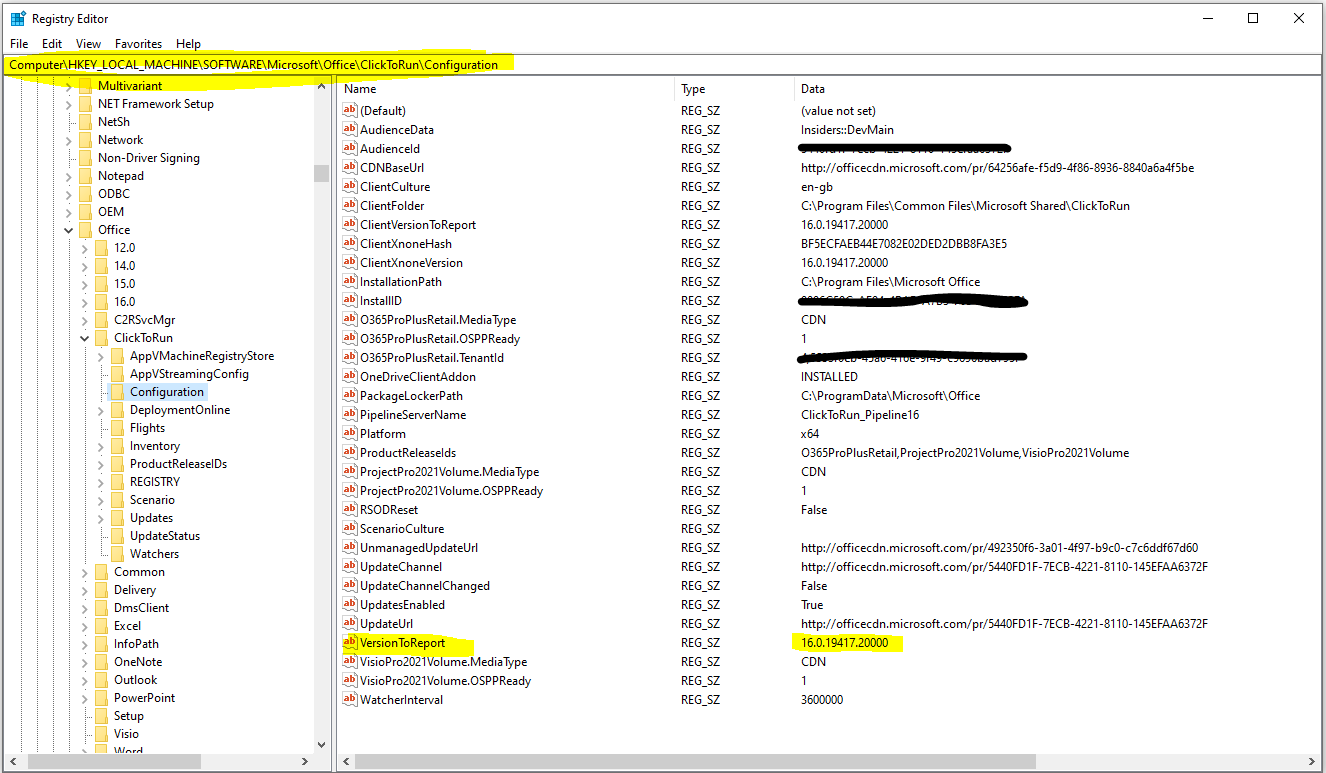
Usually, Office / 365 updates complete successfully.
However, as with all software, things can go wrong during updates and sometimes the updated version may include bugs which affect productivity.
In such cases, it may be best to rollback to an earlier version until the bugs are fixed. There are various methods of doing a rollback.
These are described in detail in another article by Peter Doering on the Access Forever blog site: Roll-back to previous versions of Office
A simple method of rolling back to a specified earlier version is to use the OfficeC2RClient from an elevated command prompt. This program is supplied with all C2R versions of Office.
For example, the screenshot below shows a rollback to Beta channel version 2507 build 16.0.190009.20000.

The same method can also be used to roll forward to a later specified version.
After running a rolback / roll forward, the registry is updated with the newly installed version stored as the VersionToReport key value.
Another more powerful method of managing Office / 365 is to use the Office Deployment Tool (ODT).
This is mainly intended for use by system admins or other IT staff and is particularly useful for configuring Office installations and managing updates on a number of workstations.
However, the approach can also be used by individuals to manage Office installations / updates / rollbacks.
First download the Office Deployment Tool and extract the Setup.exe file to a chosen folder. Next create a XML configuration file. For example:
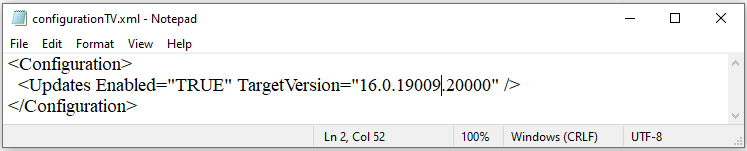
Now run the ODT with the confiuration file from an elevated command prompt as below:
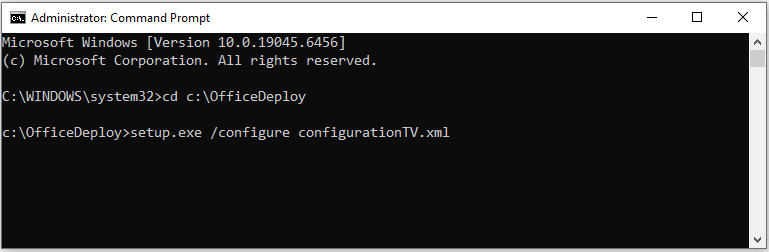
This works equally well for managing rollbacks but has an important side effect. An extra UpdateToVersion key is added to the registry:
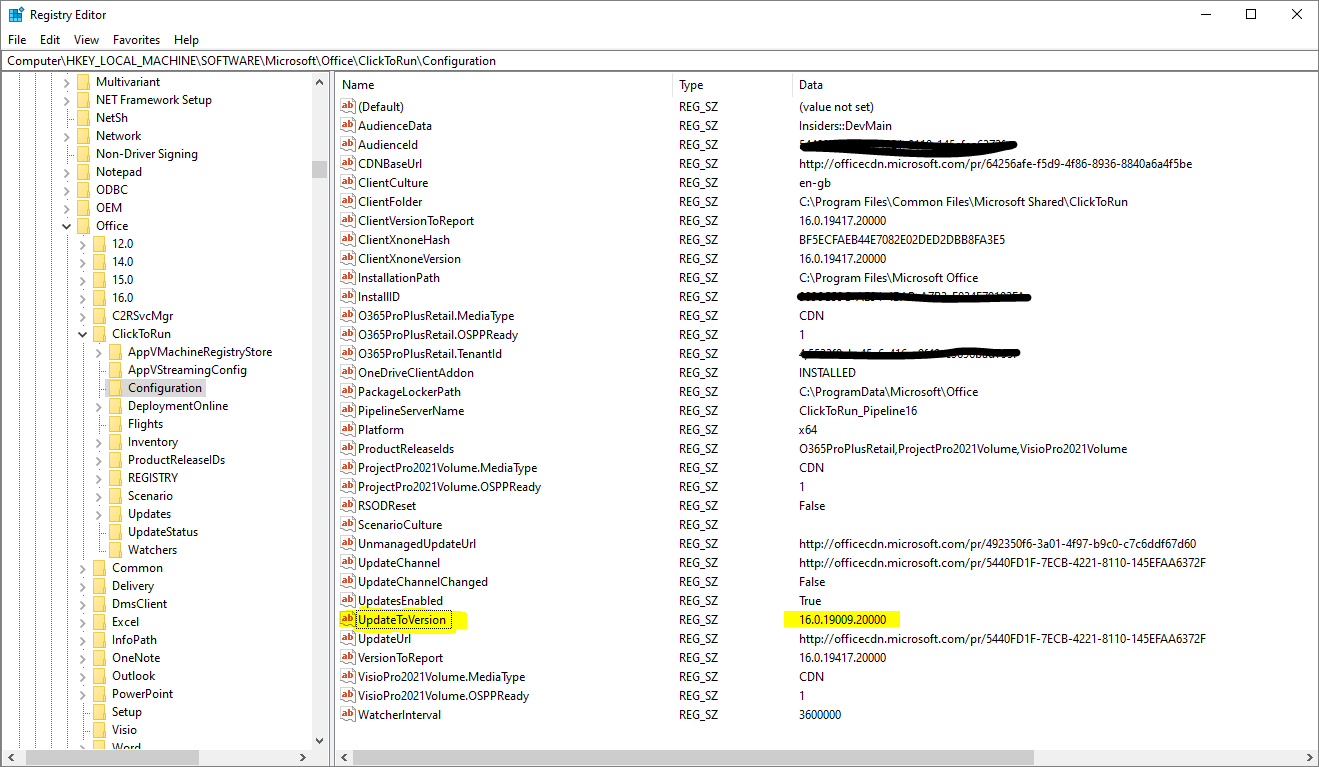
The effect of this is that Office can not be further updated from that version. If you attempt to run an update by clicking Update Now, you will see this message
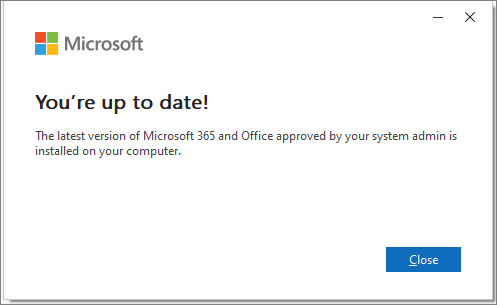
Similarly, automatic updates will not run. Office is now stuck with further updates blocked. The behaviour is identical to that seen when you Disable Updates but for a different reason.
To progress beyond that version / build, do ONE of the following registry changes:
1. Delete the UpdateToVersion key
2. Modify the UpdateToVersion key to a later build
In each case, Office will then update normally, either automatically, or when Update Now is clicked in the File Backstage view
Using method 1 above, Office will be updated to the latest version available.
If you use method 2, Office will be updated to the build specified. It will then remain 'stuck' at that version unless the process is repeated.
However, as long as you are aware of this limitation, it provides the simplest method of changing to a specified earlier / later build when Update Now is clicked.
Acknowledgements
Thank you to the following colleagues for their assistance with the research used in this article:
• Fellow UK developer, Neil Sargent, for alerting me to the implications of the UpdateToVersion registry key
• Access MVP, Peter Doering, for his two excellent articles on Office updates for the Access Forever blog.
Feedback
Please use the E-Mail button in the contact form below to let me know whether you found this article useful or if you have any questions.
Please also consider making a donation towards the costs of maintaining this website. Thank you
Colin Riddington Mendip Data Systems Last Updated 27 Oct 2025
|
Return to Access Blog Page
|
Return to Top
|