| First Published 28 Oct 2026 |
|---|

The standard VBA message boxes are always centred on the screen, have small font size (8pt?) and cannot be zoomed (other than by using Windows scaling).
With modern monitors and typical resolutions of 1920 x 1080 or higher, the text can be difficult to read comfortably, even for users whose eyesight is reasonably good.
The centred positioning can also mean that users often need to move the message box to one side before acting on its contents.
The MsgBoxPZ (position/zoom) function overcomes both of these issues by allowing developers/users to control where a message opens and to adjust its zoom level.
This project was begun by my colleague Xevi Batlle with the assistance of Gemini/Antigravity AI.
I then further modified the functionality to allow the message box to be docked to specific positions on the screen.
There are many message box alternatives that use custom forms that imitate or enhance the Access VBA message box (MsgBox).
This project is different as it doesn’t replicate the VBA MsgBox. It modifies the appearance and scaling of the built-in message box and adds the ability to set its position.
The MsgBoxPZ function
To allow message boxes to be positioned and zoomed, the MsgBoxPZ function adds three additional arguments Left/Top/Zoom to the default VBA MsgBox function:
Syntax: Items in [ ] are optional
MsgBoxPZ (Prompt, [Buttons], [Title], [HelpFile], [Context], [Left], [Top], [Zoom])
The last 3 optional arguments have default values as below:
• Left: default = -1 (centred). Other values in twips specify the left position on screen
• Top: default = -1 (centred). Other values in twips specify the top position on screen
• Zoom: default = 100 (%) with the allowed percentage zoom range from 10 to 1000
The full MsgBoxPZ function code is:
' ==============================================================================' PUBLIC FUNCTION: MsgBoxPZ (Position & Zoom)' ==============================================================================Public FunctionMsgBoxPZ( _ByValPromptAs String, _Optional ByValButtonsAsVbMsgBoxStyle=vbOKOnly, _Optional ByValTitleAs String=vbNullString, _Optional ByValHelpFileAs String=vbNullString, _Optional ByValContextAs Long= 0, _Optional ByValLeftAs Long= -1, _Optional ByValTopAs Long= -1, _Optional ByValZoomAs Single= 100)AsVbMsgBoxResultIfTitle=vbNullStringThenTitle=Application.NameEnd Ifm_TargetdialogTitle=Titlem_PromptText=Promptm_IsInputBox=Falsem_MsgBoxIconStyle= (ButtonsAnd&H70)m_hCustomIcon= 0m_hPromptEdit= 0m_IsHeightClamped=Falsem_RequiresScroll=Falsem_RequiresScroll=False' Parse zoom percentage (Single value, clamped between MIN_ZOOM_PERCENT and MAX_ZOOM_PERCENT)DimsafeZoomPercentAs SinglesafeZoomPercent=ParseZoom(Zoom)m_ZoomFactor=CDbl(safeZoomPercent) / 100' Coordinate setup (Twips to Pixels with display DPI awareness)IfLeft>= 0AndTop>= 0Then' If Nz(Left, -1) <> -1 And Nz(Top, -1) <> -1 ThenDimtwipsPerPixelXAs Double,twipsPerPixelYAs DoubleCalculateTwipsPerPixel twipsPerPixelX,twipsPerPixelYm_TargetPixelX=CLng(Left/twipsPerPixelX)m_TargetPixelY=CLng(Top/twipsPerPixelY)Elsem_TargetPixelX= -1m_TargetPixelY= -1End Ifm_TimerElapsedTicks= 0m_PrevWndProc= 0m_hScaledFont= 0m_SubclassedHwnd= 0m_SplitPixelY= 0' Always activate timer to ensure height bounds clamping and text scrolling checks occurm_TimerHandle=SetTimer(0,TIMER_IDENTIFIER, 10,AddressOfdialogTimerProc)' Invoke native dialog boxIfLen(HelpFile) > 0ThenMsgBoxPZ=MsgBox(Prompt,Buttons,Title,HelpFile,Context)ElseMsgBoxPZ=MsgBox(Prompt,Buttons,Title)End If' Comprehensive cleanup of resourcesCleanupHookResourcesEnd Function
The standard MsgBox function is an integral part of VBA and incorporating this additional functionality required a very large number of APIs, types and constants.
It also depends on a large number of support procedures:
• CleanupHookResources
• ParseZoom
• MsgBoxTimerProc
• dialogTimerProc
• HasEditControl
• GetdialogWorkArea
• GetFontLineHeight
• ApplyZoomAndPosition
• InitialiseScaledFont
• GetStockIconIdentifier
• ExtractModernStockIcon
• IsButtonControl
• IsEditControl
• IsPromptTextControl
• CalculateTextHeight
• ScaleMsgBoxControls
• dialogSubclassProc
• PaintSolidBackground
• PaintCustomBackground
• CalculateTwipsPerPixel
The full code is in the module modCustomMsgBox. To say that the code is complex would be an understatement and I have no intention of explaining each part of it in this article.
Additional code is used to manage the docking of messages to specific corners of the screen. This is in the modules modMetrics and modMonitorInfo.
Although much of the code is complex, using it in your own applications is extremely easy! For example:
a) Replicate a standard message box centred on the screen at default 100% zoom
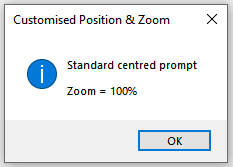
MsgBoxPZ "Standard centred prompt", vbInformation + vbOKOnly, "Centred MsgBox", , , -1, -1, 100
OR omitting the default values . . .
MsgBoxPZ "Standard centred prompt", vbInformation + vbOKOnly, "Centred MsgBox"
b) Message box centred on the screen at 175% zoom
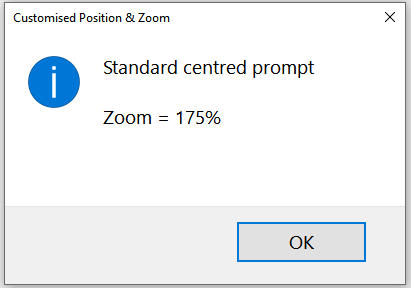
MsgBoxPZ "Standard centred prompt" & vbCrLf & vbCrLf & "Zoom = 175%", vbInformation, "Customised Position & Zoom", , , , , 175
OR using named Zoom argument . . .
MsgBoxPZ "Standard centred prompt" & vbCrLf & vbCrLf & "Zoom = 175%", vbInformation, "Customised Position & Zoom", Zoom:= 175
c) Place a message box at Left = 3000, Top = 1500 (both in twips) and 125% zoom
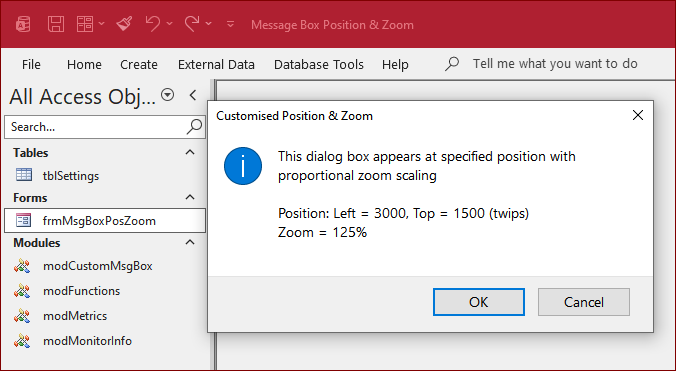
MsgBoxPZ "This dialog box appears at specified position with proportional zoom scaling" & vbCrLf & vbCrLf & _
"Position: Left = 3000, Top = 1500" & vbCrLf & "Zoom = 125%", vbInformation + vbOKCancel, "Customised Position & Zoom", _
Left:=3000, Top:=1500, Zoom:=125
d) Position a message box at top left corner: Left = 0, Top = 0 and 150% zoom
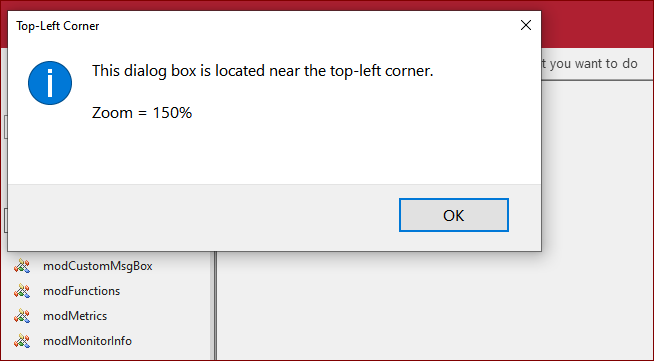
MsgBoxPZ "This dialog box is located near the top-left corner." & vbCrLf & vbCrLf & "Zoom = 150%", vbInformation, "Top-Left Corner", _
Left:= 0, Top:= 0, Zoom:= 150
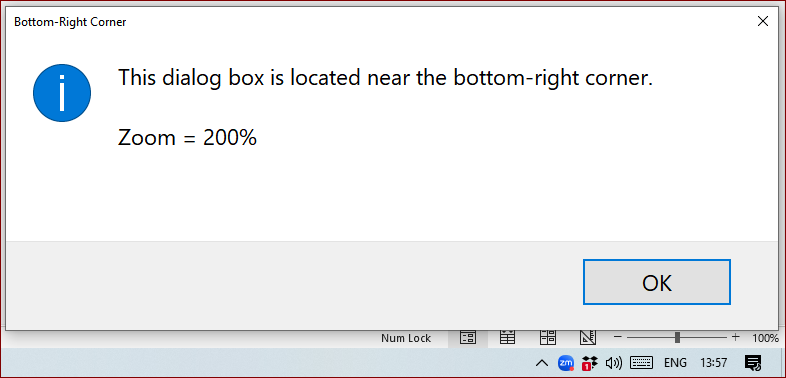
e) Position a message box at bottom right corner with 200% zoom
'get screen height and width to determine bottom right corner position
Dim MSH As Long, MSW As Long
MSH = MetricsScreenHeight()
MSW = MetricsScreenWidth()
MsgBoxPZ "This dialog box is located near the bottom-right corner." & vbCrLf & vbCrLf & "Zoom = 200%", vbInformation, "Bottom-Right Corner", _
Left:= MSW, Top:= MSH, Zoom:= 200
Example App
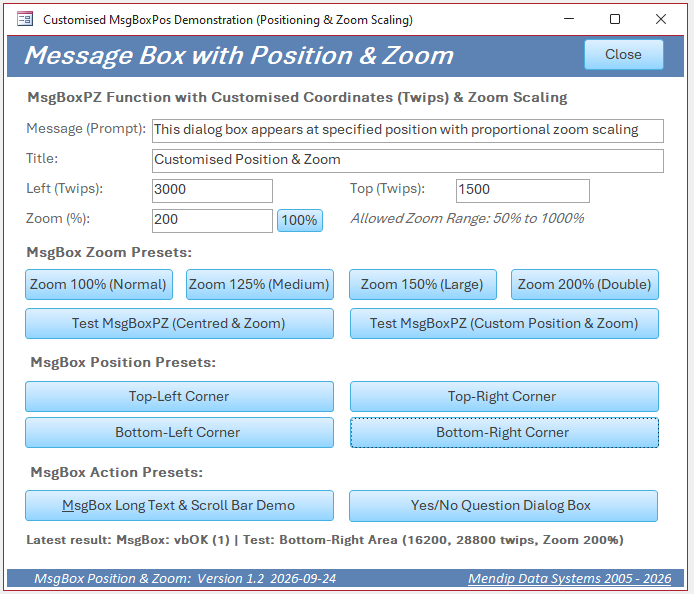
The example app supplied with this article has a single form that allows you to test the functionality.
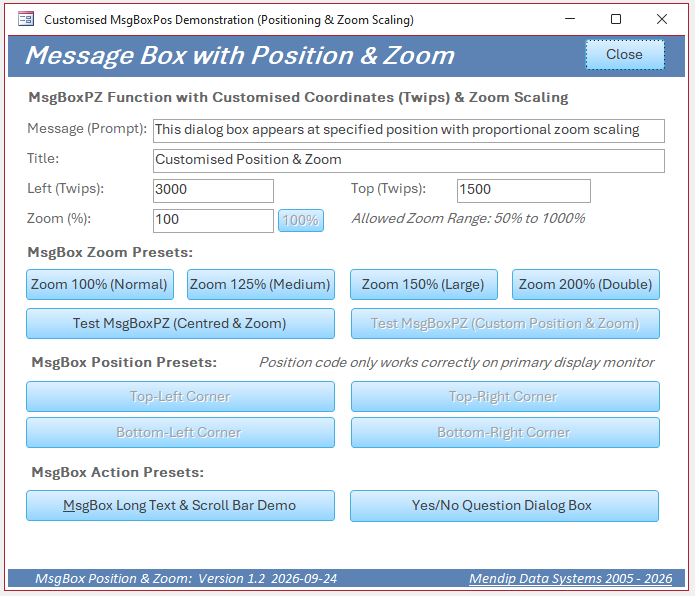
NOTE: The positioning code only works reliably on the primary monitor. For that reason, several buttons are automatically disabled when Access is on a secondary monitor:
Download
Click to download: MsgBoxPositionZoom_v1.2 ACCDB file - approx 1 MB (zipped)
As is the case for all files downloaded from the internet, first unblock the downloaded file, unzip then save to a trusted location.
For more details, see my article:
Unblock downloaded files by removing the Mark of the Web
Using the MsgBoxPZ function in your own apps
To use this function in your own apps, import the module modCustomMsgBox.
If you also want to make use of the docking functionality, also import the modules modMetrics and modMonitorInfo.
OPTIONAL: Rename the MsgBoxPZ function as MsgBox. Access will then use this custom function in place of the standard VBA MsgBox function.
Doing this will require minor alterations to the existing function code shown above (and that used in the example app) to disambiguate the references to the VBA MsgBox function.
The updated code is as follows:
' =====================================================================================' PUBLIC FUNCTION: MsgBox (Position & Zoom) - used to overwrite the VBA MsgBox function' =====================================================================================Public FunctionMsgBox( _ByValPromptAs String, _Optional ByValButtonsAsVbMsgBoxStyle=vbOKOnly, _Optional ByValTitleAs String=vbNullString, _Optional ByValHelpFileAs String=vbNullString, _Optional ByValContextAs Long= 0, _Optional ByValLeftAs Long= -1, _Optional ByValTopAs Long= -1, _Optional ByValZoomAs Single= 100)AsVbMsgBoxResultIfTitle=vbNullStringThenTitle=Application.NameEnd Ifm_TargetdialogTitle=Titlem_PromptText=Promptm_IsInputBox=Falsem_MsgBoxIconStyle= (ButtonsAnd&H70)m_hCustomIcon= 0m_hPromptEdit= 0m_IsHeightClamped=Falsem_RequiresScroll=Falsem_RequiresScroll=False' Parse zoom percentage (Single value, clamped between MIN_ZOOM_PERCENT and MAX_ZOOM_PERCENT)DimsafeZoomPercentAs SinglesafeZoomPercent=ParseZoom(Zoom)m_ZoomFactor=CDbl(safeZoomPercent) / 100' Coordinate setup (Twips to Pixels with display DPI awareness)IfLeft>= 0AndTop>= 0Then' If Nz(Left, -1) <> -1 And Nz(Top, -1) <> -1 ThenDimtwipsPerPixelXAs Double,twipsPerPixelYAs DoubleCalculateTwipsPerPixel twipsPerPixelX,twipsPerPixelYm_TargetPixelX=CLng(Left/twipsPerPixelX)m_TargetPixelY=CLng(Top/twipsPerPixelY)Elsem_TargetPixelX= -1m_TargetPixelY= -1End Ifm_TimerElapsedTicks= 0m_PrevWndProc= 0m_hScaledFont= 0m_SubclassedHwnd= 0m_SplitPixelY= 0' Always activate timer to ensure height bounds clamping and text scrolling checks occurm_TimerHandle=SetTimer(0,TIMER_IDENTIFIER, 10,AddressOfdialogTimerProc)' Invoke native dialog box. Disambiguate references to VBA MsgBox functionIfLen(HelpFile) > 0ThenMsgBox=VBA.MsgBox(Prompt,Buttons,Title,HelpFile,Context)ElseMsgBox=VBA.MsgBox(Prompt,Buttons,Title)End If' Comprehensive cleanup of resourcesCleanupHookResourcesEnd Function
All existing MsgBox code will continue to work without any alteration, with all existing messages centred on the screen at 100% zoom as before!
Related Article
A very similar function called InputBoxPZ can be used to enhance/replace the standard InputBox function by adding the same additional positioning and zoom functionality.
See my article: Input Box with Position & Zoom
Feedback
Please use the E-Mail button in the contact form below to let me know whether you found this article useful or if you have any questions.
Please also consider making a donation towards the costs of maintaining this website. Thank you
| Colin Riddington | Mendip Data Systems | Last Updated 28 Oct 2026 |
|---|
|
Return to Code Samples Page
|
Return to Top
|