| First Published 23 Nov 2026 | Difficulty level : Moderate |
|---|

Access databases are complex applications and there are many reasons why they can become damaged or completely broken. Possible causes of corruption include:
| Issue | Possible Solutions |
|---|---|
| Database file size is close to the 2 GB limit | Compact the database. Remove some objects to a separate backend database. Replace attachment fields with paths to external files |
| Database structure is corrupted in one or more system table e.g. MSysObjects | See my articles: Remove Deleted Objects from the MSysObjects table |
| A database object e.g. form or a control is corrupted | Replace with a backup copy of the object imported from an earlier version of the database. Use SaveAsText to store database objects as text files and LoadFromText to import the object from the text file. See: Use Version Control such as the free version control add-in by Adam Waller: |
| Data is corrupted | Delete the field(s) containing the corrupted data and recover from a recent backup copy. Long text fields are particularly prone to corruption |
| VBA code is corrupted | Decompile your project. Delete the corrupted code and rebuild it or replace the object(s) containing corrupted code from a recent backup. |
| The entire VBA project is corrupted and cannot be opened | See below |
All of the above issues can be serious and it may take a lot of work to recover completely from the problems.
In my opinion, purchasing any of the well known and heavily advertised Access repair apps to recover corrupted databases is usually a waste of money.
The DIY steps often outlined in their 'help' articles rarely achieve anything and are often designed to guide unsuspecting users towarding purchasing the recovery software.
However, these commercial applications usually only work for very simple issues that you can do yourself for free, using methods such as those outlined above.
Where the issue is more serious, the recovery software will almost certainly fail.
In all cases, the best advice is to make frequent backups so that, at worst, you will only lose the data or objects created /modified since the last backup.
However, the most difficult of these problems is when the entire VBA project is corrupted and cannot be opened.
On the (thankfully) rare occasions this happens, you will see a message similar to this if you are using Access 365:
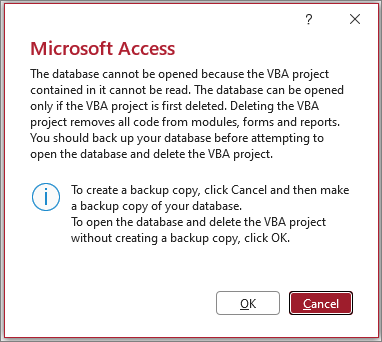
By the time this message appears it is almost certainly too late to save the code in your VBA project.
I very recently experienced this issue whilst converting and updating an old Access 2.0 split database for a client originally created in 1993 into ACCDB files for use in Access 365.
Despite normally making backups at least once per day, I failed to do so at the crucial time when it mattered.
After spending several days largely working on updating the appearance of multiple forms but changing very little code, the above message unexpectedly appeared.
I had lost the entire VBA code in all the 350+ forms, 1100+ reports and about 30 modules.
I also tried opening the corrupted file in Access 2010. No luck! I got the same message but in the older version, the equivalent message looked like this:

After creating a backup, I tried deleting the VBA project by clicking OK. Unfortunately that failed for some unknown reason!!!
I checked my previous backup history and cursed myself for failing to maintain my backup schedule! I now had an unusable database but with a large number of forms whose appearance had recently been modified. I did not have more recent copies of the objects saved as text files, nor did I have recent backups from version control.
However, I did have most of the code in the most recent backup from a few days earlier.
The obvious solution would be to restore the code from the last backup to the database objects in the latest version with the corrupted VBA project.
However this wasn't possible, precisely because the code module for all database objects in this VBA project were corrupted.
For exactly the same reason, I was unable to import the objects into another database. Nor was it possible at this stage to save the objects as text files.
With nothing to lose, I came up with another solution which worked perfectly!
First I made a backup of the now code-free project just in case! I then deleted all the corrupted standard / class modules.
Next I wrote the following simple code to loop through all the forms and reports and delete the associated code modules, which although empty were still corrupted.
Public Sub RemoveAllFormAndReportCode() Dim ao As AccessObject ' Forms For Each ao In CurrentProject.AllForms DoCmd.OpenForm ao.Name, acDesign, , , , acHidden With Forms(ao.Name).Module If .CountOfLines > 0 Then .DeleteLines 1, .CountOfLines End If End With DoCmd.Close acForm, ao.Name, acSaveYes Next ao ' Reports For Each ao In CurrentProject.AllReports DoCmd.OpenReport ao.Name, acDesign, , , acHidden With Reports(ao.Name).Module If .CountOfLines > 0 Then .DeleteLines 1, .CountOfLines End If End With DoCmd.Close acReport, ao.Name, acSaveYes Next ao MsgBox "All form and report module code removed."End Sub
I was now able to export all the forms and reports to a new blank database. I then imported all the objects into the new database from the most recent backup.
The final task was to transfer all the code from the backup forms & reports into the latest version of each object and delete the originals.
After some 4.5 hours, I now had a working database again with all objects and code recovered.
After checking the functionality, I compacted the database and, of course, immediately made a backup copy!
Although it took a long time to complete, doing this was far quicker than the time that would have been needed to redo all the form/report design changes.
Unfortunately, none of that time could be charged to my clients as it was all self-inflicted damage! However, I did 'fess-up' to my foolish mistakes!
Hopefully, by writing this article, this solution will assist others who experience the same issues where the entire VBA project cannot be read.
Feedback
Please use the Email button in the contact form below to let me know whether you found this article useful or if you have any questions.
Please also consider making a donation towards the costs of maintaining this website. Thank you
| Colin Riddington | Mendip Data Systems | Last Updated 23 Nov 2026 |
|---|
|
Return to Access Articles Page
|
Return to Top
|