| First Published 7 May 2026 |
|---|

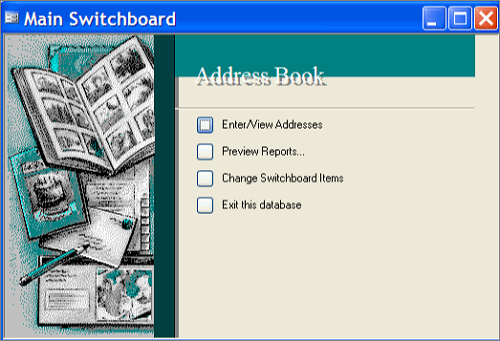
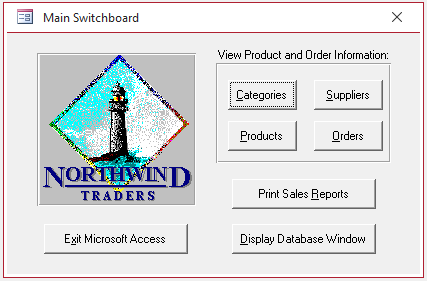
The switchboard manager was used in older Access versions up to 2007 to create a data driven approach to database navigation. Its main purpose was to create customised menu forms giving easy access to database objects such as forms, reports and queries.
The switchboard manager is a powerful tool but the typical switchboard appearance is somewhat old fashioned. It also has significant limitations e.g. no more than 8 items per switchboard page.
| Example Switchboard | Northwind 2000 Main Switchboard |
|---|---|
 |
 |
Navigation forms were introduced in Access 2010 to provide a code based approach to database navigation.
Navigation forms have a more modern appearance, are arguably more powerful and do not have the same limitations in terms of menu items.
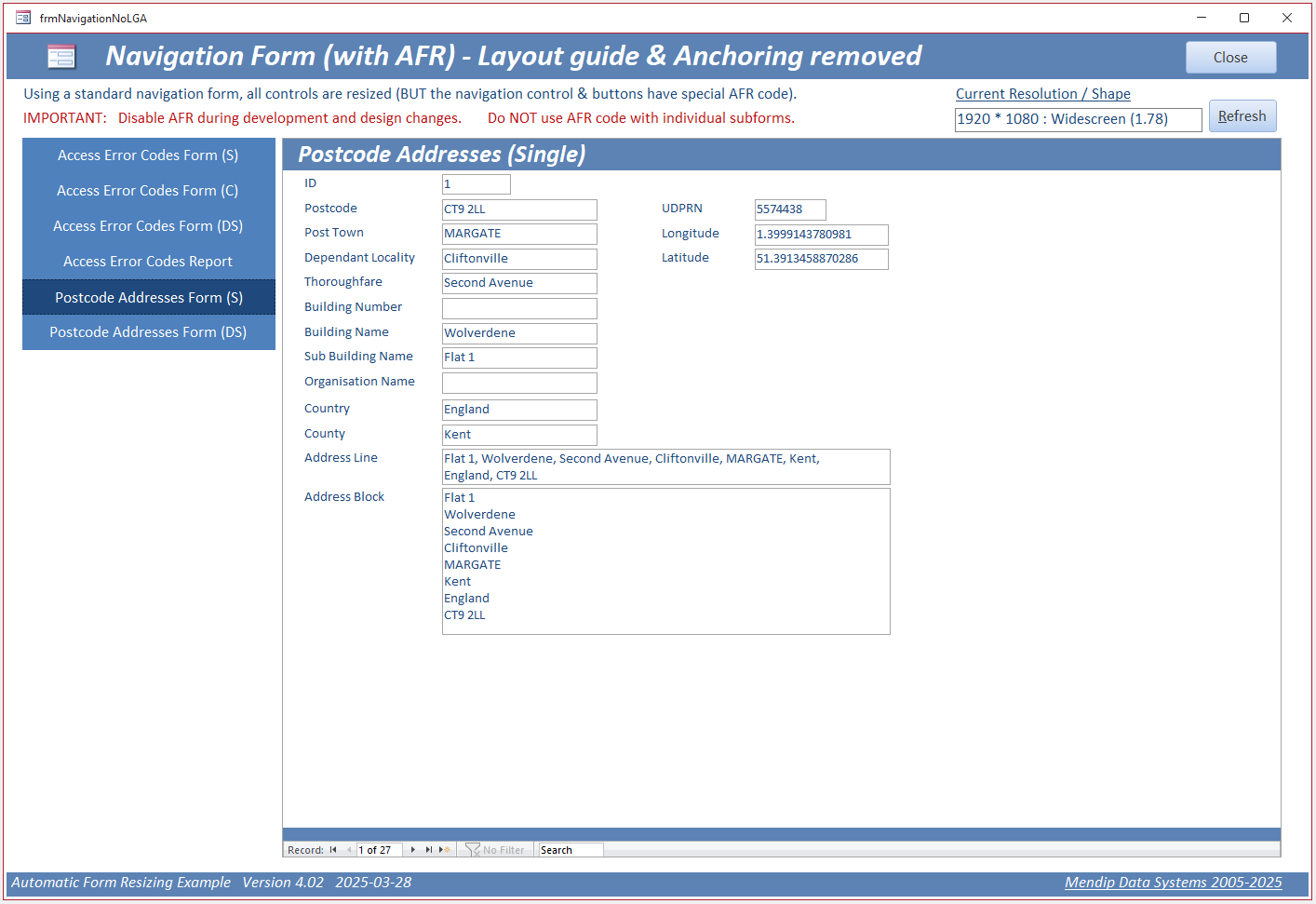
However, many users find navigation forms difficult to work with and avoid them completely.
For those who prefer the old approach, the switchboard feature is still available but is hidden away. This short article describes 4 ways of making the feature easily accessible.
Create or Edit a Switchboard in Current Versions of Access
1. Using VBA Code
Run the following code from e.g. a command button event or from the Immediate Window
DoCmd.RunCommand acCmdSwitchboardManager
If there is no existing switchboard, Access will offer to create one:
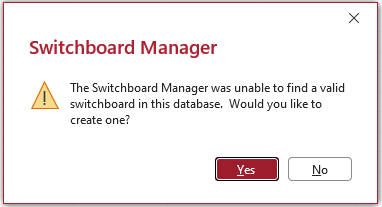
The Switchboard Manager appears.
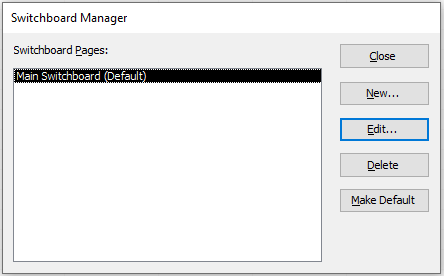
Add new items for your menu. The Switchboard form data is saved to a new table called Switchboard Items.
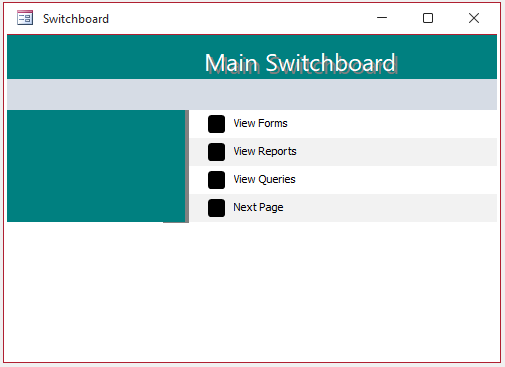
After a few clicks, a simple switchboard might look like this (including a link to a second switchboard page)
2. Using Tell Me . . .
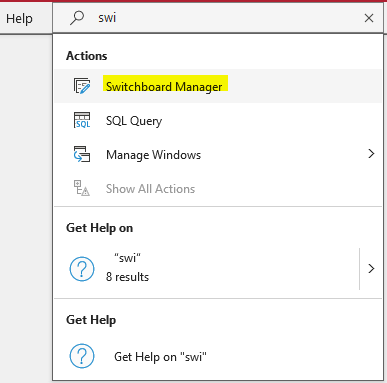
Another simple method of starting the switchboard manager is to use the Tell me what you want to do feature above the ribbon:

Type the first few letters of 'Switchboard'. A dropdown menu will appear. Select Switchboard Manager
Once again, Access will offer to create a new switchboard if one doesn't already exist. Follow the same steps as above.
3. Add a Ribbon Menu Item
If you are likely to use the switchboard manager regularly, you may prefer to add this as a new ribbon menu item.
Go to File | Backstage View then select Options | Customise Ribbon.
Select Switchboard Manager from the All Commands list then add to a new Custom Group called e.g. Switchboard in the Database Tools ribbon
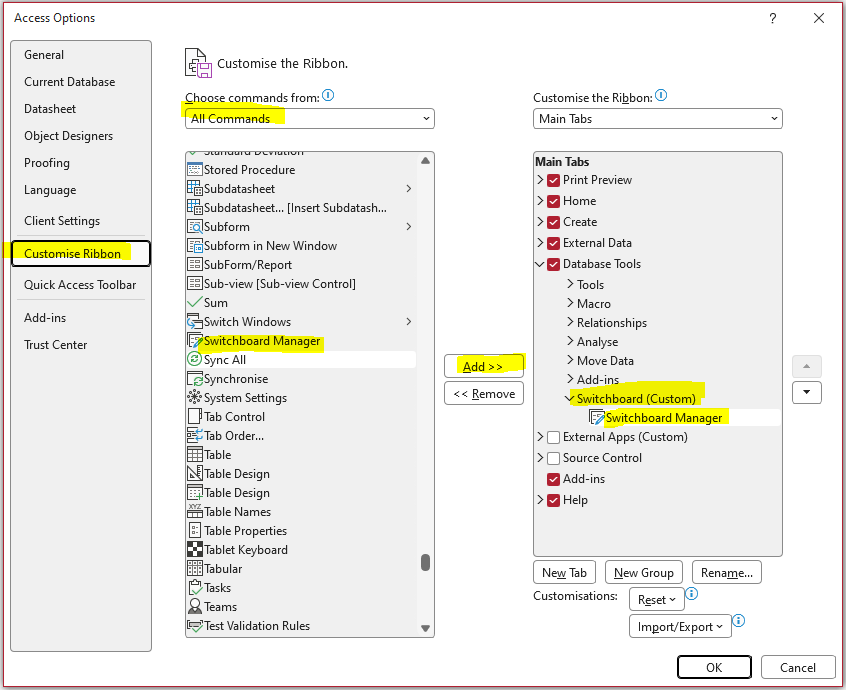
The new ribbon item will look like this:

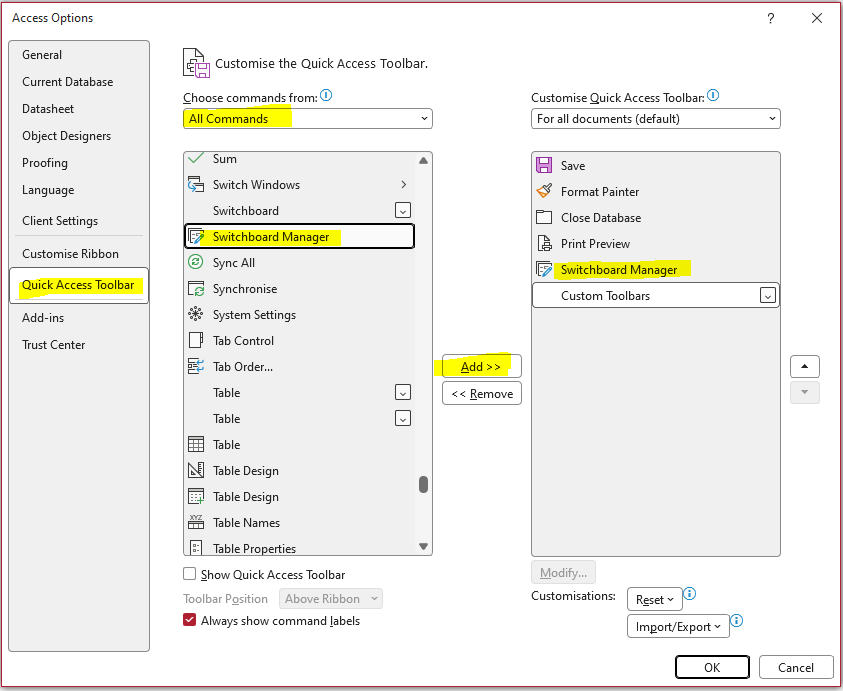
4. Add a Quick Access Toolbar (QAT) item
Alternatively, you may add the Switchboard Manager as a new Quick Access Toolbar (QAT) item.
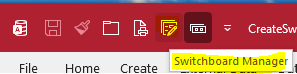
The new QAT item will look like this:
Further Reading
Microsoft Support article: Create and use a switchboard
Access Database Tutorial: The Role of Switchboard Manager in Access Databases
Feedback
Please use the E-Mail button in the contact form below to let me know whether you found this article useful or if you have any questions.
Please also consider making a donation towards the costs of maintaining this website. Thank you
| Colin Riddington | Mendip Data Systems | Last Updated 7 May 2026 |
|---|
|
Return to Access Blog Page
|
Return to Top
|