
Version 4.42 First Published 16 Aug 2023 Last Updated 5 Sept 2025 Approx 14 MB (zipped)

UPDATED 5 Sept 2025: Version 4.42 - new features, bug fixes and performance improvements
Section Links:
Introduction
Main Features
Analysis Options
Analysis Reports
Analysis History
Import Old Analysis
Settings / Options
Other Features
Version History
Downloads
Purchase
License / Activation
Videos
Acknowledgements
Feedback
| 1. Introduction | Return to Top |
This is a significantly enhanced version of my Database Analyzer Pro application originally released in Sept 2023.
It has many new and improved features to add to the extensive feature set already available in the original version.
The app is used to analyze a wide range of items in any external Access database without opening it directly. It has been completely re-designed so that analyses can be run unattended.
It should be particularly useful when taking over existing applications from clients where a detailed understanding of the structure and size of each database object is an important first step in planning any work required.
For example, tables with a large number of fields and/or complex datatypes may be a prime candidate for restructuring.
Similarly for tables which occupy a large disk space.
Features include:
• database summary (NEW)
• database objects, metadata and object sizes
• object properties and charts (NEW)
• table data and design (IMPROVED)
• fields and field properties (IMPROVED)
• subdatasheets (NEW)
• relationships and VBA references
• query properties, design, SQL and data
• form & control properties, events and embedded macros (NEW)
• report & control properties, events and embedded macros (NEW)
• macro info & XML (NEW)
• API declarations (NEW)
• form, report & module procedures and code (IMPROVED)
• object dependencies (IMPROVED)
• custom ribbons (NEW)
• shared resources (NEW)
• import/export specifications and data tasks (NEW)
• add-ins (NEW)
• built-in and custom CommandBars (NEW)
• database properties
• database issues (NEW)
• analysis messages (NEW)
• import old saved analyses (NEW)
• application tips (NEW)
• analysis history (IMPROVED)
• automatic form resizing (NEW)
• check for updates (NEW)
A wide range of reports are also available including a full report with a table of contents.
| 2. Main Features | Return to Top |
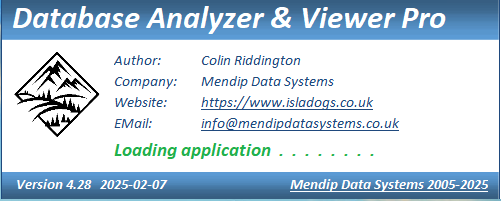
a) Splash screen (OPTIONAL)
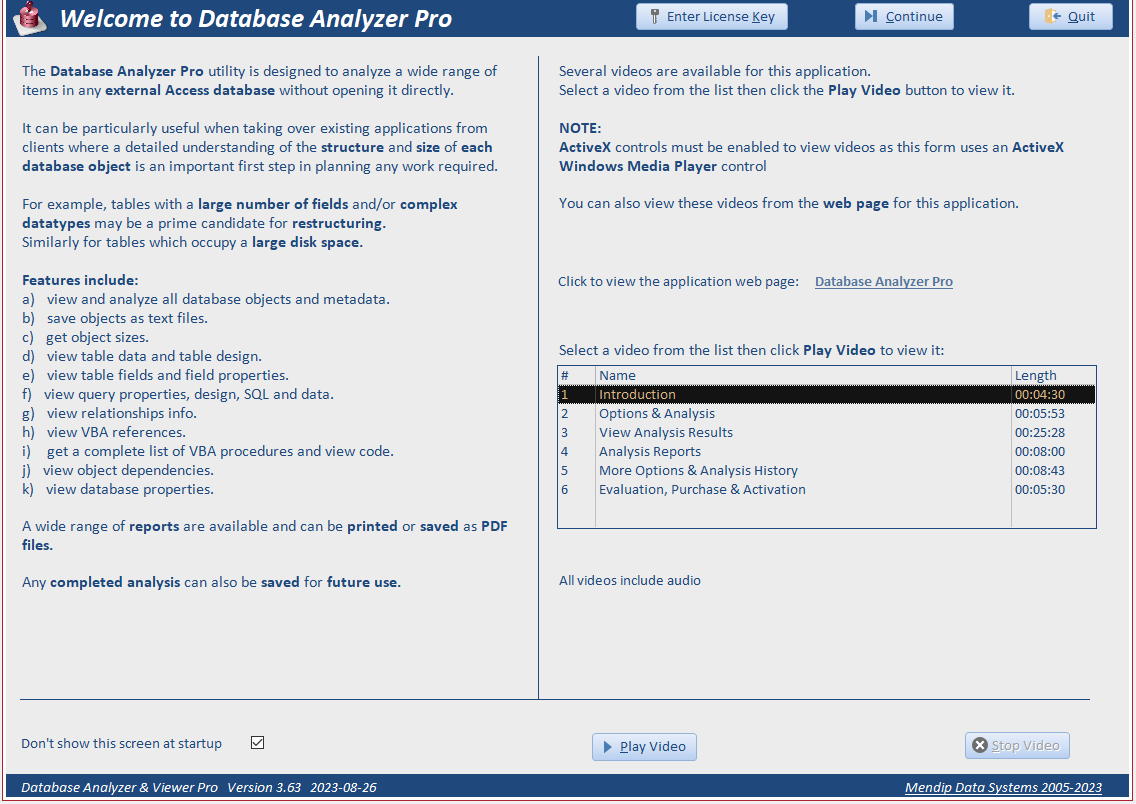
b) Welcome screen (OPTIONAL)
Outline of the purpose and features of the application.
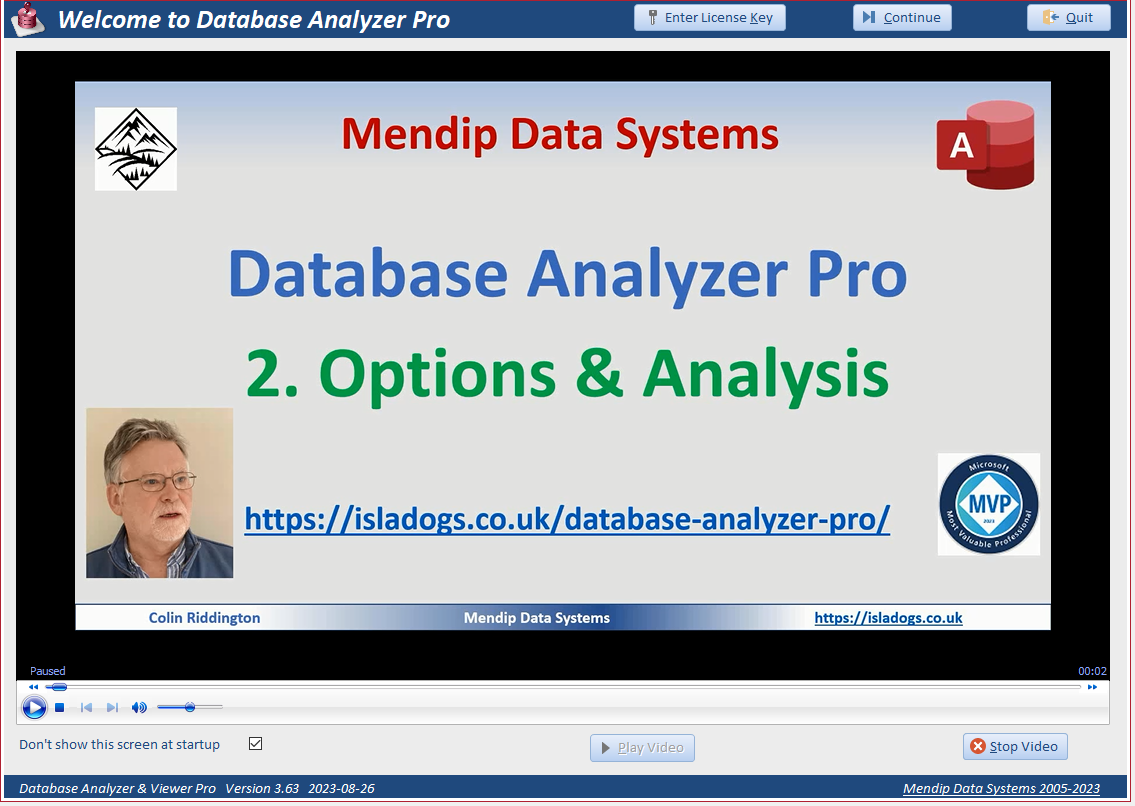
Several training videos are available from this screen. For example:
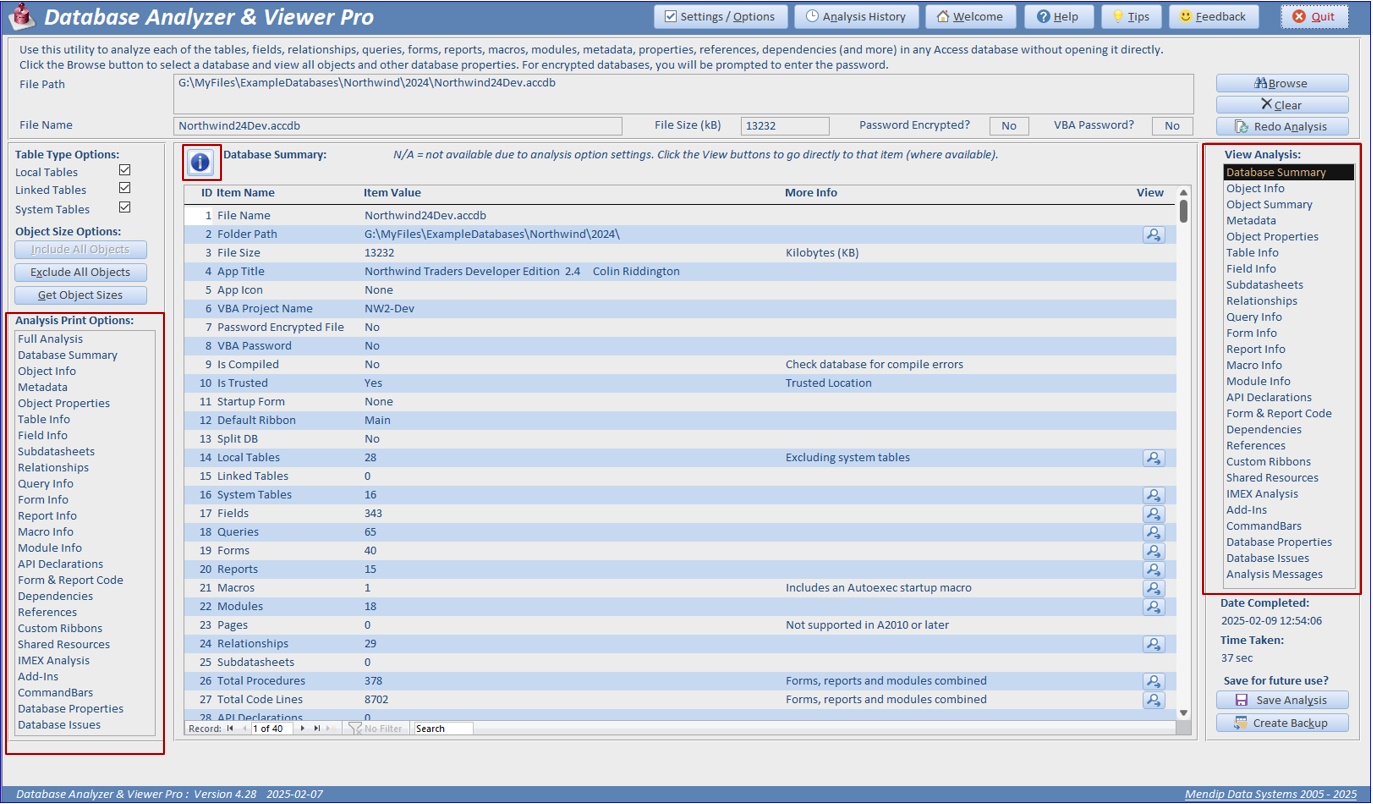
c) Main form
All database analysis is run from the main form. Browse to select a database for analysis. If the database is encrypted, you will be prompted to enter the password.
You can choose to select all analysis options or select just the items you need. Detailed information is provided on each step of the analysis with progress bars whilst the analysis is running.

The analysis may take several minutes to complete for large databases with many objects. However, it can be left to run unattended and can be cancelled at any time.
When the analysis has completed, a message similar to that below will be shown:

A wide range of options are available for viewing / printing the results as shown in the next section.
| 3. Analysis Options | Return to Top |
a) Database Summary (NEW)
This is displayed when the analysis has completed. It gives a simple summary of database objects and properties.
For certain items (e.g. Tables / Forms etc) a View button gives a direct link to detailed information about those items.
The database summary can also be selected at any time from the View Analysis list on the right of the screen
b) Database Objects (IMPROVED)
Detailed information about each object including object type / default view / object size and whether the object is hidden or system. The list can be filtered by object type / name.
Highlighting denotes objects that are poorly named (red) or use reserved words (purple) on both this and subsequent
subforms.
Each object can be saved as a text file for backup purposes or for importing into another database.

c) Object Summary (IMPROVED)
A treeview-style list providing more information about object types, custom ribbons, startup forms etc.

Click the Show Charts button to view a series of pie charts about the different object types.

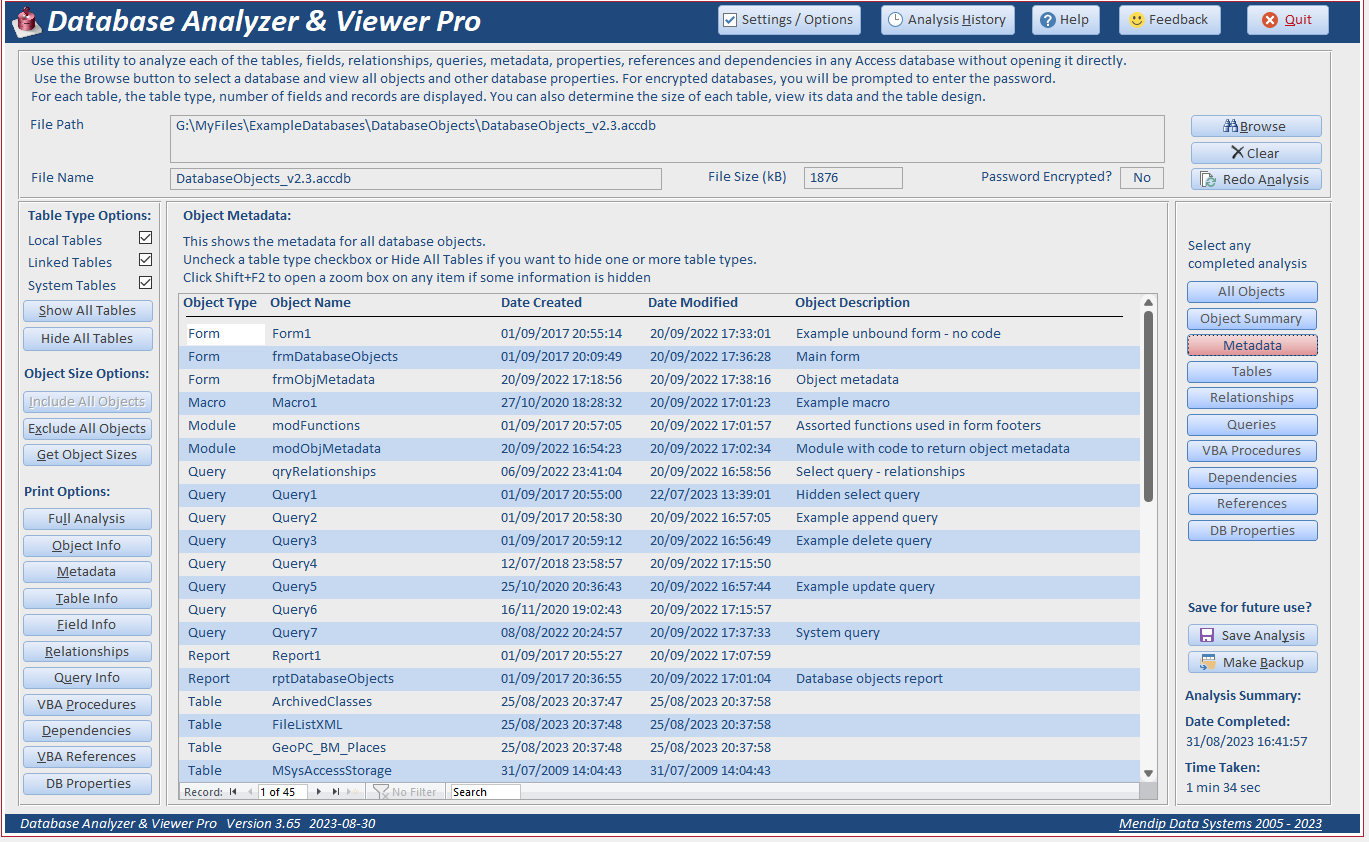
d) Object Metadata
Information about each object as shown in the navigation pane: date created / date last modified and optional description.
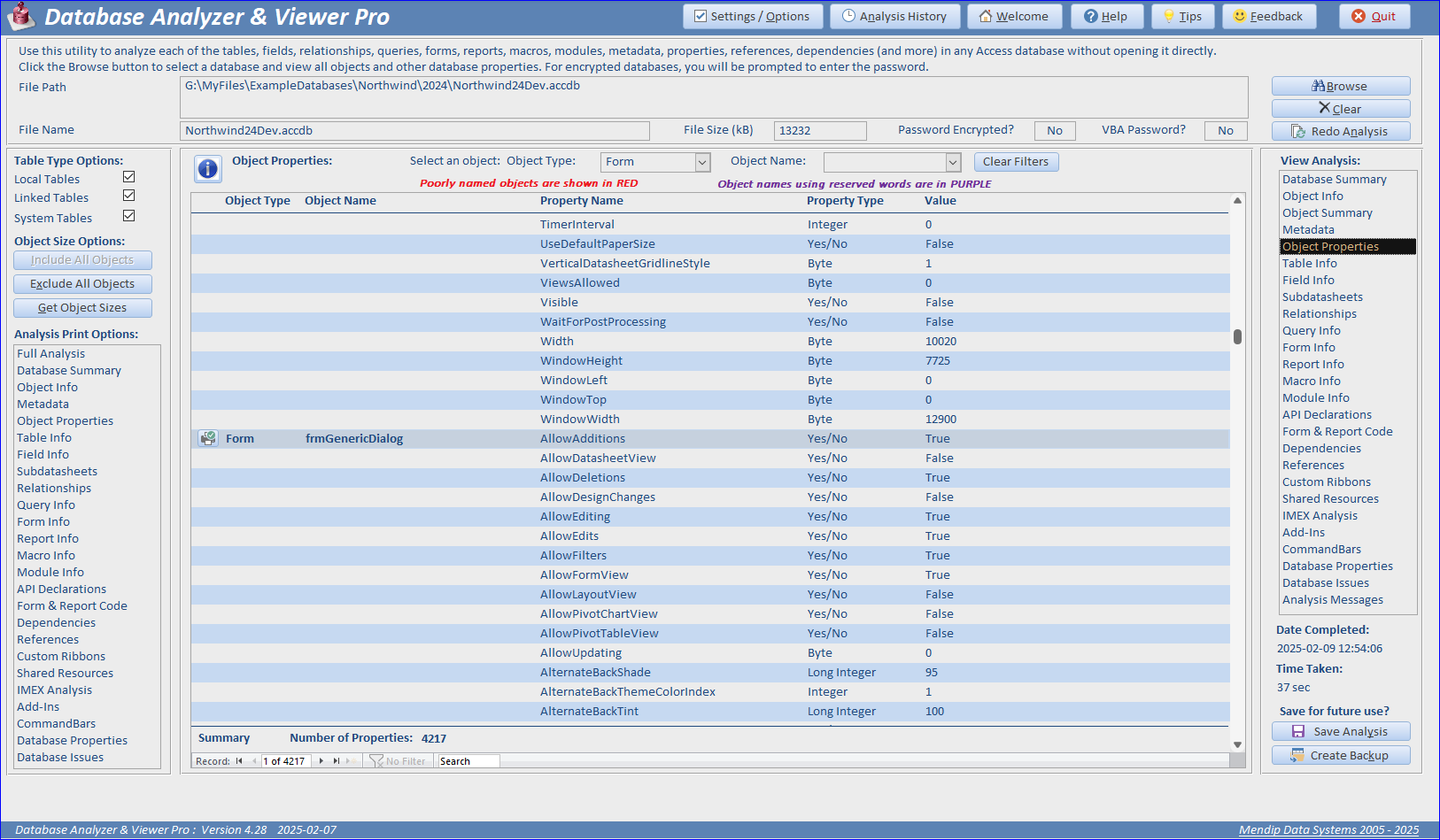
e) Object Properties (NEW)
Detailed information about the properties of each database object including the property type and value.
The analysis can be filtered by object type / name
f) Table Info (IMPROVED)
Detailed information about each table including table type (local / linked / system), number of fields, number of records and table size in kilobytes.
For linked tables, the type of data source is listed. Table designs and datasheets can also be viewed from this subform.

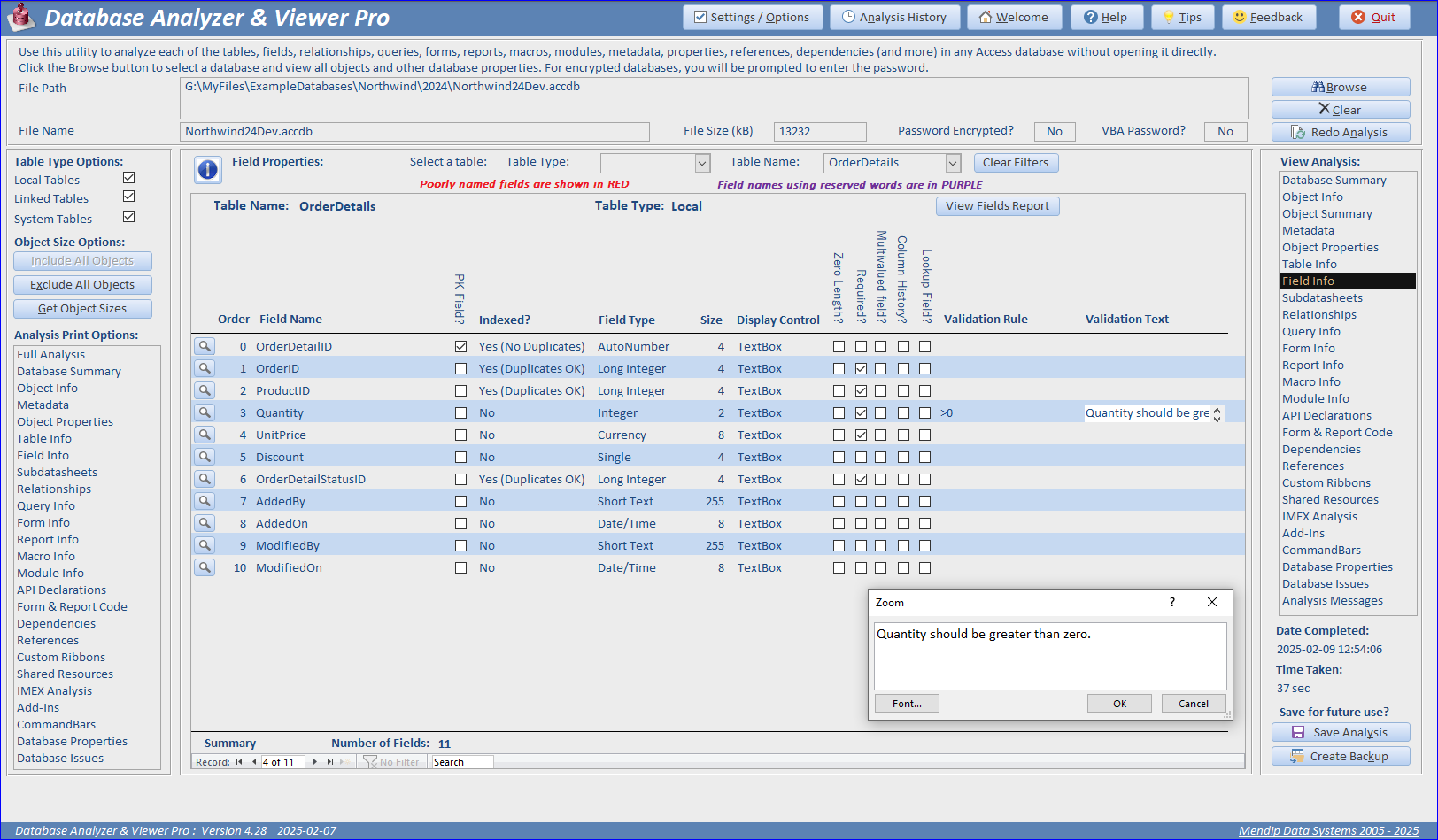
g) Fields Info (IMPROVED)
Available from the field column on the table info subform or from the View Analysis menu.
Detailed information about each table field including datatype / indexing / field size and whether zero length strings are allowed or field data is required.
h) Subdatasheets (NEW)
Details of any subdatasheets created automatically with a relationship or manually from the ribbon.

i) Relationships Info
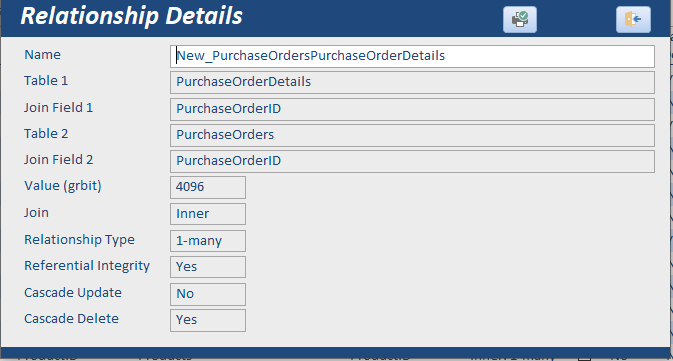
Detailed information about each relationship including table names & join fields, relationship type and whether referential integrity has been set.
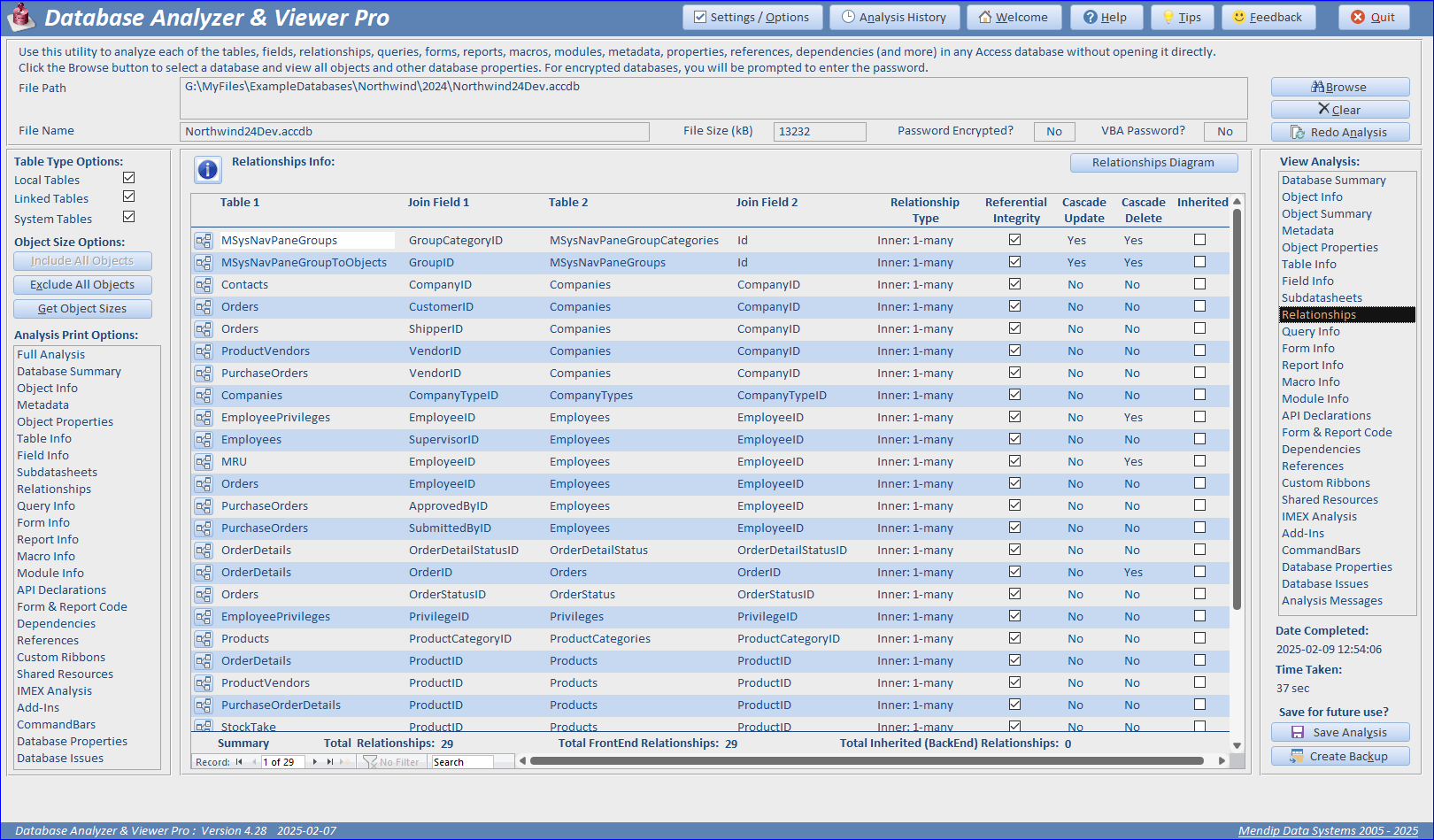
Additional detail is available for any individual relationship.
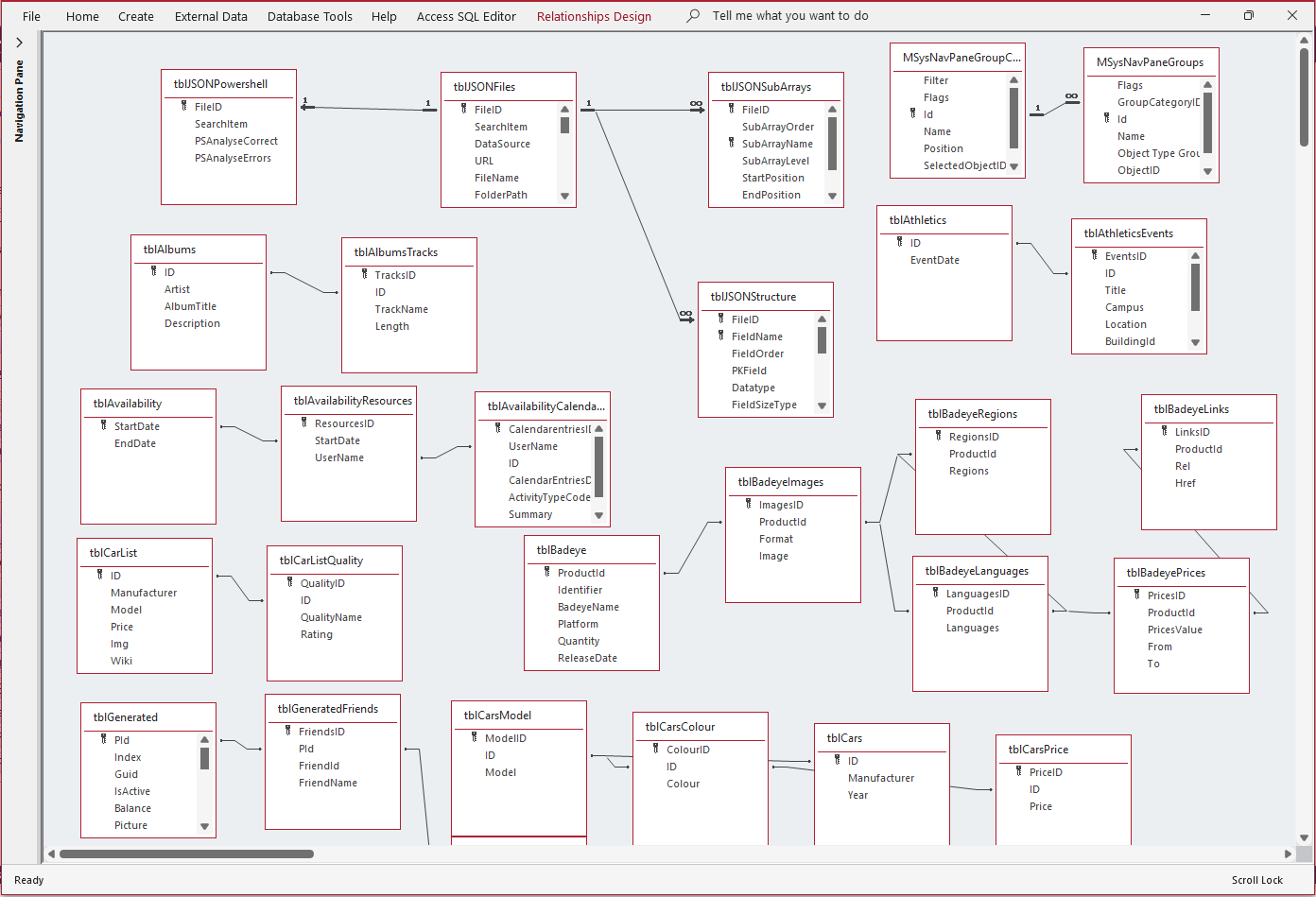
Click the Relationships Diagram button to view the relationships diagrammatically.
j) Query Info
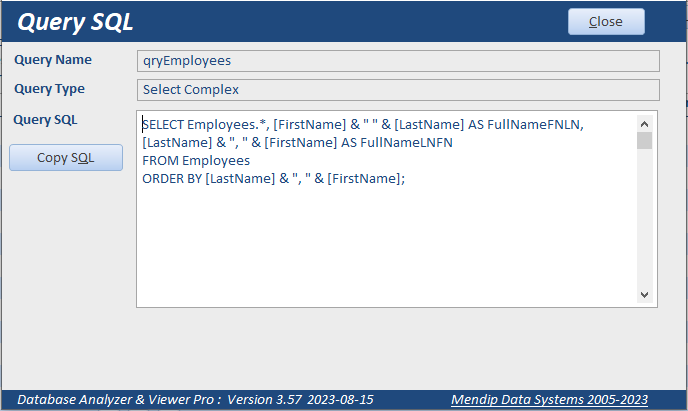
Detailed information about each query including the query type, number of fields, records and parameters.
Queries can be viewed in design view, SQL view and as a datasheet.

Example SQL for an individual query. Comments created using the Monaco SQL editor are shown in green.
k) Form Info (NEW)
List of all forms and selected properties. The list can be filtered as required.
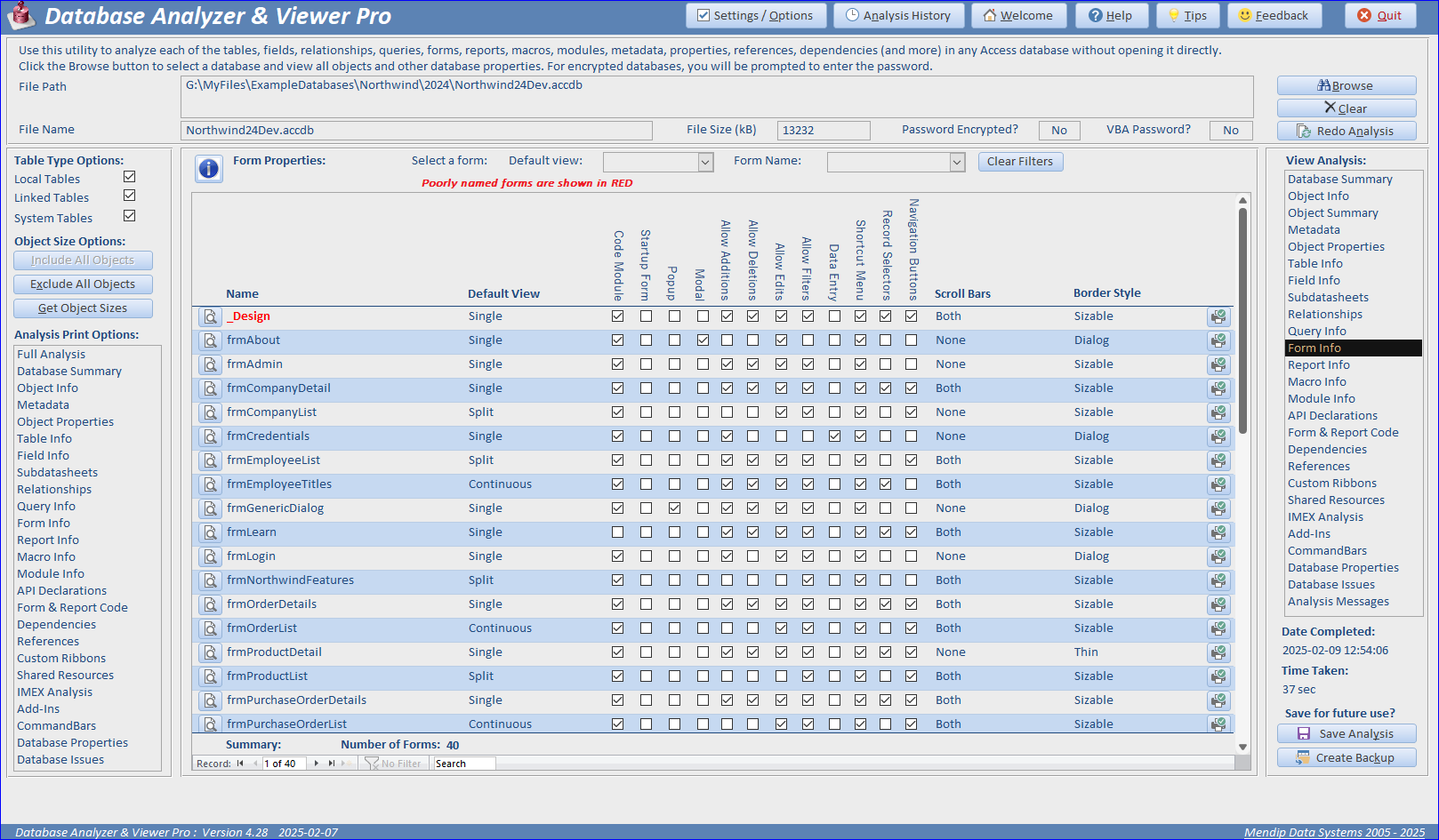
Click the Preview button on the left for record source information and ribbon properties together with a list of
controls and events.
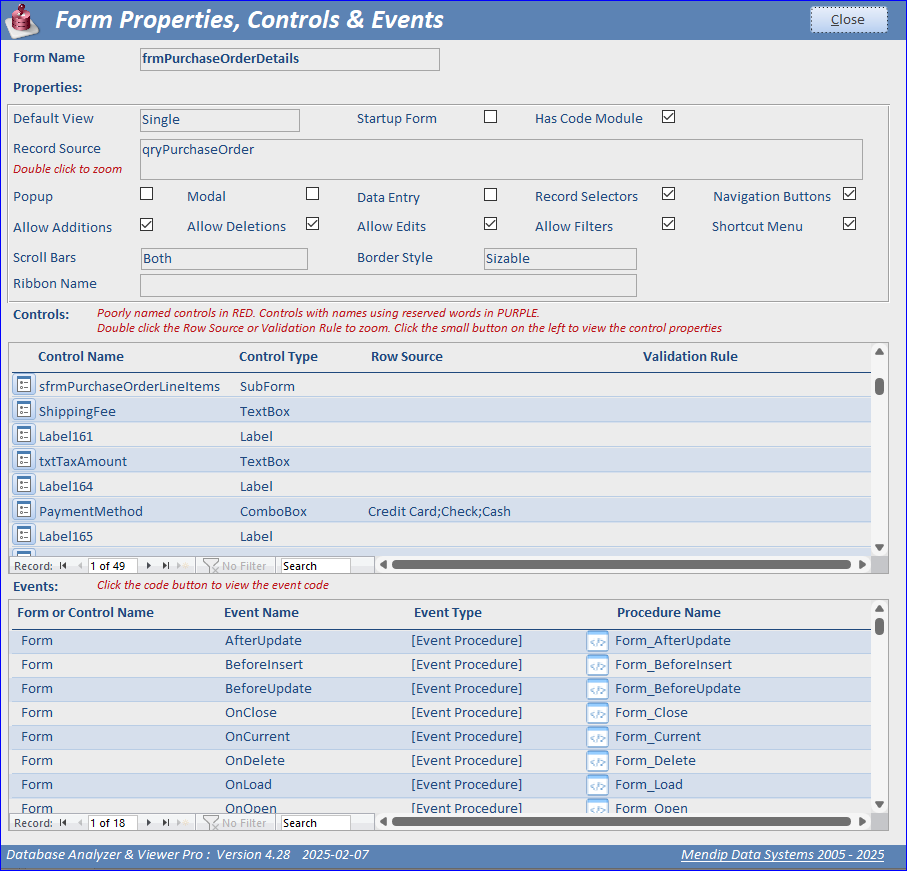
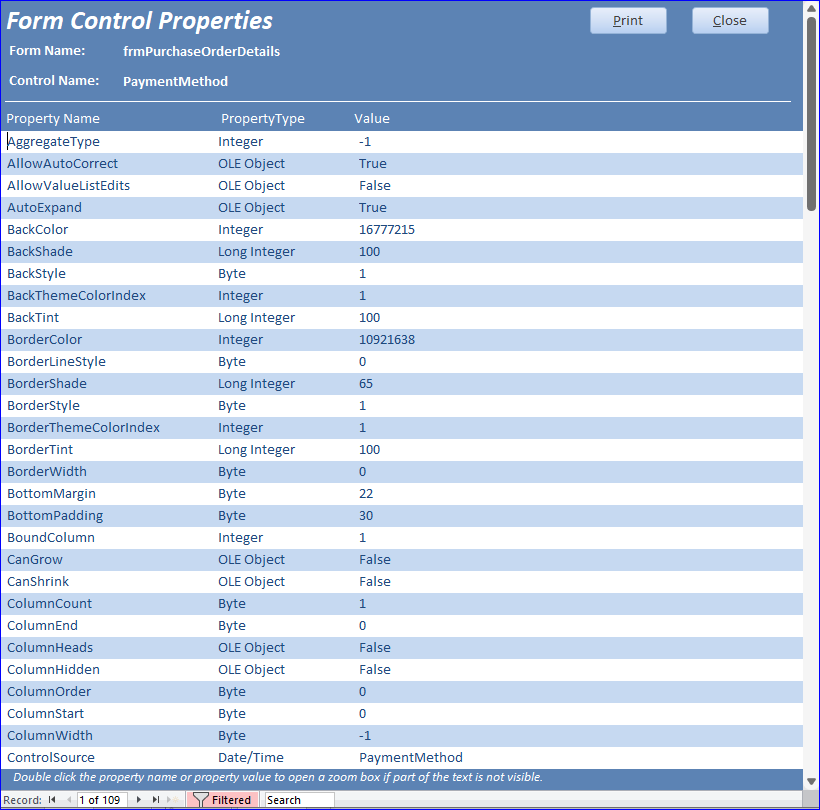
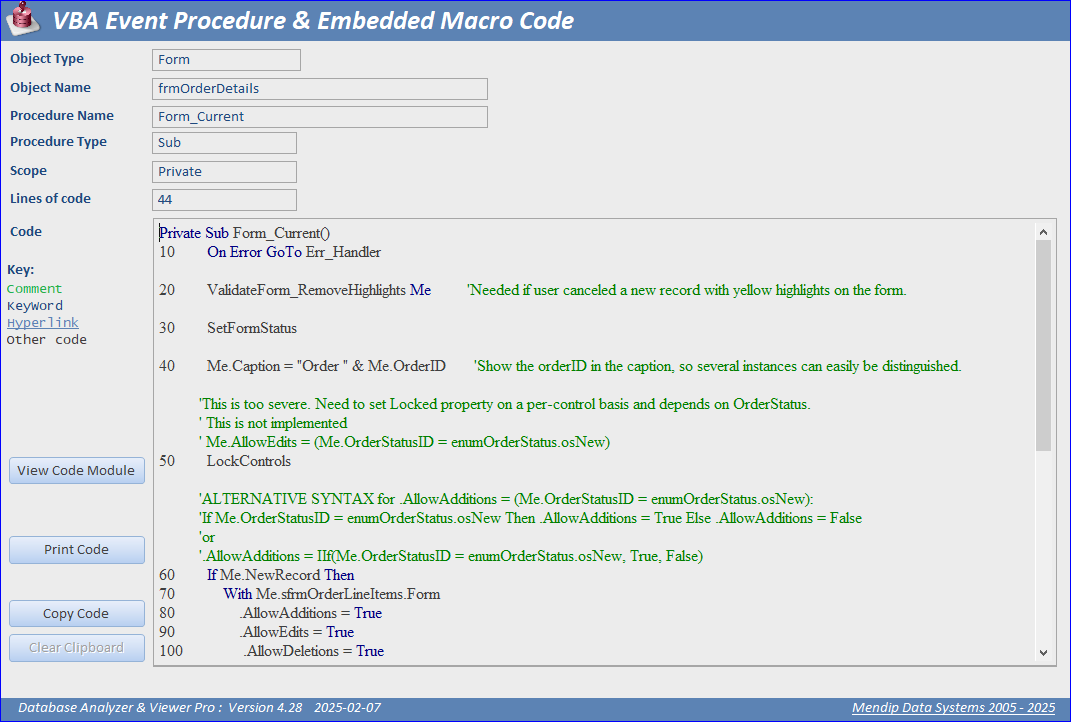
This form also gives access to more detailed information about the controls and events
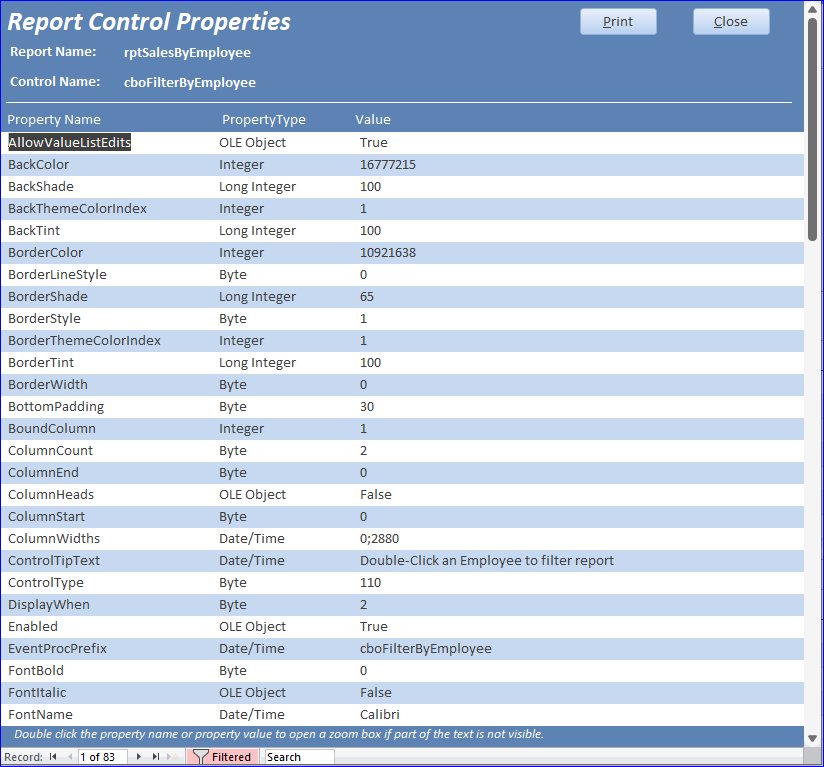
l) Report Info (NEW)
List of all reports and selected properties. The list can again be filtered as required.

This also allows you to drill down to more detailed information about the record source information and ribbon properties together with a list of controls and events
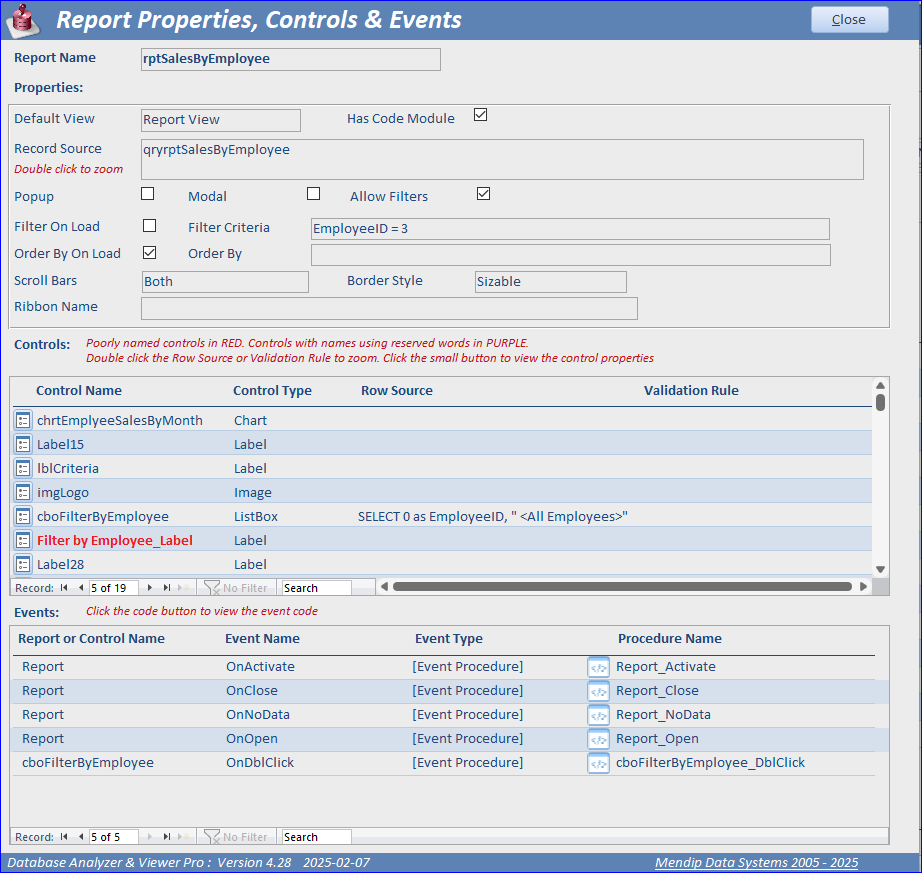
This form also gives access to more detailed information about the report controls and events.

m) Macro Info (NEW)
List of all macros together with the macro actions for each.
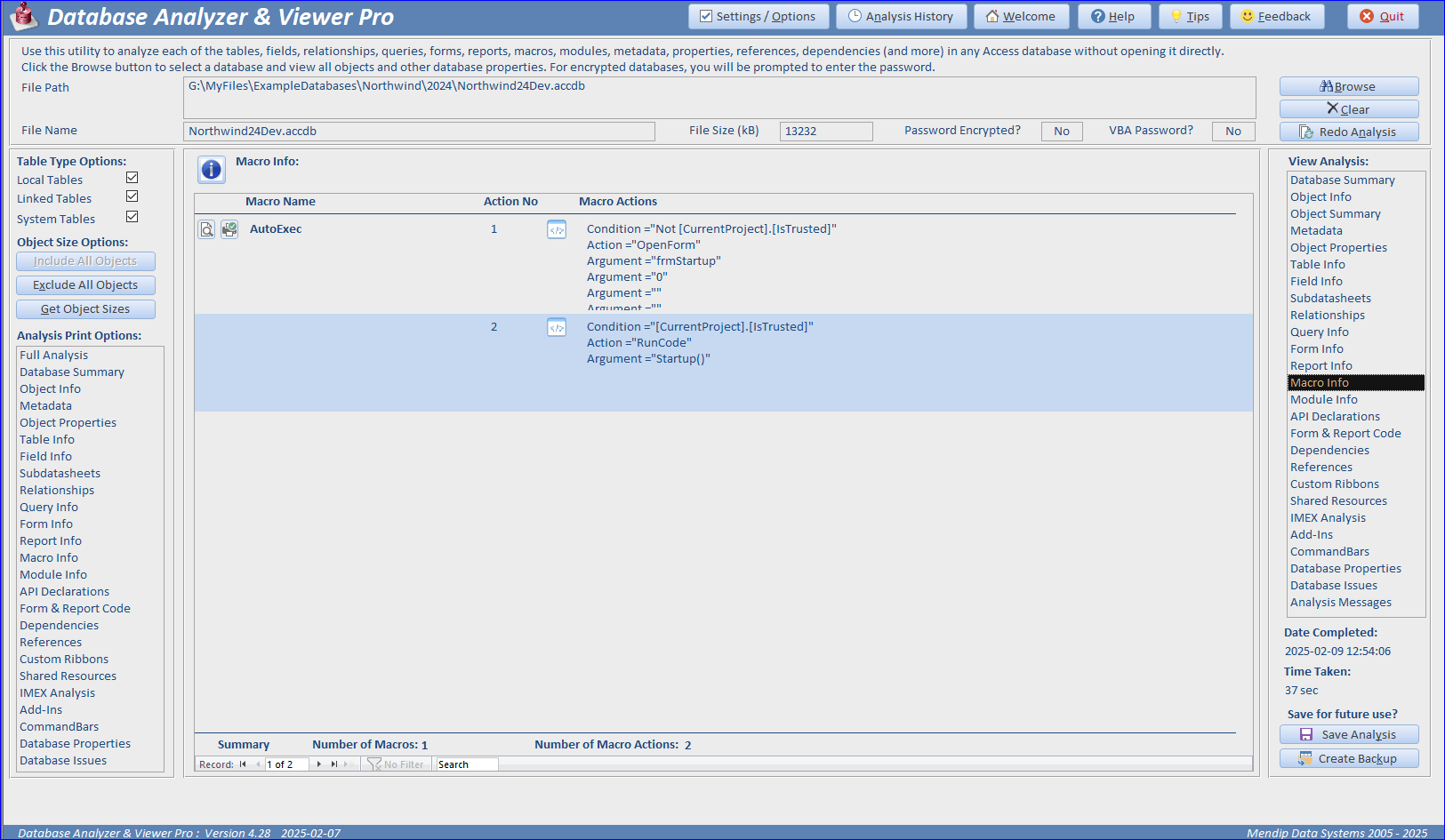
The full information for each macro (including the XML used by Access) can also be exported to a text file
n) Module Info (IMPROVED)
List of all modules and procedures including procedure type / scope and number of code lines. Empty procedures are marked.
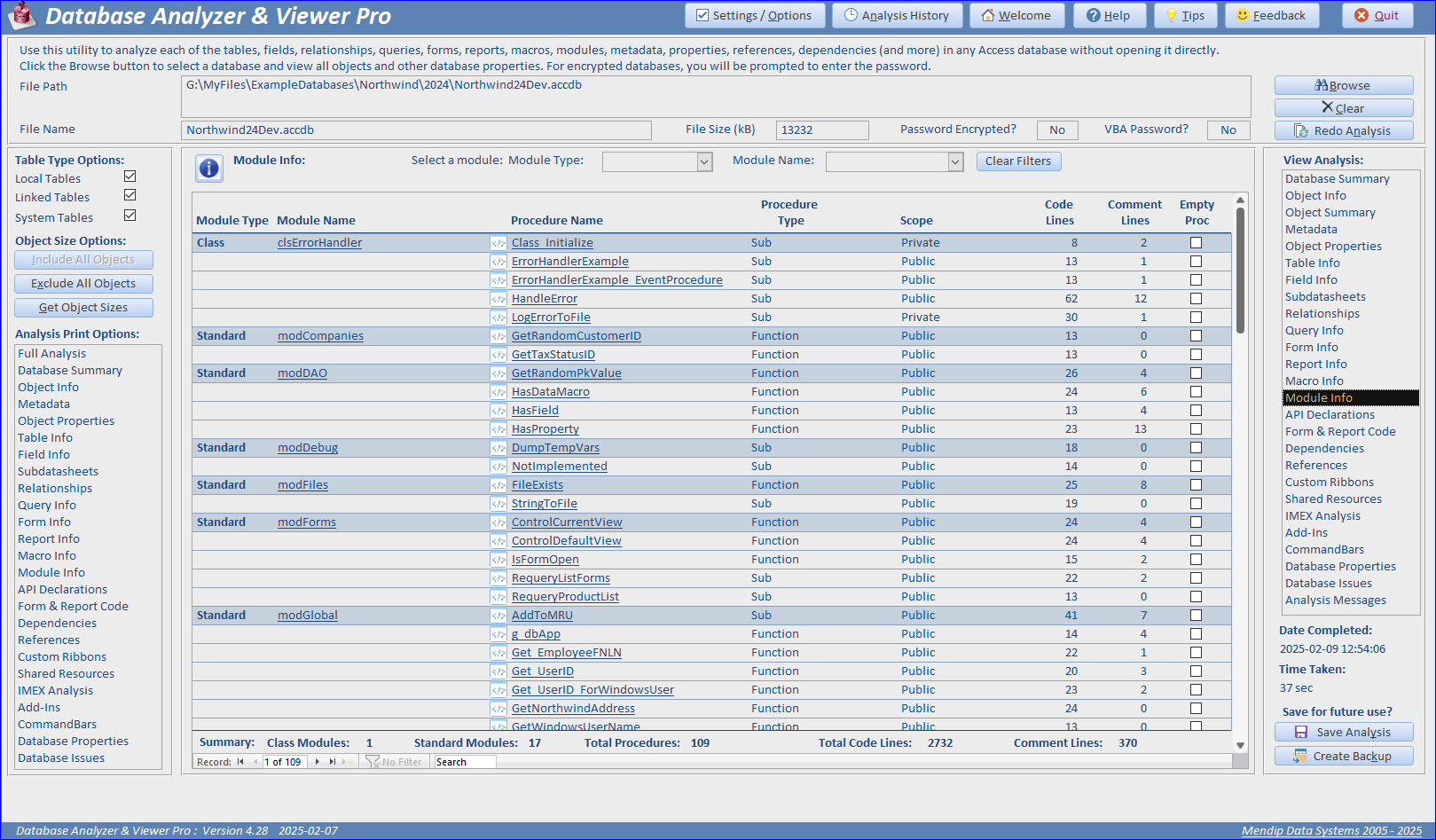
The VBA code for each module / procedure can be viewed.

o) API declarations (NEW)
Application Programming Interface (API) code is used to extend the functionality of Access applications.
Different versions are required for use in VBA6 (32-bit only) and VBA7 (PtrSafe for 32/64-bit).
This lists all APIs in the analyzed database and which bitness variants are included.

The code for each declaration can be viewed.

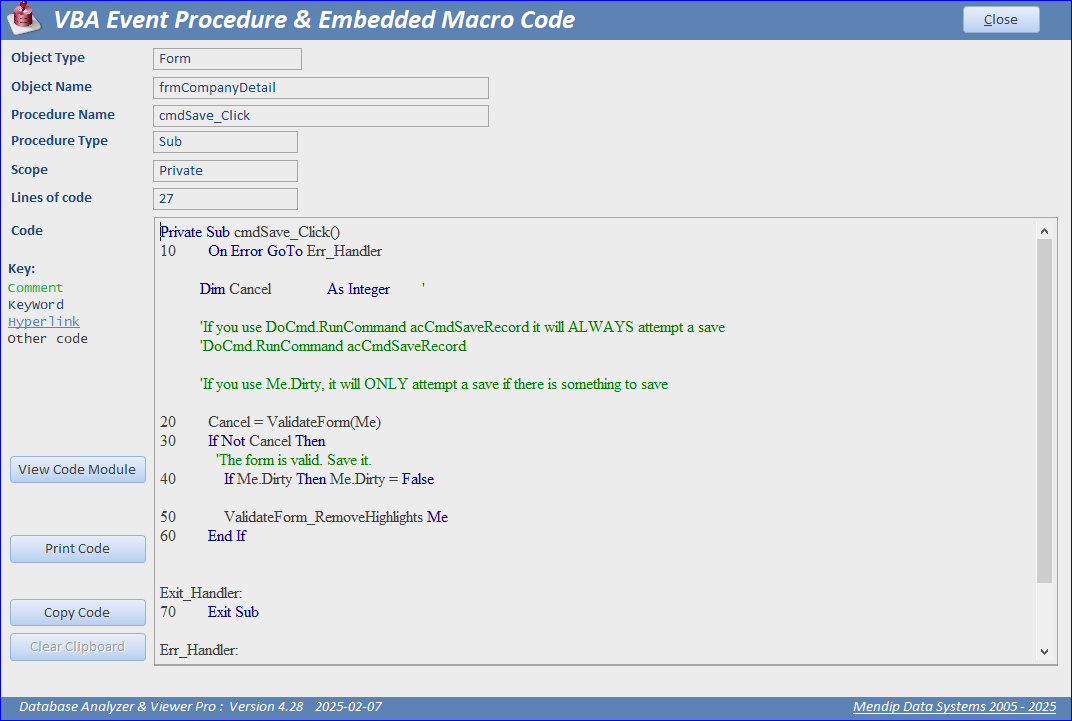
p) Form and Report Code (IMPROVED)
List of all form/report code modules and procedures including procedure type / scope and number of code lines.
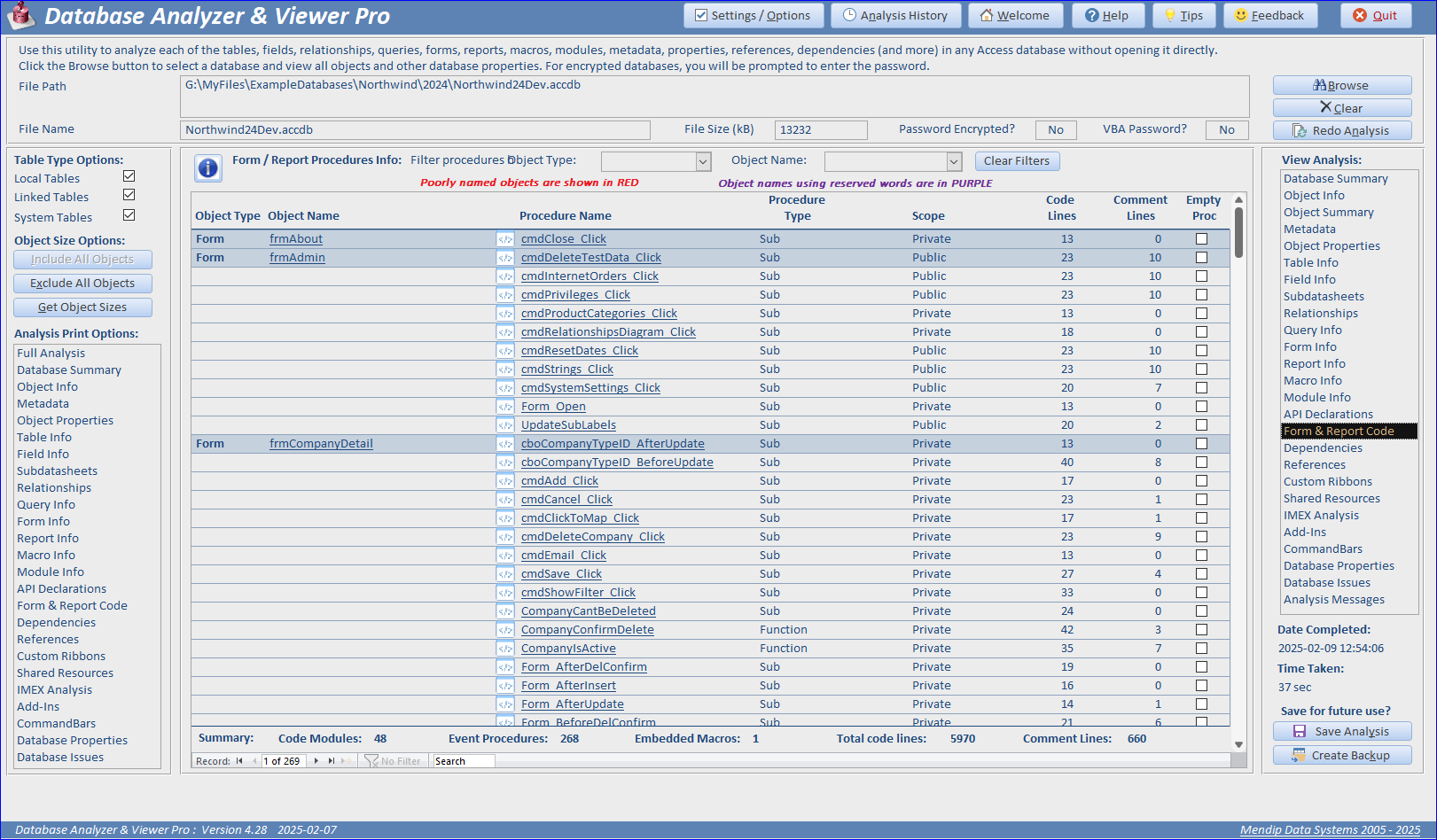
The VBA code for each procedure can be viewed with colour formatting for keywords, comments and
hyperlinks
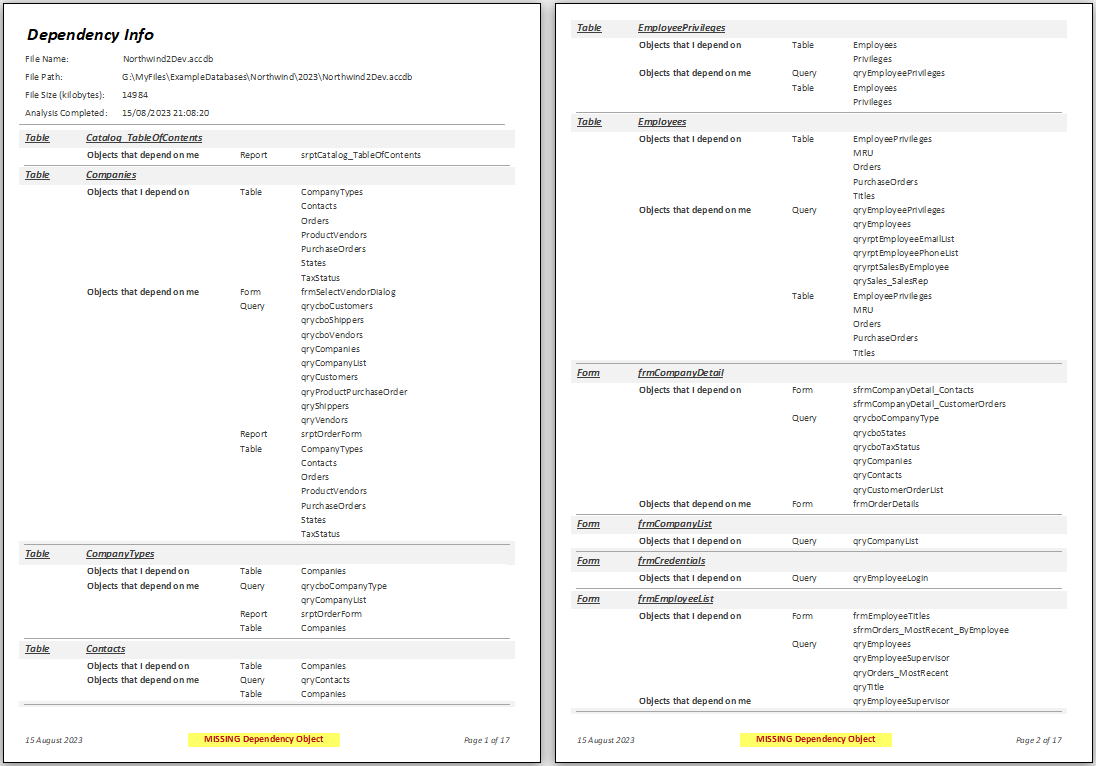
q) Object Dependencies
Number of dependencies and dependant objects for each form / report / table & query. Objects with 'orphaned dependencies' are identified

Full dependency report listing all object dependencies and dependant objects
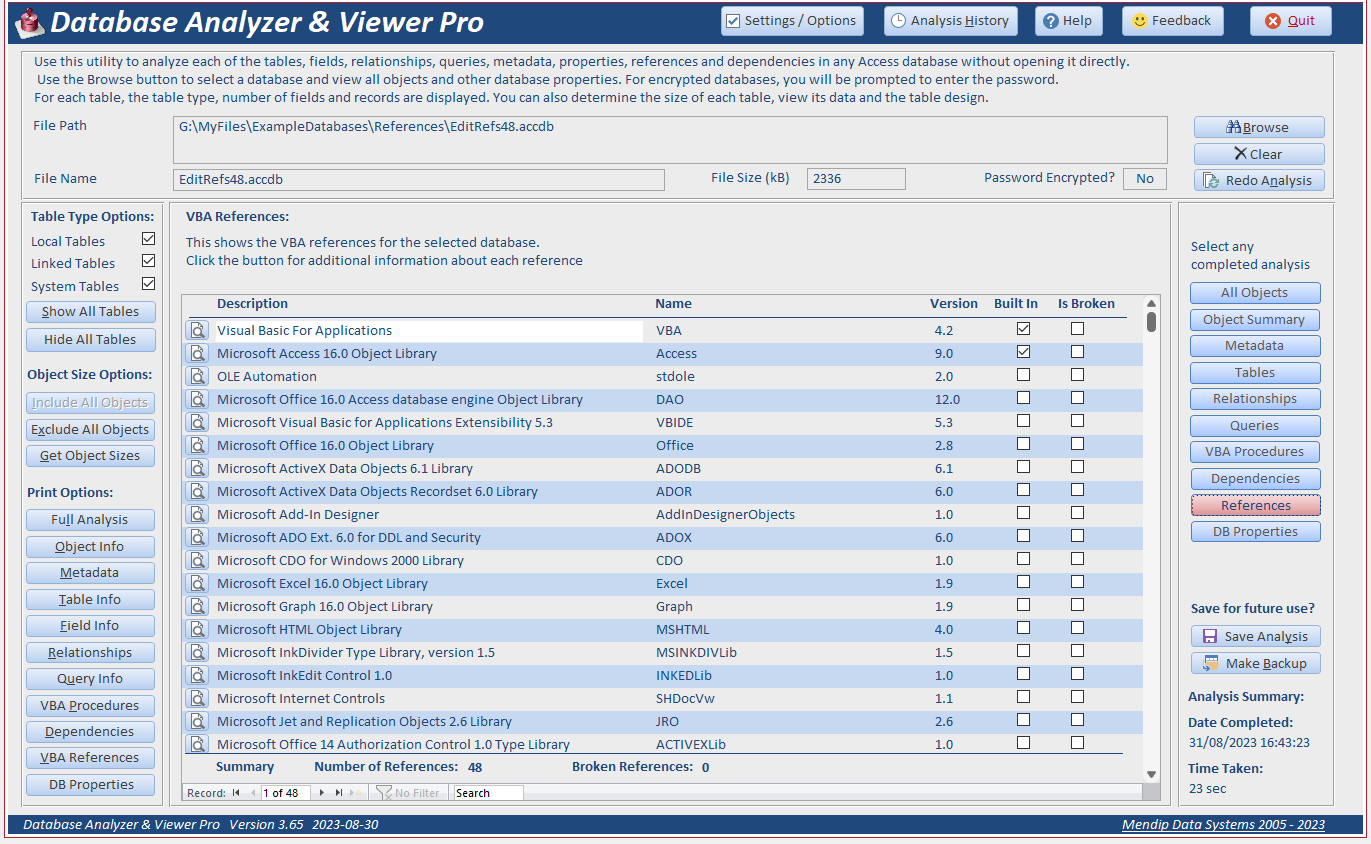
r) VBA References
List of all VBA reference libraries in the selected database. Any broken (MISSING) references are identified.
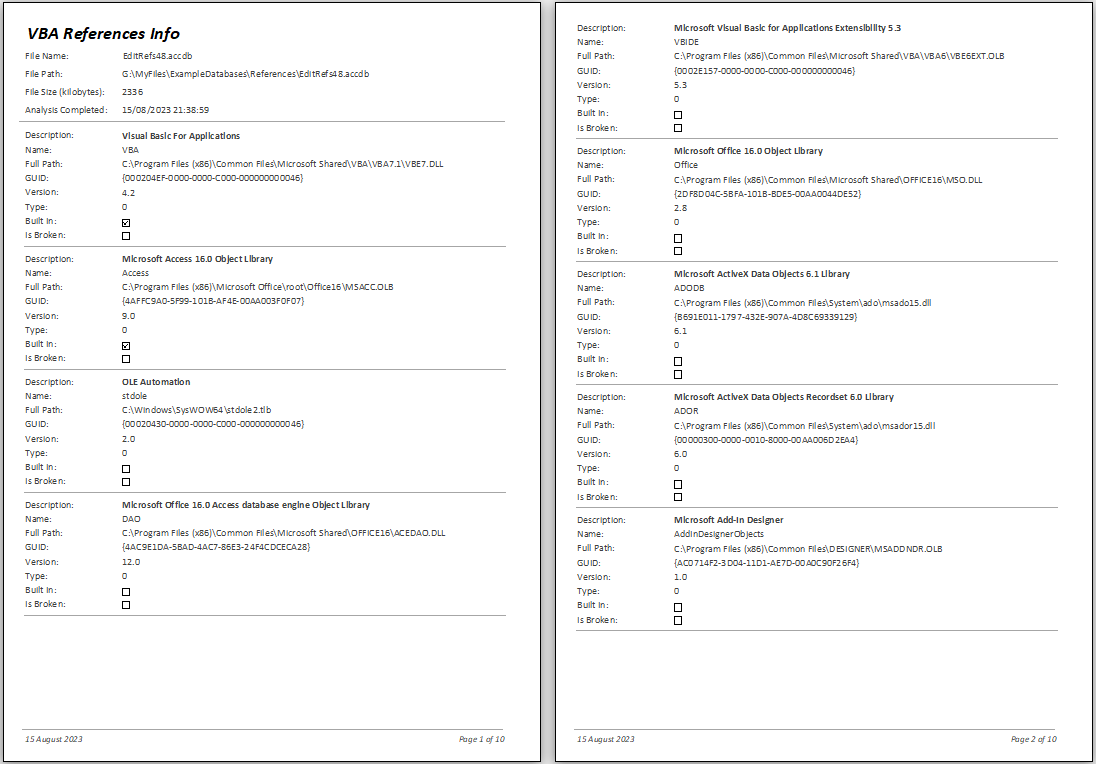
Reference library report with additional information.
s) Custom Ribbons (NEW)
Details of any database objects with custom ribbons together with the ribbon XML for each.

t) Shared Resources (NEW)
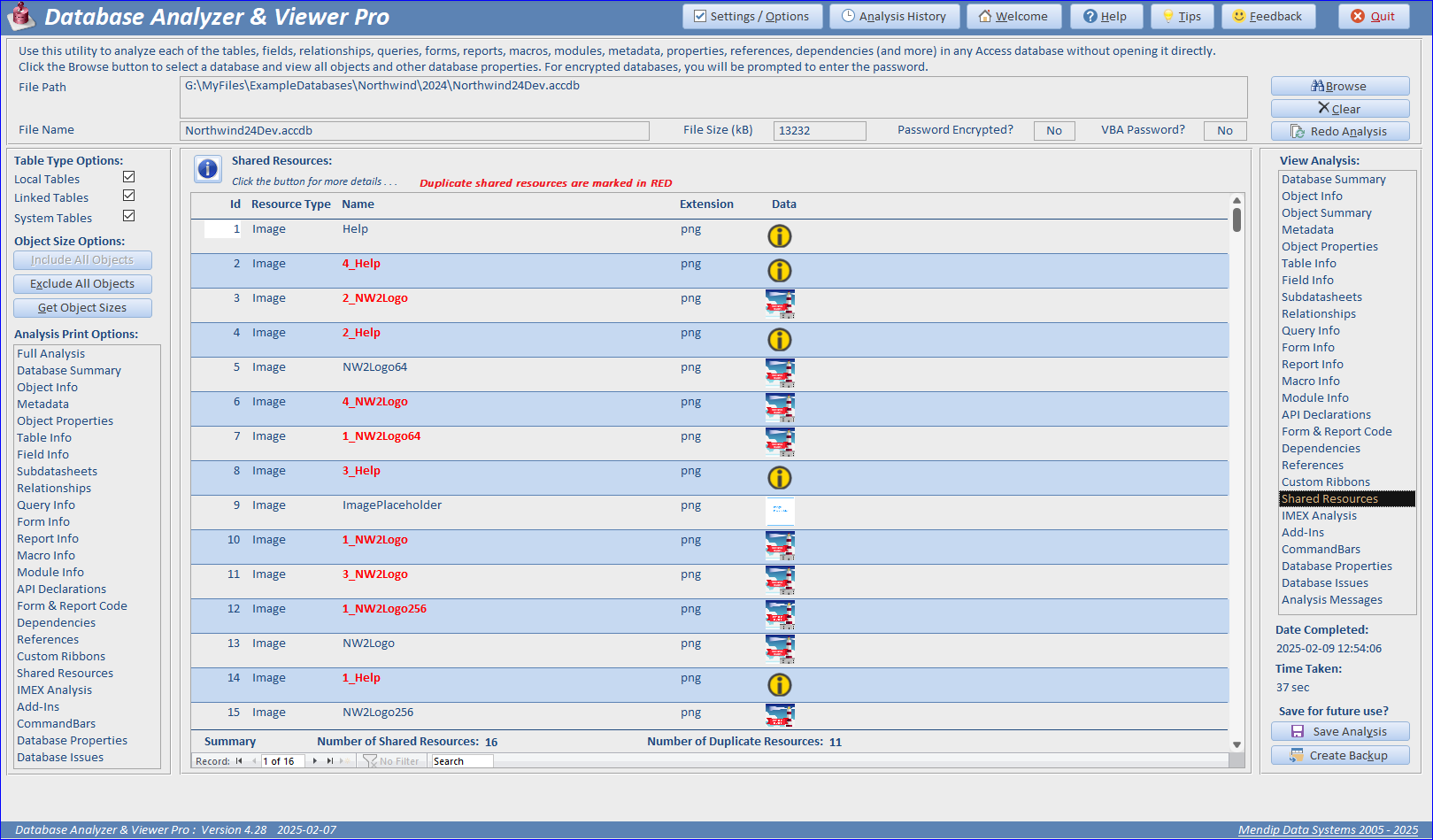
Details of all shared resources – all images in the Image Gallery and the database theme in use. Duplicate images are shown in red. These can be safely deleted.
u) Import / Export (IMEX) Analysis (NEW)
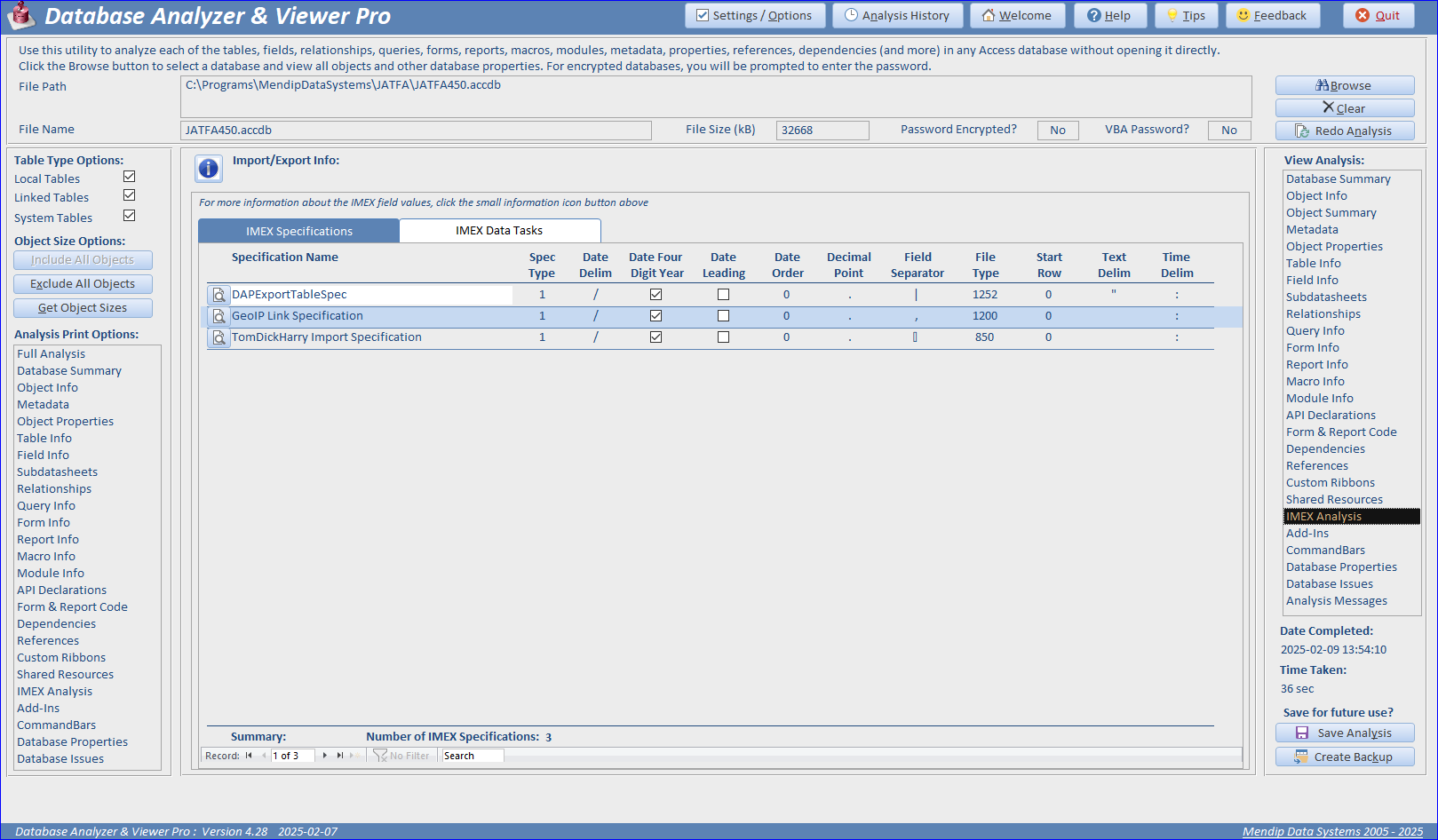
Details for all IMEX specifications (stored in two system tables) and IMEX Data Tasks (stored as XML).
v) Add-Ins (NEW)
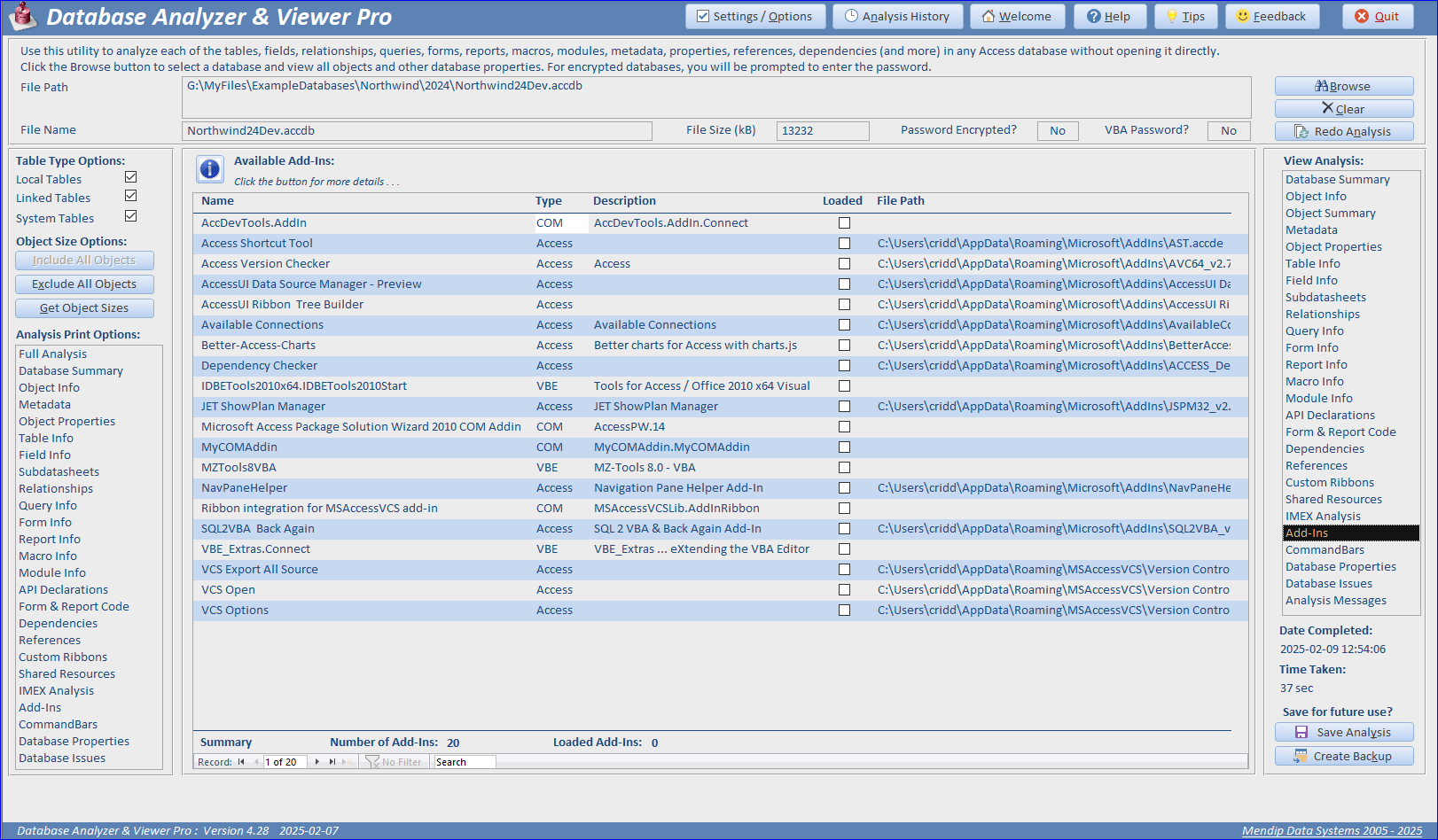
Lists all available add-ins (COM / VBE / Access) for the workstation where the application was analyzed
w) CommandBars (NEW)
Lists all custom and (optionally) built-in command bars for the database.

x) Database Properties
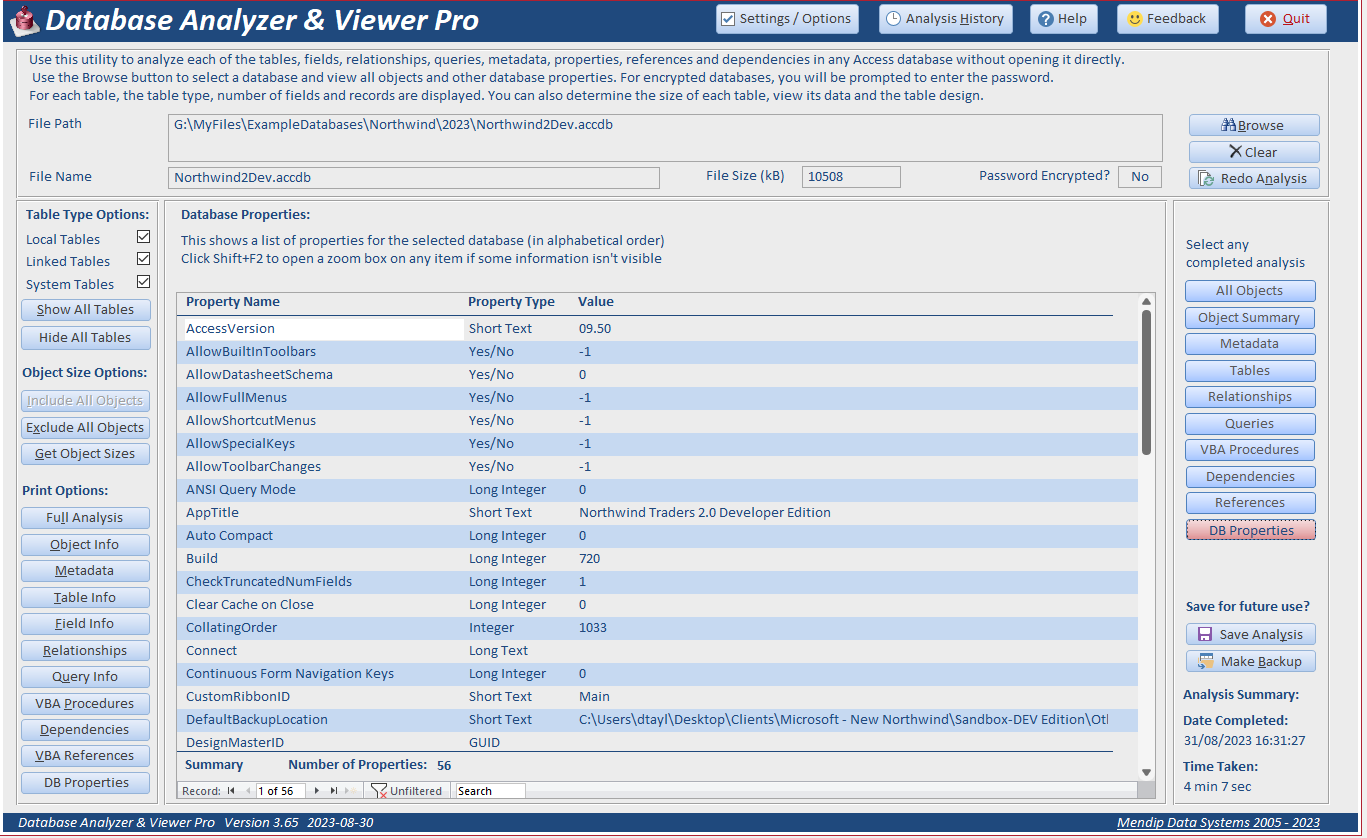
Full list of database properties including property type and value.
y) Database Issues (NEW)
Detailed information about any issues detected by the analyzer. These may include:
• large file size (greater than 1 GB) or unused space due to object deletions
• trust settings
• badly named objects, fields and controls
• use of reserved words in object, field and control names
• unused tables not referenced in any queries, forms, reports, macros, modules or as table level lookups
• table design issues - no primary key, no indexes, broken links, use of complex datatypes
• use of lookup fields in tables
• use of subdatasheets in tables, queries or forms
• relationships without referential integrity
• broken dependencies between forms, reports, tables and queries
• broken references to external libraries or databases
• duplicate shared images in the image gallery
• empty VBA procedures in forms, reports and modules
• 32-bit/64-bit issues with APIs
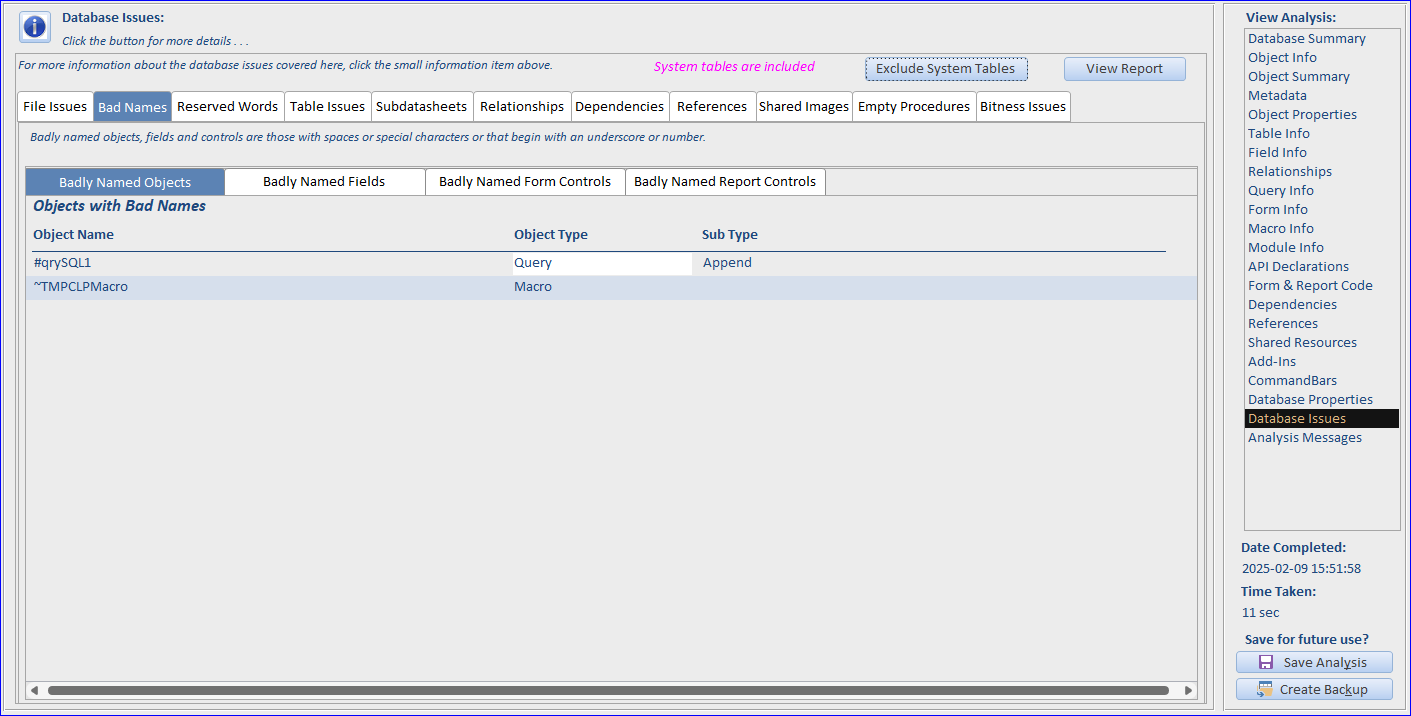
This example shows a list of badly named objects:
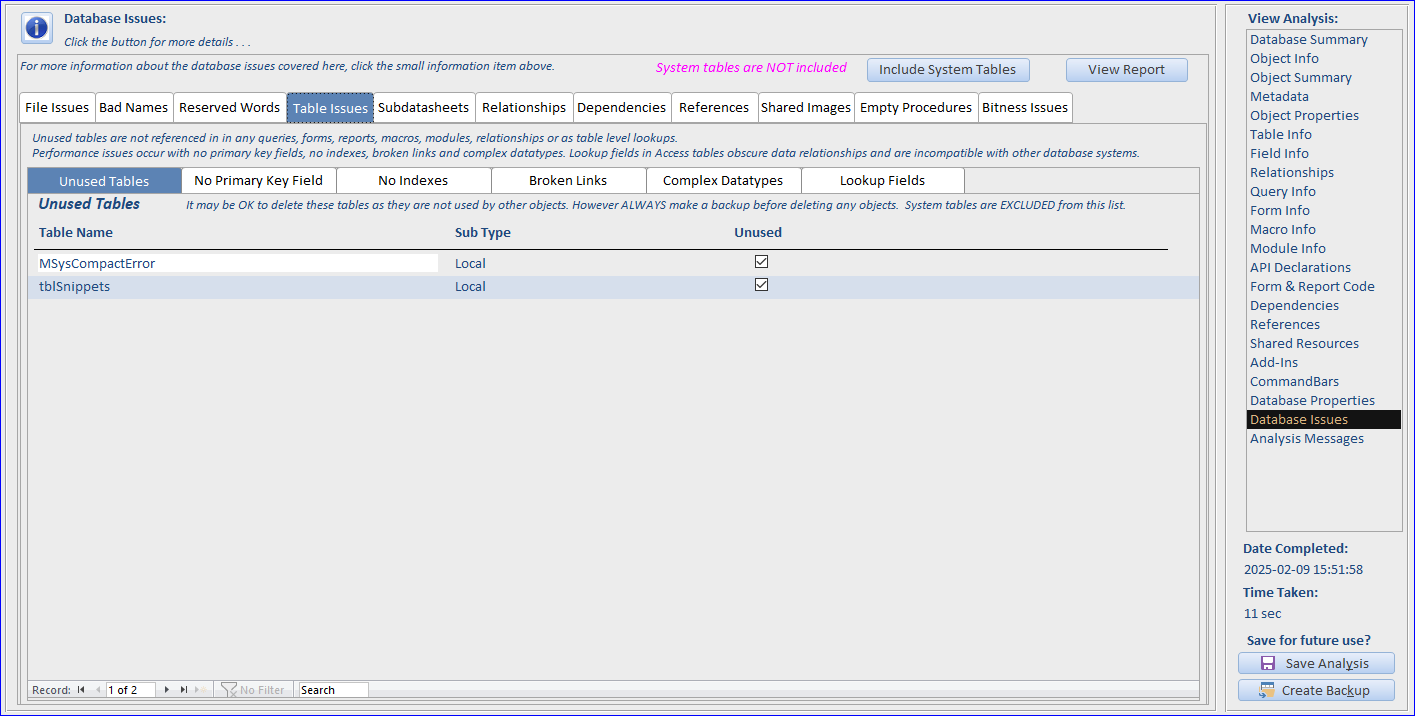
This shows a list of unused tables:
All issues detected by the analyzer should be considered as high priority items to be fixed by the developer.
z) Analysis Messages (NEW)
Details of any autosaved messages shown whilst the analysis was running or after it was completed

| 4. Analysis Reports | Return to Top |
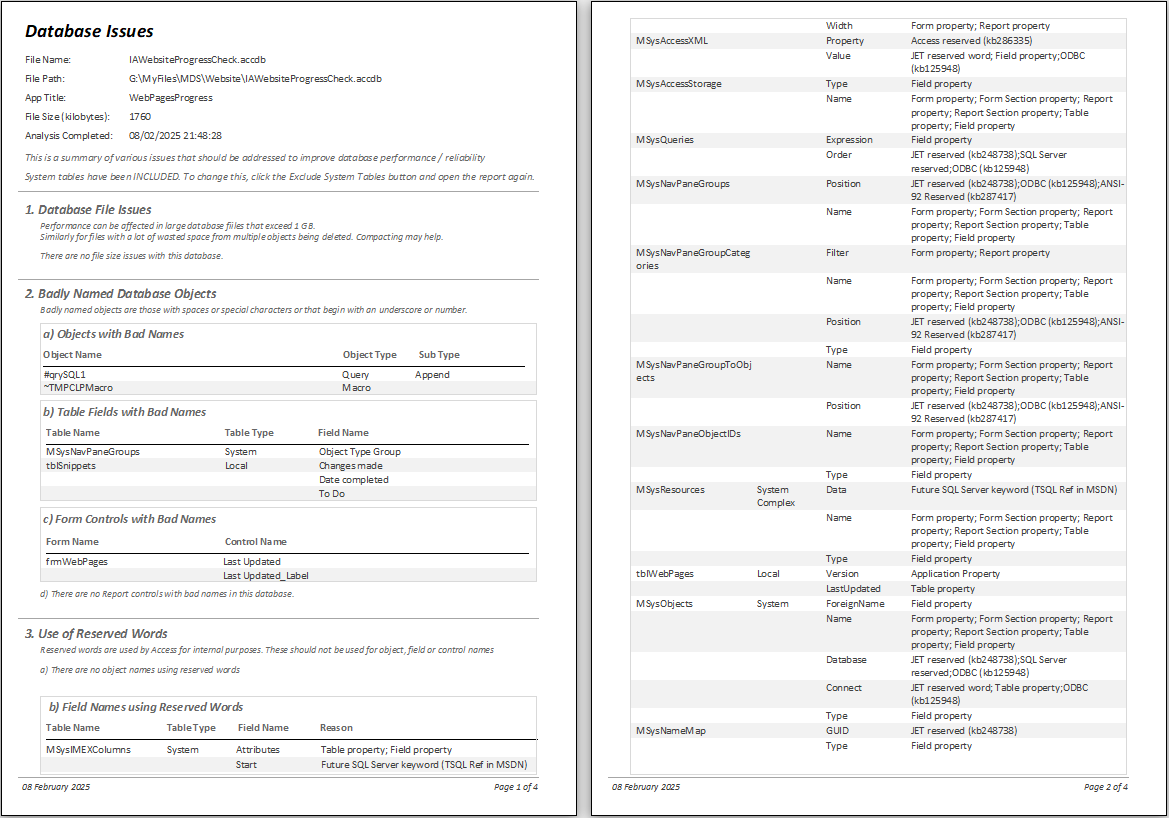
Reports are available for all analysis items. For example, the details of all identified Database Issues:
As another example, here are the first 2 pages of a Query Analysis report:

A Full Analysis report is also available which combines all items into a single report complete with a table of contents.
For large databases, this may fill several hundred pages and take several minutes to compile on the first occasion.
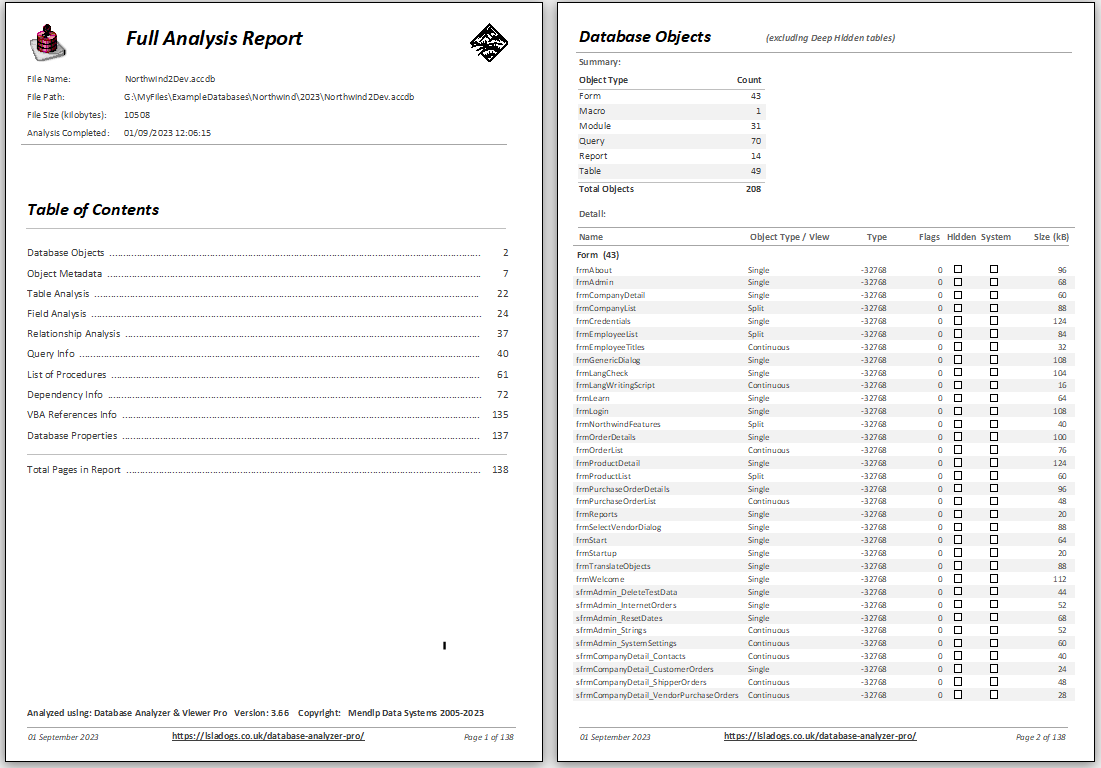
Once the report has been created for the first time, layout details including page numbers are saved so that it will open significantly faster on future occasions.
| 5. Analysis History | Return to Top |
Whenever an analysis is completed, details are automatically saved to the AnalysisHistory table. This allows the analysis to be reloaded when the analyzer is next opened.
This form shows details of all completed analyses including the options used and whether a backup was made.
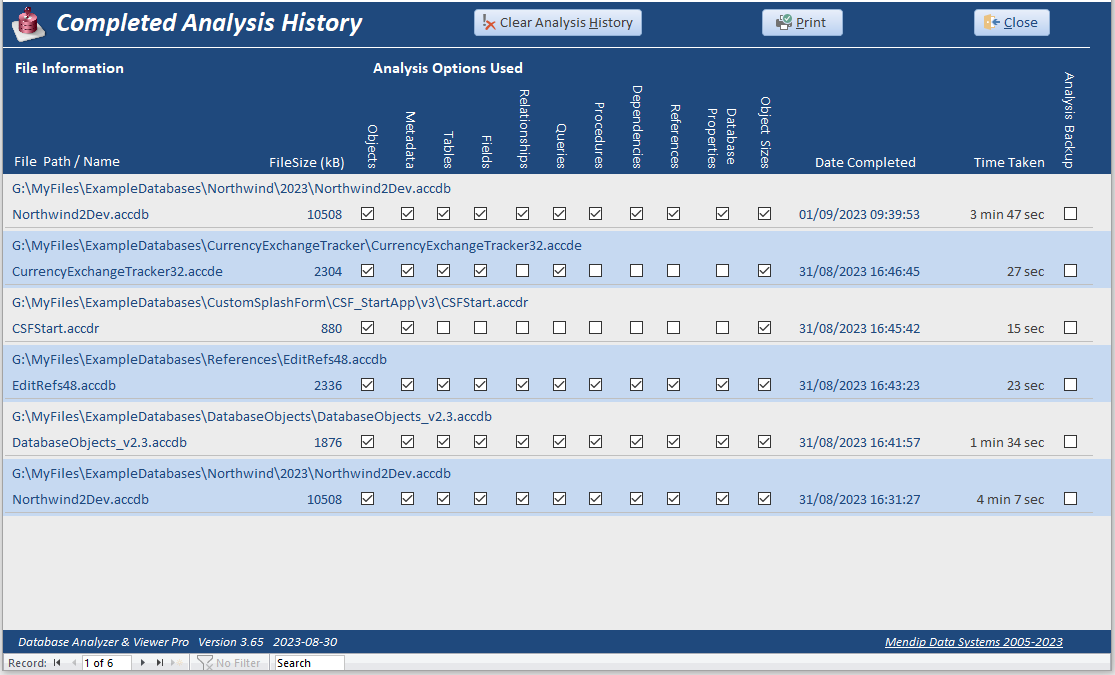
When a backup is created, it can be recalled at any time from Windows File Explorer or or by clicking the red Access icon on the right of the Analysis History form.
For easy identification, all backup files have a purple header/footer.

| 6. Import Old Analysis | Return to Top |
Previously backed up analyses can also be imported so that additional analysis options can be run. To do so, first click the Settings / Options button on the main form
The Settings form opens. Click Browse in the Import Old Analysis section

Browse to a backup file in the SavedAnalyses subfolder and click OK to start the import. This will take about a minute to complete.
The main form then reopens with all details from the imported analysis. All form headers and footers change to GREEN to denote an imported analysis.
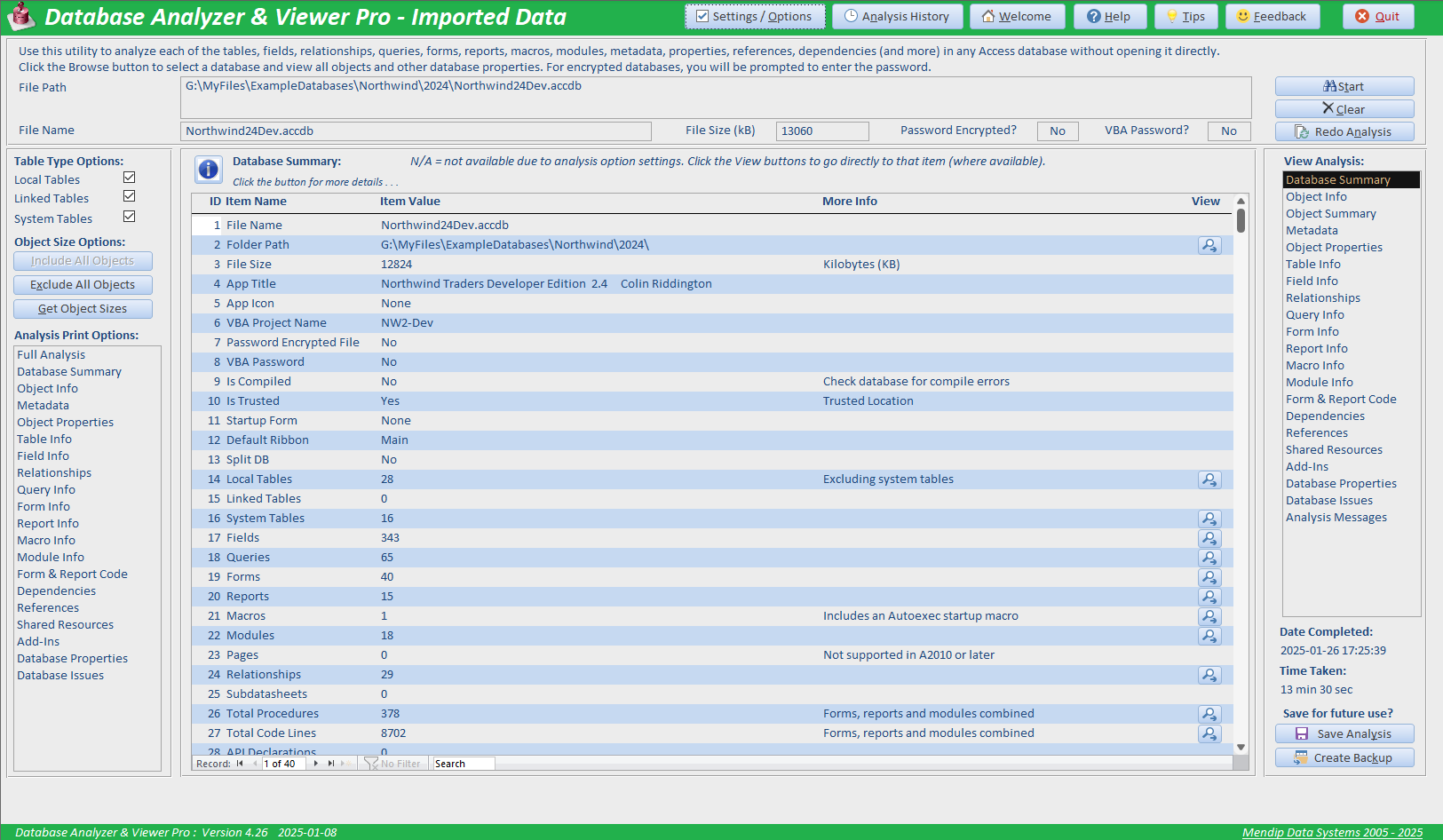
Use the Settings / Options form to select any additional analysis options required (see the next section). Then click Redo Analysis.
The existing analysis information will be supplemented with data for any additional items selected.
| 7. Options / Settings | Return to Top |
This form is also used to set various program settings and determine which type of analysis are done.
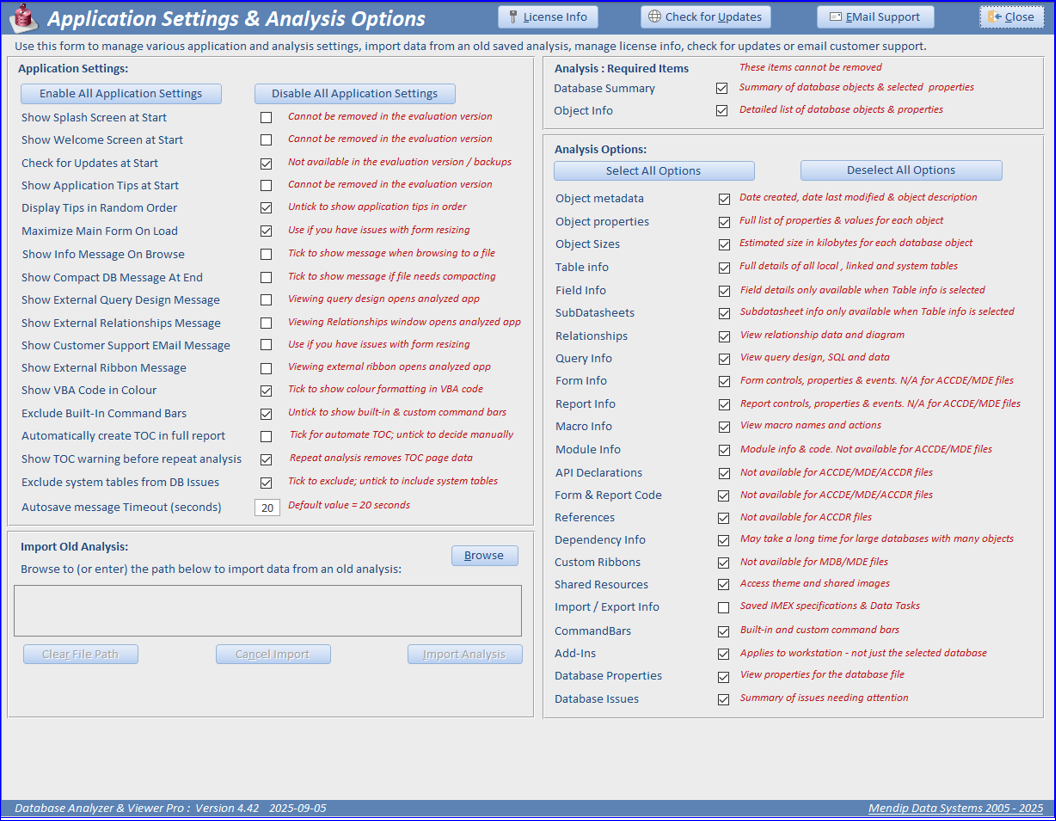
At first all the application settings on the left are checked. This will cause a number of alert messages to appear whilst the analyzer is in use.
After using the app a few times, you will probably want to disable several of these items as shown above.
In contrast, all analysis options will initially be unchecked limiting the analysis to just the database summary and object info.
Ticking additional items will provide more detail but the analysis will take longer.
For maximum benefit, tick all analysis options. However for large databases, the analysis will take some time to complete
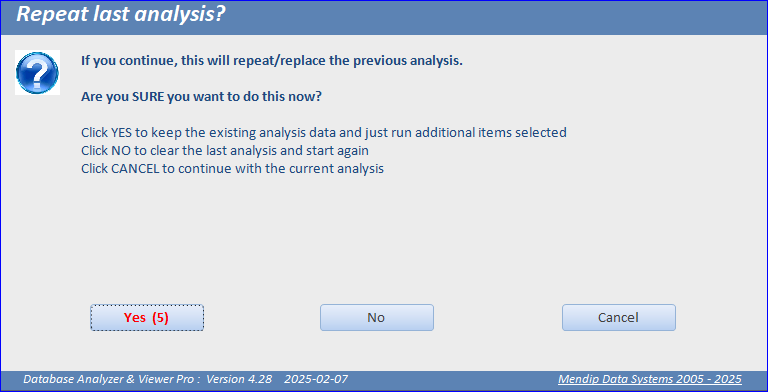
If you repeat an analysis with extra analysis options added, you can reduce the time needed by choosing to keep the existing analysis (default option).
| 8. Other Features | Return to Top |
Several other features are available from the header section of the main form

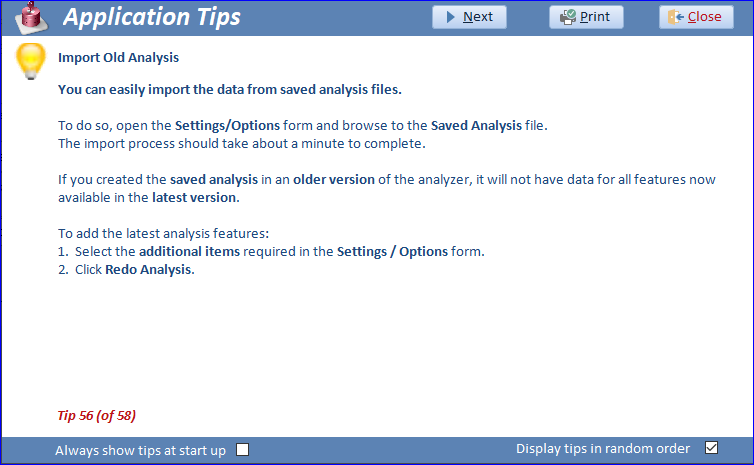
a) Application Tips
This provides over 55 tips to help new users make best use of this application. The tips can be viewed at startup (optional) and in a random order or sequentially.
b) Automatic Form Resizing
Useful if you move the application to a monitor which has a different size or resolution
Click the application logo on the top left of the header in many forms. The form will then be resized to make the best use
of the available screen space.
c) Help
Opens this Help file
d) Feedback
Click to open an online feedback form.
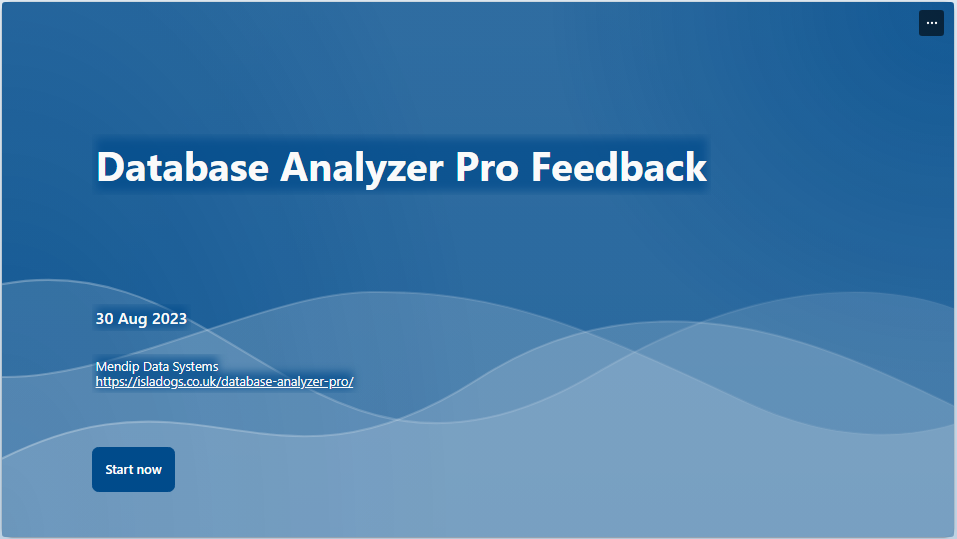
Use this to let Mendip Data Systems know how the application worked for you. Also if you have any feature requests for future versions or have any questions.
| 9. Version History | Return to Top |
Version Release Date Comments
3.67 05/09/2023 Initial release
3.69 17/09/2023 Minor update with improvements to activation process
4.29 15/02/2025 Major update with many new features
4.31 22/02/2025 Bug fixes for non-English language versions of Office
4.38 05/04/2025 Bug fixes and performance improvements
4.42 05/09/2025 Added check for updates feature. Bug fixes and performance improvements
10. Downloads
Return to Top
A free evaluation version is available to download so you can test the application features before purchase.
The evaluation version is almost fully functional but restricted to analyzing the sample database supplied with the application.
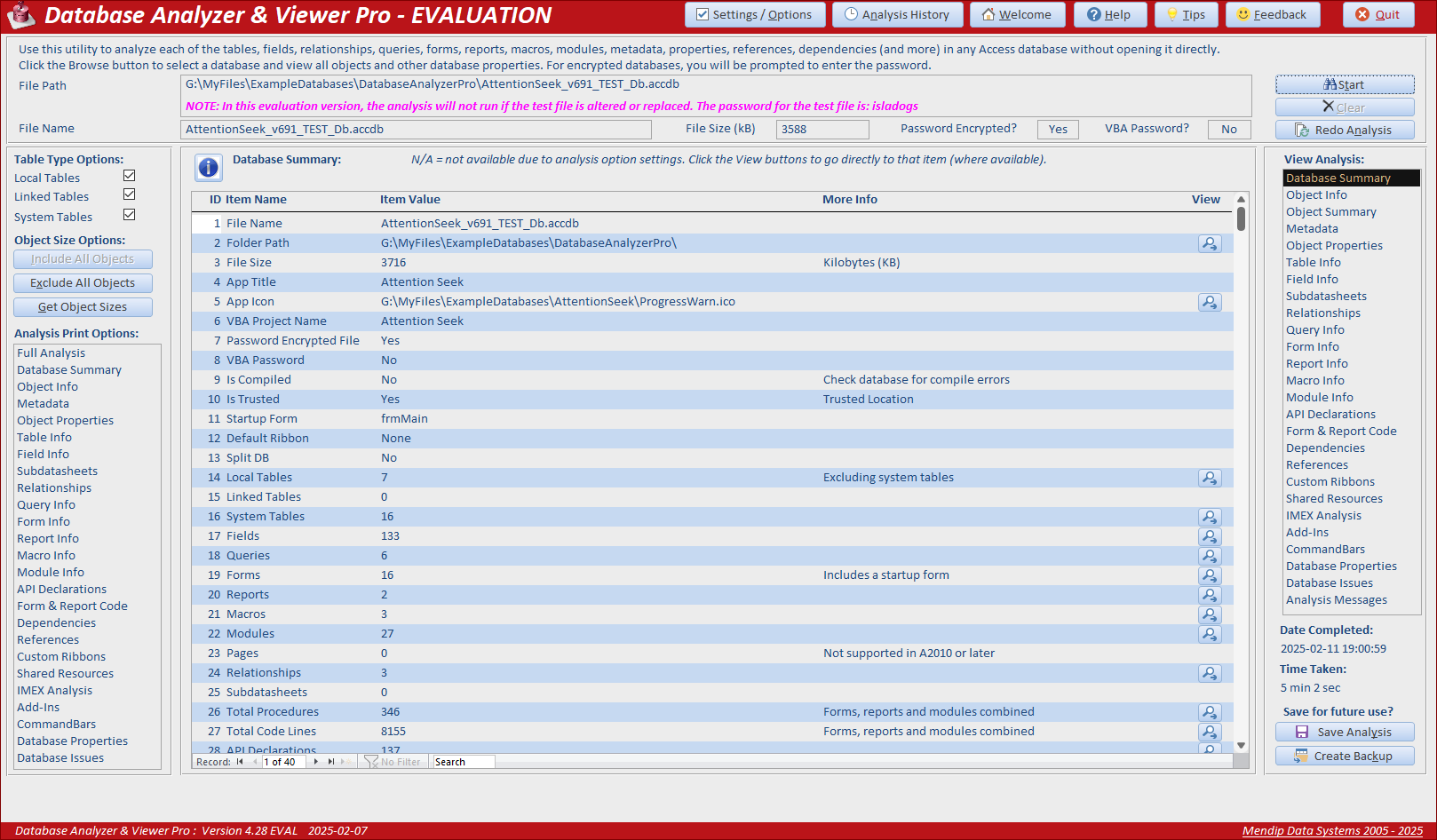
Click to download the correct version & bitness for your Office installation.
Access 2019/2021/2024/365:
64-bit Evaluation Version for Access 2019 or later Zipped EXE file (approx 14.1 MB)
32-bit Evaluation Version for Access 2019 or later Zipped EXE file (approx 13.6 MB)
NOTE: Modern charts are only available in the above versions.
OLDER VERSIONS - Access 2010/2013/2016:
64-bit Evaluation Version for Access 2010+ Zipped EXE file (approx 14.1 MB)
32-bit Evaluation Version for Access 2010+ Zipped EXE file (approx 13.6 MB)
As this is a new application, you may see a Windows SmartScreen warning when you download any of these files. Don’t worry – its perfectly safe!
If you are unsure how to bypass smart screen warnings on downloaded EXE files, please see my article Manage Windows SmartScreen Warnings
As with all files downloaded from the internet, you will need to first unblock the downloaded file.
For more details, see my article: Unblock downloaded files by removing the Mark of the Web
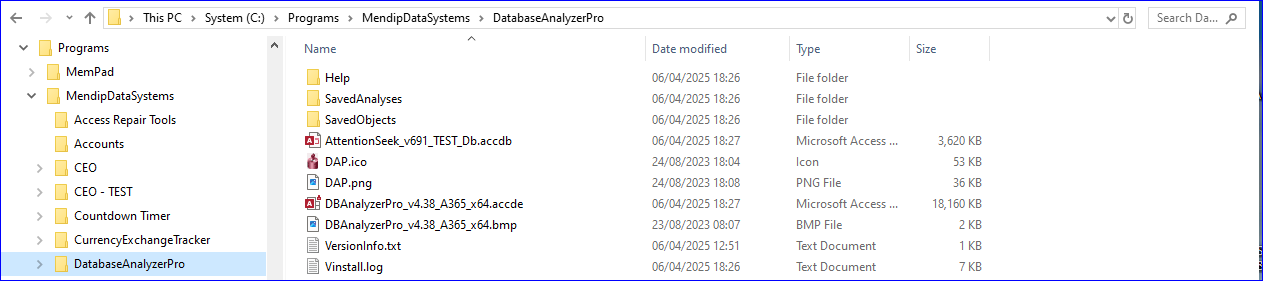
Then unzip to extract the EXE file. Run this file to install the application and supporting files to the folder C:\Programs\MendipDataSystem\DatabaseAnalyzerPro.
The 3 subfolders each contain one file:
NOTE:
a) The download files each include an evaluation version of the analyzer (ACCDE), the sample database for analysis (ACCDB) and a PDF help file.
You can also download the PDF Help file separately by clicking this link: Help File PDF (approx 7 MB)
b) If you purchase the application, you can convert the analyzer to the full version by entering the license key supplied and then activating the product.
See video 6 (Evaluation, Purchase & Activation) for further details
| 11. Purchase | Return to Top |
The latest version (4.42) of the Database Analyzer Pro (DAP) application is now available to purchase. Click this link to purchase the application.
Anyone who purchased the original version can upgrade to the latest version at a reduced price.
The application is supplied as a 32-bit or 64-bit ACCDE file. A help guide, several training videos and 90 days email support is included with the application.
The application is mainly aimed at experienced Access developers wishing to analyze their own or client applications.
The license entitles purchasers to install the application on 2 computers (business or personal). Additional licenses can also be purchased if required.
Recommended minimum hardware/software specifications:
• Intel i5 CPU with minimum 16GB RAM or more
• Windows 10 or later; Access 2010 or later (32 or 64-bit)
• Minimum 14 inch monitor; Screen resolution 1680*1050 or higher
• NOTE: The app uses automatic form resizing so it will adjust to any screen size / resolution
| 12. License / Activation | Return to Top |
The License Info form is available from either the Welcome or Settings/Options forms. It is used to enter the license key supplied on purchasing the full version.
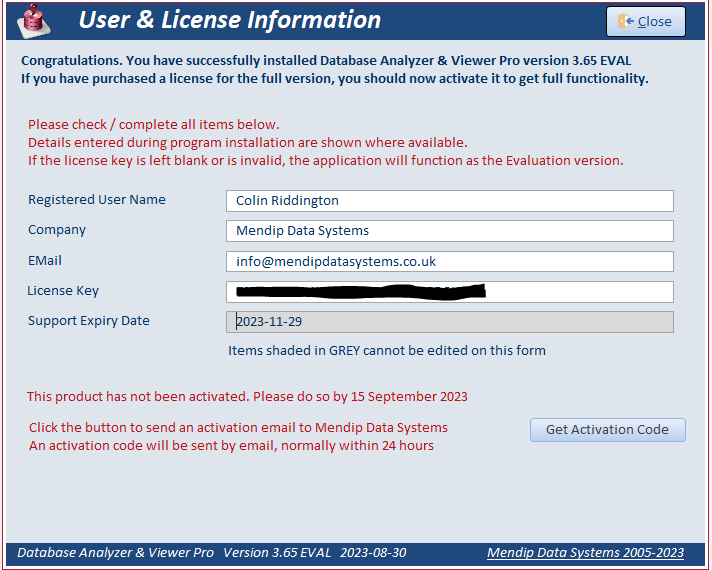
After entering a valid license key, you will need to activate the product after which it will become fully functional.
Click Get Activation Code. This will send an email to Mendip Data Systems with the information needed for us to activate your product.
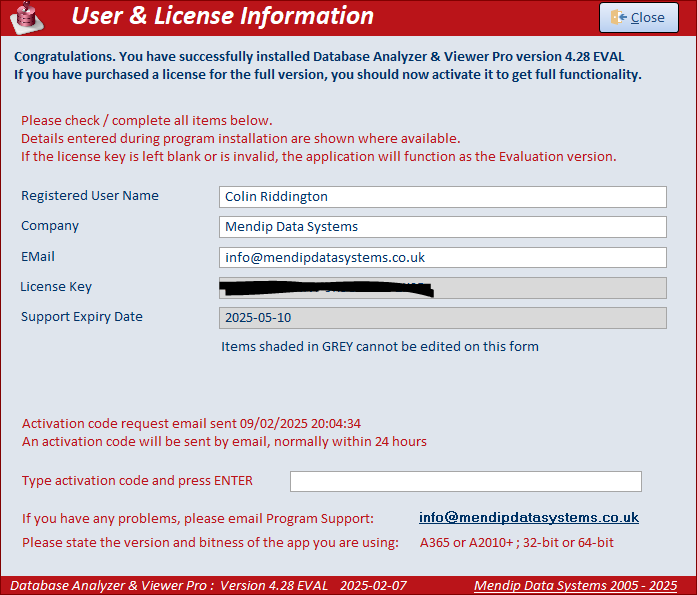
An activation code will be sent back to the email address supplied on the form, usually within 24 hours. Return to this form and enter the activation code supplied.
| 13. Videos | Return to Top |
Although it is should be easy to use, a series of training videos have been created to support new users of this application.
These can be watched from the Welcome screen of the application.
The videos are also available from the Database Analyzer Pro video playlist on my Isladogs YouTube channel.
Alternatively, you can watch each of the videos below:
a) Introduction (04:30)
b) Options & Analysis (05:53)
c) View Analysis Results (25:27)
d) Analysis Reports (08:00)
e) More Options & Analysis History (08:43)
f) Evaluation, Purchase & Activation (07:14)
g) Access Europe Meeting (2023-09-06) (59:10)
The application was also demonstrated to the Sept 2023 meeting of the online Access Europe User Group (AEU).
All AEU meetings are recorded and the videos uploaded to YouTube.
| 14. Acknowledgements | Return to Top |
Many thanks to various people who provided valuable assistance during the development of this application.
Also to all customers who purchased the original version of the app and provided useful feedback.
Particular thanks are due to:
a) George Hepworth - for detailed testing of several early versions and providing access to Azure SQL and Dataverse data
b) Angel Mazo - for providing valuable feedback on language-specific issues
c) Crystal Long - for allowing me to use a modified version of her Color VBA Code utility
d) Olaf Nöhring – for several excellent suggestions for improvements which acted as a prompt for me to complete this major update
| 15. Feedback | Return to Top |
An online feedback form is available for users of the full or evaluation version of the application
Alternatively, you can use the E-Mail button in the contact form below to provide feedback or if you have any questions about this application.
Colin Riddington Mendip Data Systems Last Updated 5 Sept 2025
|
Return to Home Page
|
Return to Top
|