
| First Published 23 July 2025 | Last Updated 21 Feb 2026 | Difficulty level : Easy |
|---|
Section Links (on this page):
Introduction
How Speedy Loading Works
Close All Bug - FIXED
Feedback
| 1. Introduction | Return To Top |
|---|
This is the fourth in a series of articles about the Monaco SQL Editor which rolled out to Access 365 current channel with version 2410 build 18129.20116 released on 28 October 2024.
One of the most requested improvements to the Monaco SQL editor was that it should load much faster.
Until recently, the Monaco editor took about 3 seconds to load for each query with the first query sometimes taking longer than this.
The delay was due to issues with the Edge browser control when accessing local HTML pages as required by Monaco.
However, after changing from SQL view to design or datasheet view then back to SQL view, the Monaco editor loads instantly. The layout has been saved into memory and loads without delay.
Starting with Beta Channel version 2507 build 19009.20000 released on 12 June 2025, this functionality is being used to allow SQL queries to open almost instantly in Monaco.
The Monaco editor is now pre-loaded during idle loop time when an Access app is first opened.
The new speedy pre-loading feature works extremely well and allows all Monaco windows to open almost instantly.
UPDATE 29 Aug 2025:
This feature is now available to some users in the Current Channel starting with version 2508 build 19127.20154 and should rollout to all users in the near future.
It had already been released to the two insider channels.
UPDATE 14 Jan 2026:
A new approach to speedy loading using a top level domain was released to the Beta Channel with version 2602. It will roll out to all channels in the coming months.
| 2. How Speedy Loading Works | Return To Top |
|---|
To see this in action, open the Task Manager before running an Access app and click More Details. Click the Processes tab and select Group By Type in the View menu.
This will cause running Apps to be displayed separately to Background Processes.
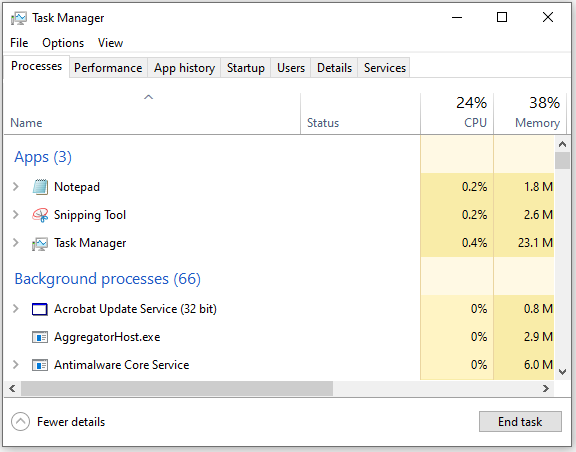
Now open Access. An Access instance will appear in the Apps section of Task Manager
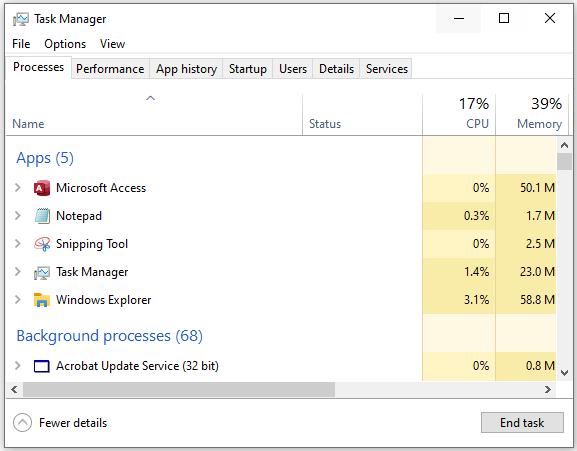
Next open a saved Access database or a new blank database.
After a couple of seconds, you will see the number of running Access processes increase to 6. Click the small arrow to expand the running processes.
This shows there are now FIVE WebView2 processes also running in the background including a WebView2 SQL monaco editor window.
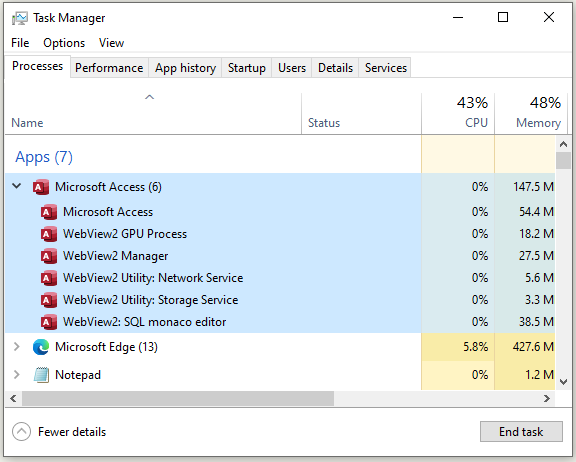
These WebView2 processes are silently looping through each of the queries and pre-loading each query in a hidden Monaco window whilst Access is not busy running other tasks / code.
Open a query in any view (SQL / design / datasheet). An additional WebView2 SQL monaco editor window is loaded in the background.
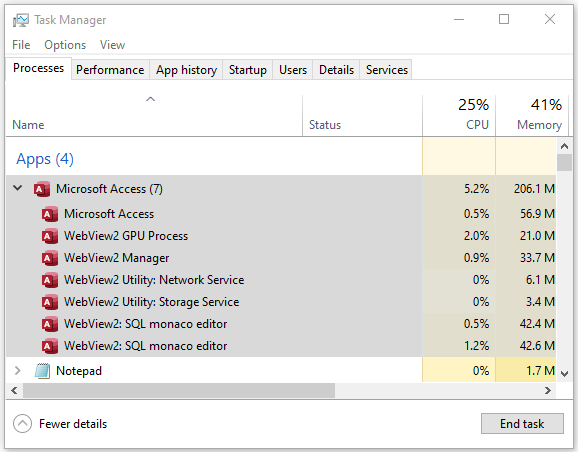
Change to SQL view and the Monaco window will open almost instantaneously,
Each additional open query will add an another WebView2 SQL monaco editor process.
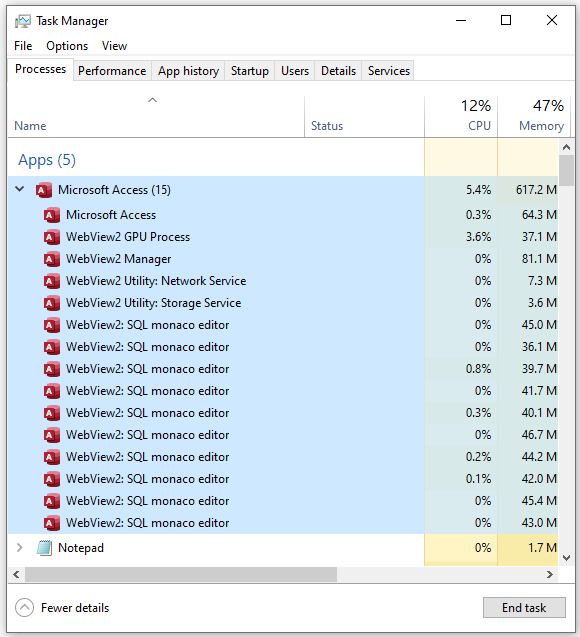
Each time a query is closed the number of running processes will decrease by one.
Or, by clicking Close All to close all open objects, the number of running processes reverts to 6 and the pre-loading functionality continues to run in the background when Access isn't busy running other tasks.
| 3. Close All Bug - FIXED | Return To Top |
|---|
When the feature was first released, a bug when clicking Close All caused ALL the WebView2 processes to also close.
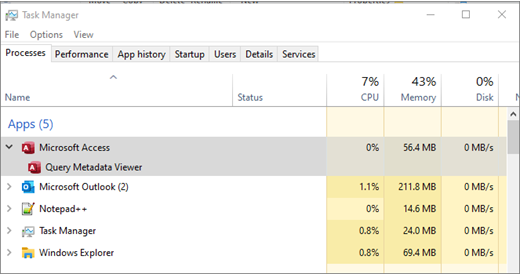
Opening a new query then caused Access to hang briefly then crash removing the Access instance as well from Task Manager.
The bug was reported to the Access team on 10 July and the complete fix was released with Beta channel version 2508 19119.20000 released on 22 July
| 4. Feedback | Return To Top |
|---|
Please use the E-Mail button in the contact form below to let me know whether you found this article useful or if you have any questions.
Please also consider making a donation towards the costs of maintaining this website. Thank you
| Colin Riddington | Mendip Data Systems | Last Updated 21 Feb 2026 |
|---|
Return to Access Articles Page
Page 4 of 4
1
2
3
4
Return To Top
|
|
|