First Published 19 Jan 2026 Last Updated 20 Jan 2026 Difficulty level : Moderate

Preamble
This is a companion to my recent article: Customize the Appearance of the Access MsgBox.
Over the past couple of years, Microsoft has been slowly rolling out a significant update to the old style message box used in all Office apps for built-in messages.
Gone are the monochrome and rather forgettable messages of the past. Now we have colorful messages that catch users' attention more effectively.
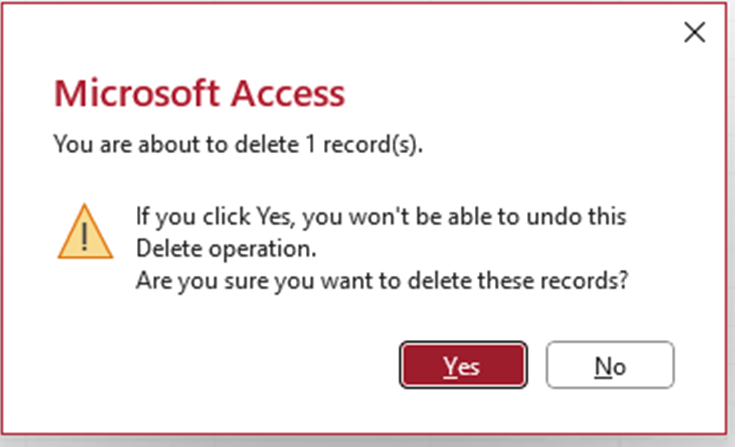
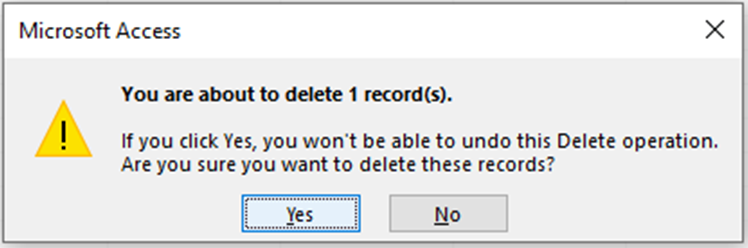
First, compare the new and old style delete record messages as shown using the default Access Colorful theme.
New Style Message
|
Old Style Message
|
|---|
The new style message boxes include large red header text, red default button, message text in 1 or more blocks, all round shadow effect, new icons and other features.
Unfortunately, Microsoft has not updated the VBA MsgBox function, so the style of the messages created in code are incompatible with the new style messages.
This led fellow UK developer, Neil Sargent, to create his own very successful replica of the new style message box.
This was a LOT of work over several months as it involved many complex UI tweaks.
The process was fully explained in his very successful presentation to the Access Europe User Group on 7 Jan 2026: Spot the Difference – A new style MsgBox for Access.
A video of that presentation is now available on the Access Europe YouTube channel at https://youtu.be/PNepytB5z2M
A few days after that session, I found out by chance that almost the same functionality is now available using the WizMsgBox function of the Access Wizhook object.
I hadn't seen any comments about this change in forum threads or other Access blogs until this passing reference at Access World Forums (AWF).
The AWF forum member who mentioned this was complaining that the WizMsgBox no longer acted like the Eval MsgBox function with a bold first line.
In short, the Wizhook WizMsgBox output is now identical to the new style MsgBox rather than the old Eval style MsgBox.
The first line before the '@' is no longer bold but is separated from the rest of the text. The title is now a larger red font.
Although the forum member at AWF wasn't happy, I think it is extremely beneficial as it means that Access developers can now easily replicate the new style message box with minimal code.
NOTE:
The old style WizMsgBox with the first line in bold text can still be achieved by using the Eval function. For example, using my FormattedMsgBox wrapper function.
Interestingly, the FormattedMsgBox function can now create both old style and new style messages depending on the arguments used.
I will discuss this in more detail in the second part of this article: New Style Message Box: Part 2 - Using Eval
The WizMsgBox function
Wizhook is a hidden and totally undocumented Access object that was introduced with Access 2000 and is mainly used to manage the Access wizards.
I wrote a detailed article about the Wizhook object back in 2022 at: The WizHook Object - Hidden, Undocumented . . . But Very Useful.
For this hidden, undocumented object to have been updated some 26 years after it was released would be a huge surprise.
In reality, it appears that the Wizhook WizMsgBox function just uses the same underlying code architecture as the built-in Access messages and so its behaviour changed at the same time.
Either way, to say this change was unexpected is a massive understatement. Of course, because Wizhook is unsupported, there was no announcement.
The WizMsgBox function has similar arguments to the standard VBA MsgBox function but in a different order.
Syntax: where arguments in [ ] are optional
VBA MsgBox MsgBox (Prompt, [Buttons As VbMsgBoxStyle = vbOKOnly], [Title], [HelpFile, Context]) As VbMsgBoxResult
WizMsgBox WizMsgBox (strPrompt As String, strCaption As String, lngStyle As Long, lngHelpID As Long, strHelpFileName As String) As Long
NOTE:
1. Before using the WizMsgBox function it is necessary to set the Wizhook.Key to the value 51488399
2. Unlike a VBA MsgBox, all WizMsgBox arguments are REQUIRED. However, we can make the process easier to manage using a wrapper function: MsgBoxW.
I have added the W suffix to denote Wizhook but it is appropriate because, unlike the standard VBA MsgBox, the WizMsgBox function supports Unicode characters.
For reasons I will explain later (see point 5), I have deliberately changed the order of the MsgBoxW arguments for consistency with the VBA MsgBox function.
Place this code in a standard module e.g. modWizhook:
Public Function MsgBoxW(strPrompt As String, Optional lngStyle As VbMsgBoxStyle = vbOKOnly, Optional strTitle As String = "", _ Optional strHelpFile As String = "", Optional lngHelpFile As Long = 0) As VbMsgBoxResult 'Set Wizhook key WizHook.Key = 51488399 MsgBoxW = WizHook.WizMsgBox(strPrompt, strTitle, lngStyle, lngHelpFile, strHelpFile)End Function
As all the function arguments (apart from the prompt) are optional and have default values, it is not necessary to enter values for each item.
3. One issue with the basic function above is that the message box title will always default to 'Error' if no title text is specified.
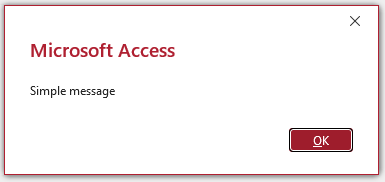
For example, using MsgBoxW "Simple message" will result in:
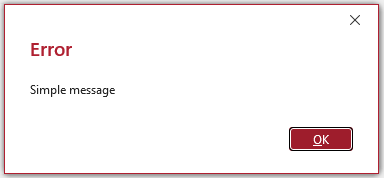
However, the default Access behaviour has always been to use the application title property when this has been set in Access Options.
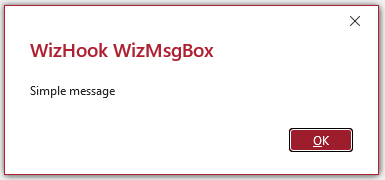
Where this is blank, the message title defaults to 'Microsoft Access'
An improved version of the MsgBoxW function achieves this result:
App Title specified
 |
No App Title
 |
|---|
To achieve this we need a slightly modified MsgBoxW function together wth a helper function GetAppTitle:
Public FunctionMsgBoxW(strPromptAs String,OptionallngStyleAsVbMsgBoxStyle=vbOKOnly,OptionalstrTitleAs String= "", _OptionalstrHelpFileAs String= "",OptionallngHelpFileAs Long= 0)AsVbMsgBoxResultDimblnWizKeyAs BooleanIfstrTitle= ""ThenstrTitle=GetAppTitle'Set Wizhook keyWizHook.Key= 51488399MsgBoxW=WizHook.WizMsgBox(strPrompt,strTitle,lngStyle,lngHelpFile,strHelpFile)End Function'------------------------------------------------Private FunctionGetAppTitle()As StringDimdbAsDAO.Database,prpAs PropertyOn Error GoToErr_HandlerSetdb=CurrentDbGetAppTitle=db.Properties("AppTitle")Exit_Handler:Exit FunctionErr_Handler:Select CaseErr.NumberCase3270'Property Not Found'db doesn't have an app titleGetAppTitle= "Microsoft Access"Case ElseMsgBox"Error "&Err.Number& " "&Err.Description& " in procedure GetAppTitle",vbCritical, "GetAppTitle error"End SelectResumeExit_HandlerEnd Function
4. The Wizhook.Key value only needs to be set once in each session rather than every time the MsgBoxW function is used.
This can be done with another small tweak to the MsgBoxW code by checking the value of a boolean variable blnWizKey:
Option Compare DatabaseOption ExplicitPublicblnWizKeyAs Boolean'==================================================================Public FunctionMsgBoxW(strPromptAs String,OptionallngStyleAsVbMsgBoxStyle=vbOKOnly,OptionalstrTitleAs String= "", _OptionalstrHelpFileAs String= "",OptionallngHelpFileAs Long= 0)AsVbMsgBoxResultIfstrTitle= ""ThenstrTitle=GetAppTitle'Set Wizhook key if not already doneIf NotblnWizKeyThenWizhook.Key= 51488399blnWizKey=TrueMsgBoxW=Wizhook.WizMsgBox(strPrompt,strTitle,lngStyle,lngHelpFile,strHelpFile)End Function
Doing this is more efficient though not really necessary as the time saved is miniscule.
I compared the times taken by setting the key value once with setting the key value 1 million times in a loop:
SubTestTime()DimStartTimeAs DoubleDimEndTimeAs DoubleDimIAs Long,blnWizKeyAs BooleanWizHook.Key= 0StartTime=TimerForI= 1To1000000If NotblnWizKeyThenWizHook.Key= 51488399blnWizKey=TrueNextEndTime=TimerDebug."Test1 (set once) - Time taken = "& (EndTime-StartTime) & " s"WizHook.Key= 0StartTime=TimerForI= 1To1000000WizHook.Key= 51488399NextEndTime=TimerDebug."Test2 (set each time) - Time taken = "& (EndTime-StartTime) & " s"End Sub
Typical results:

This means that each time it saves (0.68359375-0.015625) / 1,000,000 or approximately 0.667 microseconds! Clearly, this is negligible. However, every little helps!
If you decide to use this variation, make sure you define the boolean variable at the module level.
Also defining it as Public will allow it to be used with any of the other Wizhook functions elsewhere in your application.
5. By using this new custom function MsgBoxW you can create the new style message box whenever required but continue to use the standard VBA MsgBox at other times.
However, if you want all existing and future messages to use the new style, simply rename the MsgBoxW function as MsgBox.
By doing so, Access will use the custom MsgBox function instead of the default VBA MsgBox.
For this to work successfully with all existing messages, it was ESSENTIAL to ensure all the function arguments are written in the same order as the VBA MsgBox.
6. The message uses the new style fluent UI icons together with the default system sounds associated with each (unless system sounds have been disabled or modified in Windows settings).
| Icon | Program Event | Sound File |
|---|---|---|
| Information | Default Beep | Windows Background.wav |
| Exclamation | Default Beep | Windows Background.wav |
| Question | None | |
| Critical | Critical Stop | Windows Foreground.wav |
| No icon | None |
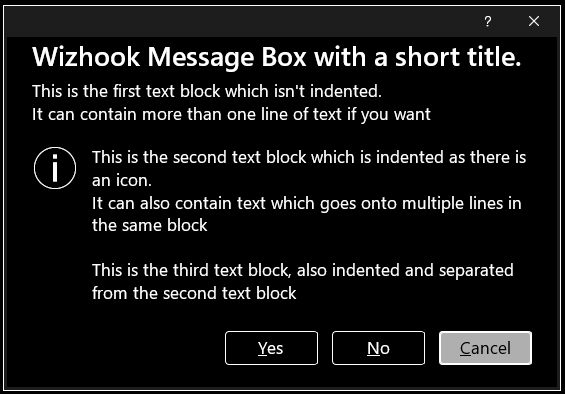
7. The prompt text can in a single block or be divided into up to 3 blocks by using a pair of '@' symbols either side of block 2. For example:
MsgBoxW "Example text block 1 @Text block 2@Text block 3", vbInformation + vbOKCancel, "Message in 3 blocks"
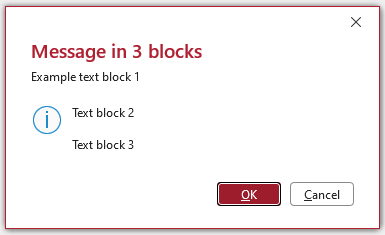
With no icon, the text in each block is left aligned. If an icon is used, the text in block 1 (before the first '@' symbol) is left aligned but all text in blocks 2 or 3 are indented.
This is the same method as was used to separate text blocks both in the old WizMsgBox and in the Eval version (FormattedMsgBox).
8. Using any value for lngHelpID that is greater than 0 will display a small '?' (help) button next to the X close button. For example:
MsgBoxW "This message has an accompanying help file.@Click the Help button with a '?' to open the online file@", vbExclamation + vbOKCancel, _
"Message with help file", "https://isladogs.co.uk/wizhook-new-style-msgbox/index.html", 1
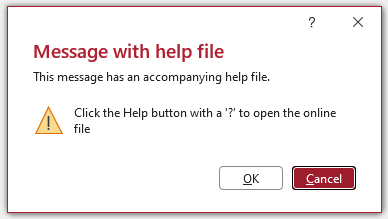
Click the help button to open the specified help page online. So far, I have not been able to get this to work with local help files.
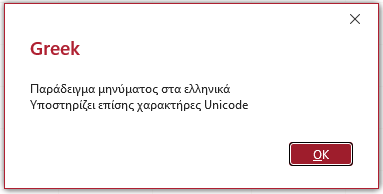
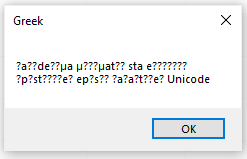
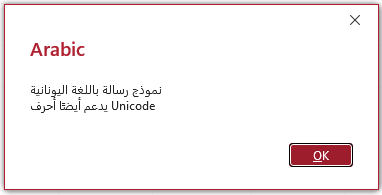
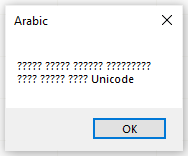
9. Unlike the VBA MsgBox, the WizMsgBox supports Unicode characters (as does the FormattedMsgBox based on the Eval function).
This means that languages based on non-Latin character sets such as Japanese, Hebrew and Bengali can all be displayed correctly as can other non-ASCII symbols such as 😁.
For example, I translated the English message text below into Greek and Arabic and saved these in a table for referencing in message boxes:
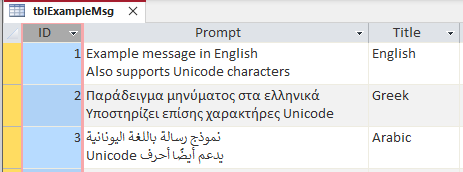
The results were as follows:
WizMsgBox - Greek
|
VBA MsgBox - Greek
|
|---|---|
WizMsgBox - Arabic
|
VBA MsgBox - Arabic
|
Note that neither type of textbox correctly displays text in right-to-left languages such as Arabic or Hebrew when that isn't the Office / Windows language.
10. The message box grows automatically with the length of the title and prompt text. Line breaks are added automatically.
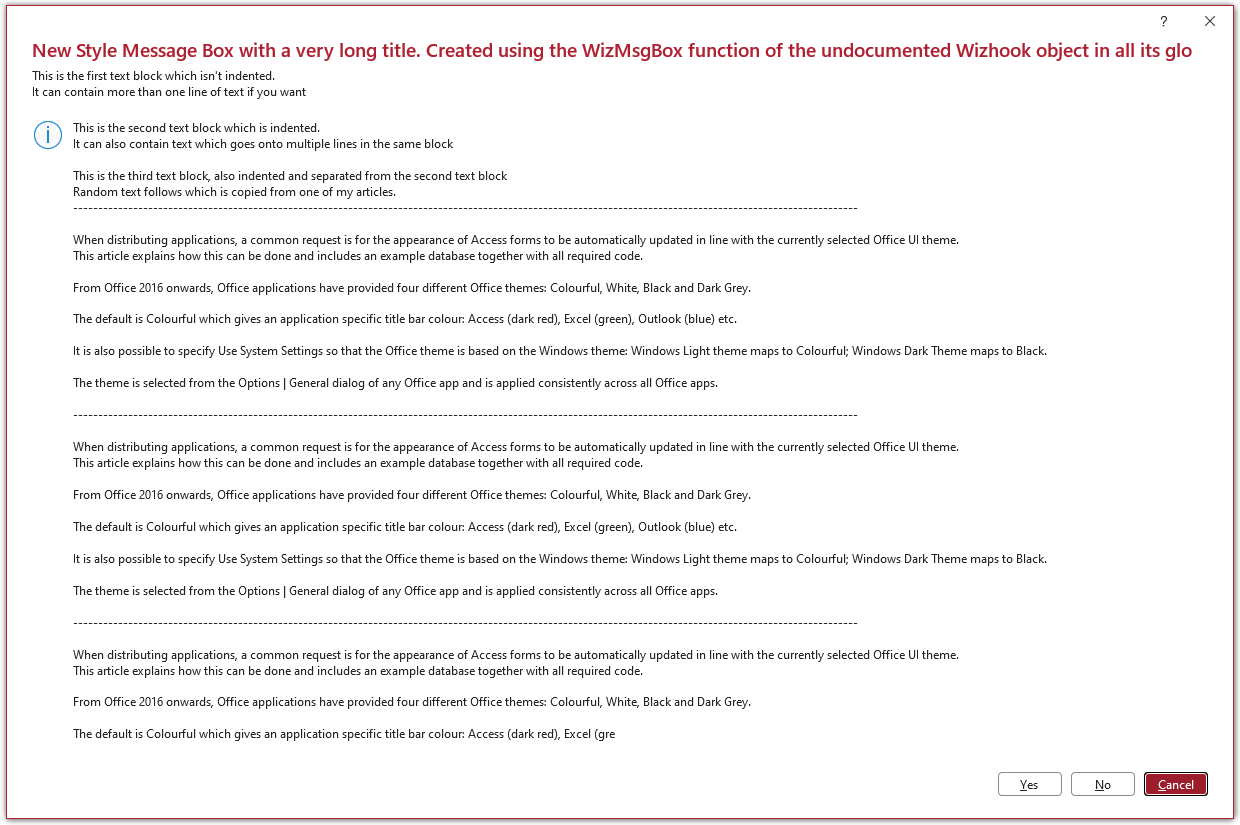
Notice that both the title and message text are truncated as the character limits have been exceeded.
The maximum lengths are 132 characters for the title and 2999 characters for the message text. Both limits should be far more than is ever needed in a real-world message.
By comparison, the maximum lengths in the VBA MsgBox are 122 characters for the title and 1023 characters for the message text.
In both cases, the title is limited to a single line and the character limit is determined by the maximum width allowed for the message box.
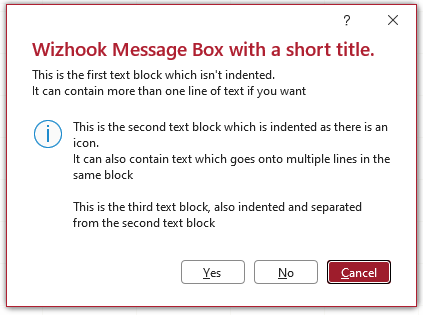
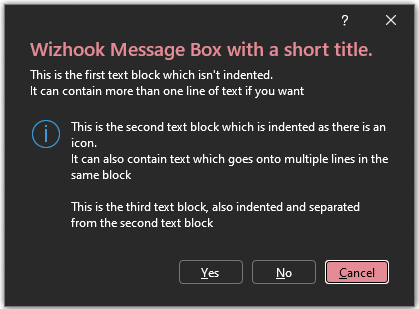
11. Unlike the VBA MsgBox, the new style message box also changes appearance according to the Office UI theme used. For example:
Colourful Theme
Black Theme
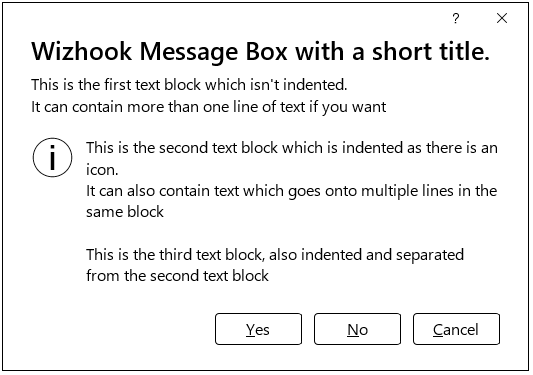
12. Similarly, unlike the VBA MsgBox, the new style message box also responds to Windows | Ease of Access settings such as:
• text size scaling from the default 100% up to 225%
• colour filters e.g. greyscale
• high contrast themes
For example:
Text 125%, Greyscale, High Contrast White
|
Text 140%, Greyscale, High Contrast Black
|
|---|
Note that the Ease of Access settings take precedence over the Office UI theme
For more details about points 11 and 12, see my article: Customize the Appearance of the Access MsgBox
13. Although the new style messages are built in to all Office apps, the Wizhook object is ONLY available in Access.
A different solution using APIs is required to replicate the new style messages in Excel, Word etc.
Acknowledgements
My thanks to Peter Cole and Xevi Battle for their comments about the use if the blnWizKey variable in the code used in point 4 above.
In addition, a huge thank you to Neil Sargent who has contributed many suggestions which have helped refine my understanding of the processes involved in both parts of this article.
Feedback
Please use the E-Mail button in the contact form below to let me know whether you found this article useful or if you have any questions.
Please also consider making a donation towards the costs of maintaining this website. Thank you
Colin Riddington Mendip Data Systems Last Updated 20 Jan 2026
Return to Access Articles Page
Page 1 of 2
1
2
Return To Top
|
|
|