| First Published 17 March 2026 | Last Updated 12 Sept 2026 | Difficulty level : Easy |
|---|

The first stage of the long-awaited Access 365 zooming feature was first enabled in the Beta Channel with version 2604 on 16 March 2026 and reached Current Channel (Preview) with version 2604 build 19929.20032 released 2026-04-07.
Zooming began rolling out to Current Channel users with version 2605 build 20026.20076 released on 2026-05-20. This was a gradual rollout and was completed on 2026-06-01.
This article gives an initial impression of the feature, outlines what is available now, and what is still to come.
As with all recently released features, some aspects are still being worked on and some bugs are possible. This article has been updated frequently with details of changes and bug fixes.
UPDATE 2026-06-20:
Stage 2 of the zooming feature has been enabled in both insider channels (Beta / Current Channel Preview) in the last few days. This provides additional functionality which is explained in the second part of this article: Zooming Feature - Stage 2 - Now Rolling Out
UPDATE 2026-08-09:
Further enhancements to the zooming feature have been released to the Beta Channel in the last few days. These provide several options to give users greater control over how the zooming feature is implemented in Access apps and for each form. The changes are explained in the third part of this article: Fine Tuning the Zooming Feature
Using the Zoom feature
The feature currently supports zooming for:
• Datasheet View in tables, queries and forms
• Form View in single forms, split forms and navigation forms
• Print Preview in reports
In Stage 1, the zoom range for objects is between 50% and 500% with 100% as the default value.
In Stage 2, the zoom range has been extended and is now 10% to 1000% in line with the existing range for reports in print preview..
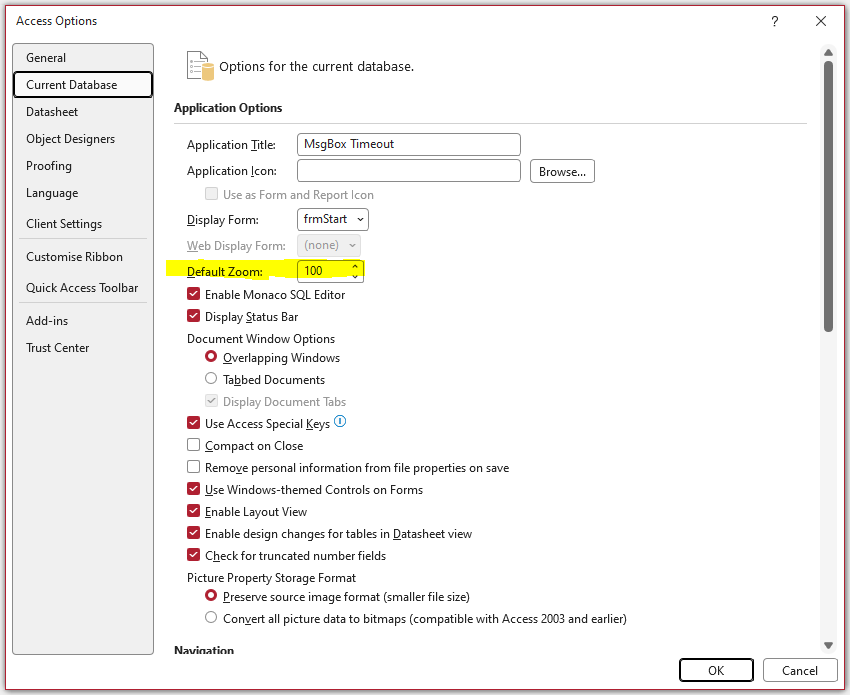
A new Default Zoom option is now available in Access Options | Current Database which will be very useful for some users:
UPDATE 2026-06-02:
Today I reported a bug when editing the default zoom value. The message below appears after entering any character, even though editing is not yet complete.
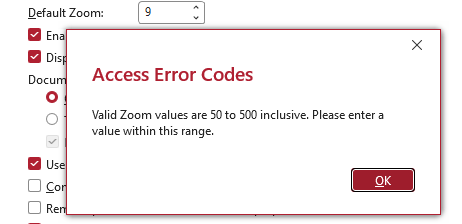
FIXED in Beta version 2607 20206.20000 released 2026-06-09.
With Stage 1, zooming is not supported for:
• Continuous forms (added in Stage 2)
• Popup forms (added in Stage 2)
• Report view (added in Stage 2)
• Design view / Layout view (all objects) - to follow in Stage 3
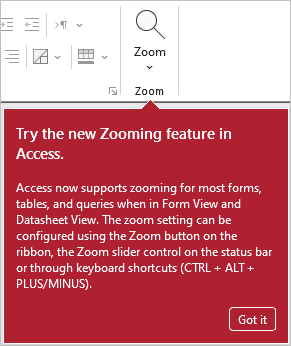
Zooming can be done in several ways for supported objects and scenarios:
• Zoom button on the ribbon Home tab
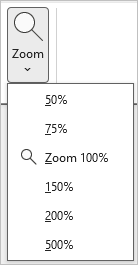
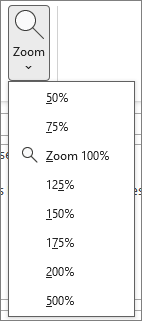
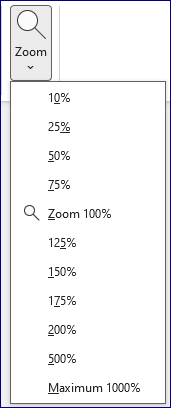
As most users typically zoom between 100% and 200%, I requested two additional values (125% & 175%) be added to the zoom dropdown.
UPDATE 2026-05-03: This change has now been implemented in both Beta and Current Channel (Preview)
UPDATE 2026-06-20: Stage 2 includes 3 further items in line with the extended zoom range
| Original Version (v2604) | Updated Version (v2605 onwards) | Stage 2 (Insider Channels) |
|---|---|---|
 |
 |
 |
• Zoom slider control on the status bar

• Using the keyboard shortcuts Ctrl+Alt+Plus and Ctrl+Alt+Minus
• Using Ctrl + Mousewheel scrolling
• Using two fingers on a touchscreen display or a touchpad
Separate fingers to increase the zoom level; bring fingers together to decrease the zoom
A new teaching callout outlines the different approaches available:
UPDATE: 2026-05-20
The official Microsoft documentation for this feature now available at: Zoom in or out of forms, tables, and queries when in Form View or Datasheet View
A Microsoft blog article announcing this feature is also now available at: Zooming in forms, tables, and queries now available in Access
Initial Impressions
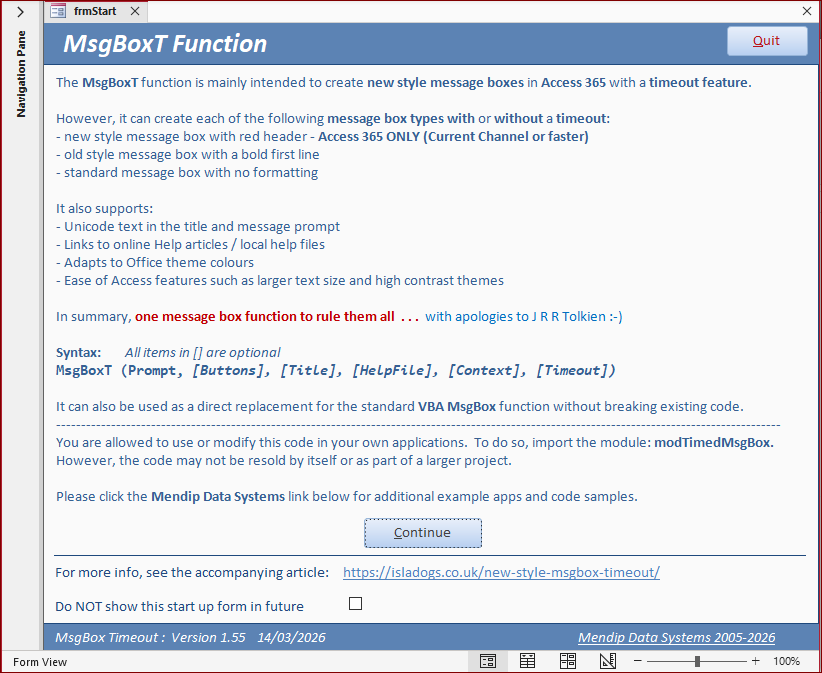
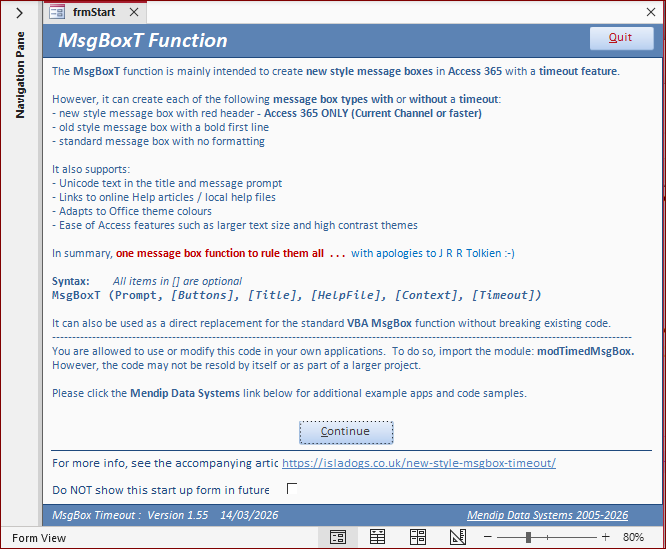
In my tests, the feature works well. Zooming is fast and smooth, with no flickering. All form components are resized and repositioned perfectly.
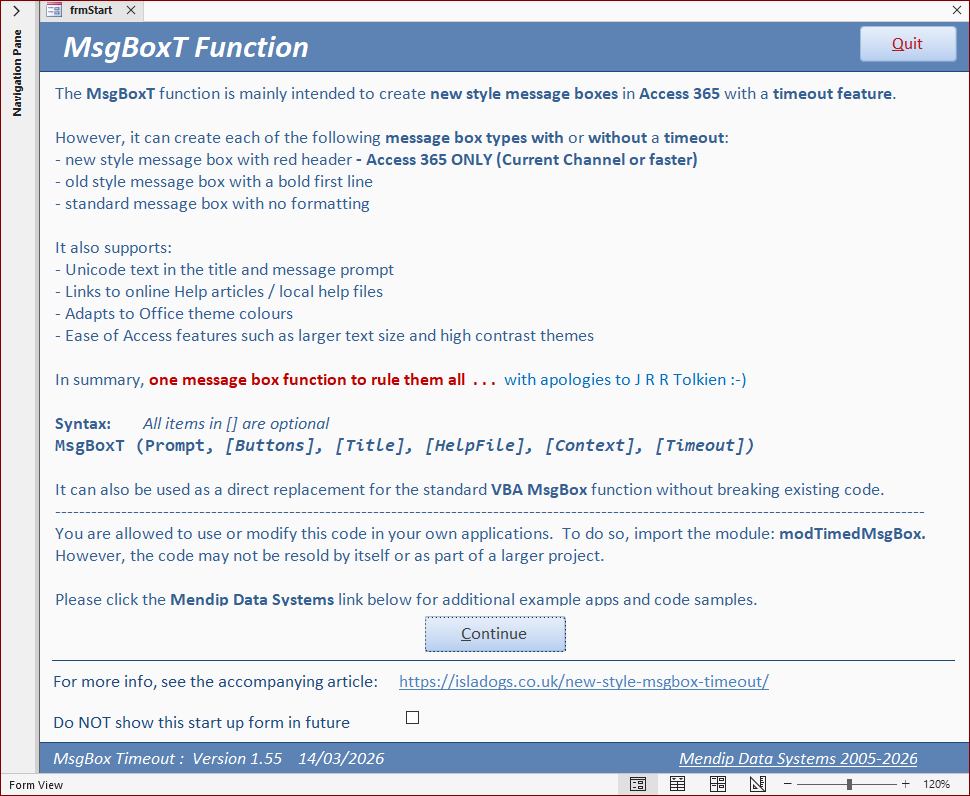
As an example, here is the same form at 3 different zoom levels:
100% Zoom (default)
80% Zoom
120% Zoom
See my separate article for advice on what to consider when designing your forms to ensure these work well when zoomed: Using the Zooming Feature Effectively
Some specific comments (with updates):
1. Datasheets & single forms - both zoom perfectly. No problems observed with most standard Access controls.
2. Navigation forms mostly zoom correctly - but initially had a redraw issue on shrinking below 100%. (FIXED Beta 2606 20030.20000 released 2026-05-01).
For example, this is a simple navigation form created using the wizard (before the fix was applied):
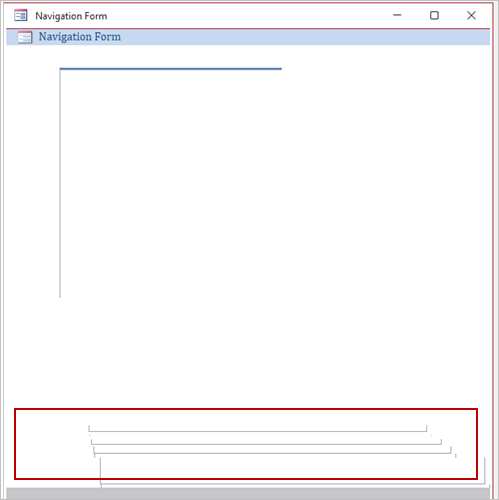
However, the border lines on the navigation form control still do not appear reliably when shrinking below 100%.
3. Split forms - work well except the splitter bar position doesn't change with zoom. Certain types of non-standard split forms may give unexpected results.
4. With non-maximized forms in overlapping windows display mode, the form contents are resized but form dimensions don't alter with zoom. I would expect both to change in proportion.
As the form dimensions are not adjusted, some of the form content is not visible when zoomed above 100%. Using scrollbars will mitigate the issue to some extent.
Interestingly, if the default zoom value is changed in Access Options and the Auto Resize or Fit To Screen properties are set to Yes, the form dimensions also alter with the zoom value.
However this ONLY happens when the form is loaded and NOT on subsequent zoom changes.
With the inclusion of VBA support in Stage 2 of this feature, it is now possible to use code to scale the form dimensions as well as the form content. See the second part of this article.
5. Zoom scaling is not retained on closing and reopening a form. Always starts at 100% (or the default zoom value in Access Options)
6. Certain controls do not resize when zoomed. These are the ‘usual suspects’ which mostly cannot be resized manually:
• Checkboxes - (FIXED Beta 2604 19923.20000 released 2026-03-26)
• Option group buttons - (FIXED Beta 2604 19923.20000 released 2026-03-26)
• Text size on TreeView controls (ActiveX controls are not included in the feature specification)
• Various components of 'classic' chart controls do not resize reliably
UPDATE 2026-05-31:
A recent regression resulted in checkboxes and option group buttons not being zoomed in some displays. This was fixed by the Access team on 2026-06-09.
7. Some controls such as modern charts did not display properly at less than about 75%. Below that, text initially didn't shrink then some / all chart items disappeared approaching 50%.
FIXED Beta 2604 19923.20000 released 2026-03-26.
However, similar issues with classic charts have not been fixed.
8. Checkboxes and option group buttons do not always 'fire' at low zoom values. Filled checkboxes may appear empty at 50% zoom
Ticking a checkbox at low zoom can cause other controls such as modern charts to revert to 100% (FIXED Beta 2605 20006.20000 released 2026-04-07)
9. Issues with mouseover highlighting not rendering correctly on command buttons (FIXED Beta 2604 19116.20000 released 2026-03-19)
10. Forms with multiple rich text controls do not zoom text size correctly unless control has focus.(FIXED Beta 2607 19116.20000 released 2026-06-23).
11. A keyboard shortcut Ctrl+Alt+0 (zero) has now been implemented to return to 100% zoom - (ADDED Beta 2604 20218.20000 released 2026-07-23)
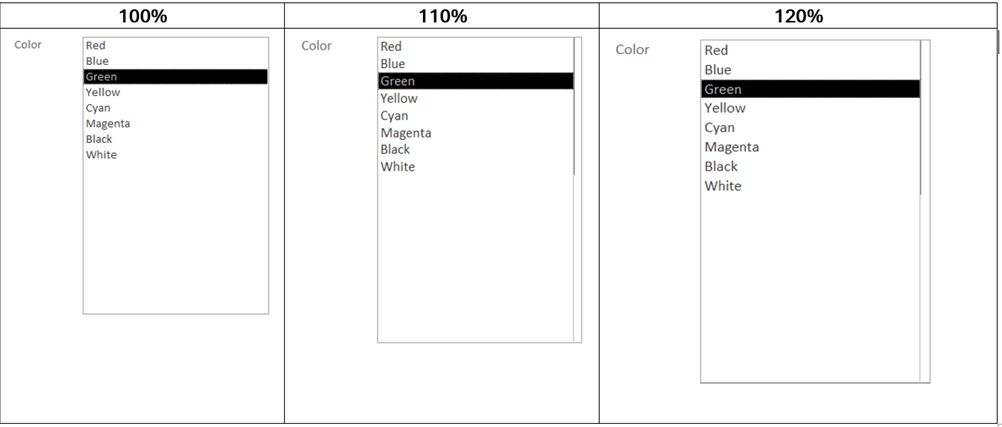
12. Listbox controls may show visual glitches when zoomed. The column width doesn't change in line with the listbox dimensions so the right side of the column border may become visible.
Also, the border line thickness is ‘heavier’ where listbox row data exists. (FIXED Beta 2605 20021.20002 released 2026-04-23)
13. UPDATE 2026-06-20
Stage 2 of the zooming feature includes VBA support in both insider channels (Beta / Current Channel Preview). See the second part of this article.
However, in Stage 1, existing VBA code for zooming reports in print preview also works for zooming supported form types:
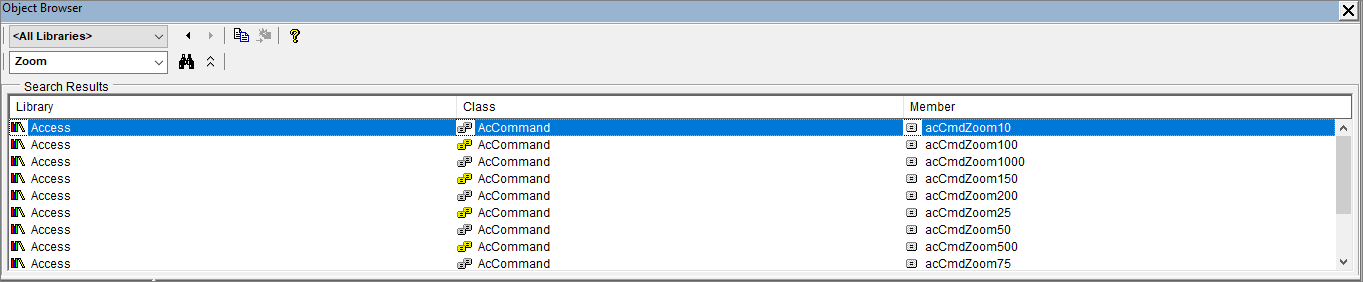
To use any of these commands, set the timer interval to e.g. 100 (milliseconds) and run code similar to the following in the Form_Timer event:
Private Sub Form_Timer() DoCmd.RunCommand acCmdZoom150 Me.TimerInterval = 0End Sub
NOTE:
a) All nine zoom values work in report print preview. However, in Zooming Stage 1, only the 6 values in the 50% to 500% range will work correctly in forms.
Both acCmdZoom10 & acCmdZoom25 will zoom down to 50% and acCmdZoom1000 will zoom up to 500%.
b) The Zoom code will only work after the form has fully loaded - NOT in the Form_Open or Form_Load events.
14. UPDATE 2026-06-09:
I also reported on 2026-06-02 that forms cannot currently be zoomed in ACCDE files. I was informed that this was an unintended result of another change.
Fixed in Beta version 2607 20206.20000 released 2026-06-09 and Current Channel Preview version 2606 20131.20052 released 2026-06-15. Will soon be fixed in Current Channel.
15. UPDATE 2026-06-07:
I reported three more issues today, all of which have since been fixed by the Access team:
a) When control widths are set using Size | To Fit, captions in labels and command buttons may get truncated at certain zoom values such as 90%, 110% & 130%. (FIXED Beta / Current Channel Preview 2609 20430.20032 released 2026-09-08)
This can happen because whereas control sizes are handled in twips (but displayed in inches/cm), font size is measured in points (multiples of 20 twips).
This means the caption text may get enlarged more than the control itself.
b) Although control tips are a form component, control tip text is not zoomed when forms are zoomed. (FIXED Beta 2607 19116.20000 released 2026-06-23)
c) Control tip text stops working at higher zoom values. This occurs progressively from the bottom of the form upwards. (FIXED Beta 2607 19116.20000 released 2026-06-23)
Footer objects stopped displaying control tips at around 110%, detail objects from around 230% to 320%, with only header object control tips still being shown above about 330%.
All control tip issues have now been fixed.
Future developments
The first stage of the zooming feature was released to the Current Channel on 2026-05-20. The Monthly Enterprise Channel will get the feature in the near future.
With Stage 2, the feature is being extended to include continuous and popup forms, report view and limited VBA support.
Full VBA support will also be added in the near future.
Stage 3 of the zooming feature will then add zooming for design view and layout view.
In addition, the current 22.75 inch (57.79 cm) limit for form widths is being removed so that big forms/reports can be created which make full use of larger monitors.
UPDATE 2026-05-31: The 'big forms' feature began rolling out to the Beta channel starting with version 2606 build 20123.20000
Width and height dimensions are now supported up to approximately 93,195 inches / 236,715 cm / 134,200,800 twips.
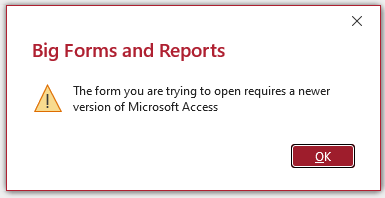
'Big forms' created in new builds will not open in an older version of Access which does not support the feature. A warning message is shown in such cases.
For more details about the new big forms feature, see my article: Big Forms & Reports for Modern Monitors
I have also requested some additional improvements including:
• the ability to zoom form contents by dragging the border to resize the form
• a Zoom to fit window option in the ribbon menu dropdown
• a new Form_Zoom event to provide full VBA code control of form actions when zoomed
• font size in message boxes & input boxes adapting to the zoom value / screen resolution
• text size in Access UI features such as the navigation pane and property sheet automatically adapting to screen resolution
Feedback
Please use the Email button in the contact form below to let me know whether you found this article useful or if you have any questions.
Please also consider making a donation toward the costs of maintaining this website. Thank you
| Colin Riddington | Mendip Data Systems | Last Updated 12 Sept 2026 |
|---|
Return to Access Articles Page
Page 1 of 3
1
2
3
Return To Top
|
|
|