| Version 0.592 Approx 4 MB (zipped) | First Published 27 Oct 2026 |
|---|

The second phase of the long-awaited form zoom feature was rolled out to the Current Channel for Access 365 users only starting with version 2608.
This phase included support for continuous and popup forms.
However, unlike standard forms, popup forms can not be zoomed from the ribbon or status bar. If a standard form is open behind a popup form, the zoom slider applies to the standard form.
The Zoom++ app adds the status bar zoom feature to popup forms and also works with all other form types.
It provides all the functionality of the built-in zoom feature and significantly enhances it in various ways.
The Zoom++ Project
This project was started by my colleague Xevi Batlle in conjunction with Gemini / Antigravity AI. The original purpose was to provide a status bar slider for use with popup forms.
This was done using a popup form which overlays the standard status bar.
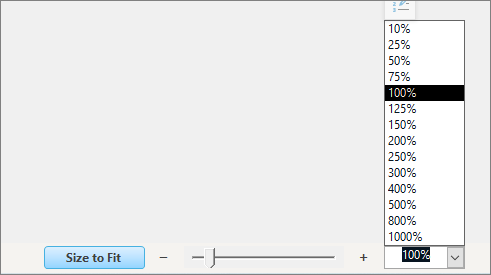
This includes a zoom slider, zoom in/out buttons, adds a zoom dropdown combo (similar to that in the ribbon) and a Size To Fit button.

The next screenshot shows the status bar zoom combo expanded:
From the start, all standard Access zoom features have been supported including the use of keyboard shortcuts (Ctrl+Alt + plus/minus) and Ctrl+Mousewheel.
The supported zoom range is the full 10% to 1000%. Clicking the +/- buttons increment the zoom level by 10%
Custom values such as 95% and 105% can also be entered in the status bar zoom combo
The status bar zoom slider and combo box both respond to changes in zoom values no matter how these are implemented.
As the project evolved, its scope was significantly expanded and now also includes support for:
• all form types - single/continuous/datasheet/split/navigation/modal/popup/dialog
• all Access control types plus many ActiveX controls e.g. treeview
• each individual form can open with its own default zoom
• forms in layout view
• zooming in all Access versions from 2010 onwards
• the Size to Fit feature
The project is called Zoom++ as it builds significantly upon the native Access zoom features.
Achieving all the above results was very challenging. The underlying class module code is very complex with many APIs which are 'hooked' deeply into the Access user interface.
However to activate the class module code in forms is very simple. It just takes a few lines of boilerplate code in the Form_Load event to register the form with the zoom engine, together with Get Instance/Set Instance properties which manage the form zoom geometry, baseline capture and status bar synchronisation.
When the example app opens, a startup form is displayed giving access to all example form types. Zooming has been disabled in the startup form.
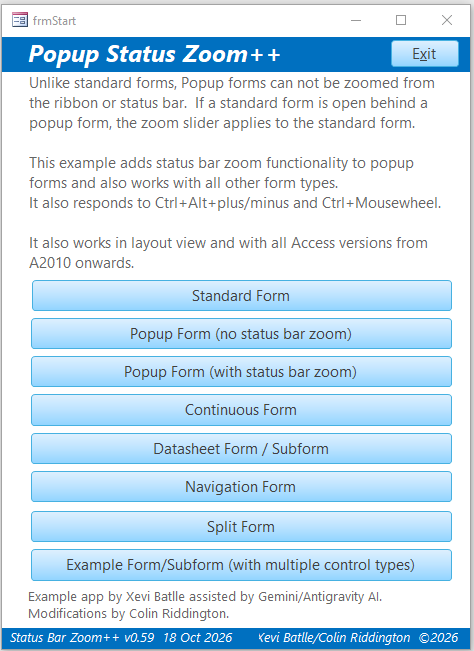
The standard and popup forms linked to the first two buttons use the built-in Access zoom feature for comparison.
When the standard form is open, the built-in zoom slider is shown. When the popup form is open on its own, the status bar slider does not appear and the ribbon zoom menu is disabled.
If both forms are opened together, the status bar slider appears but only affects the standard form even when the popup form is on top.
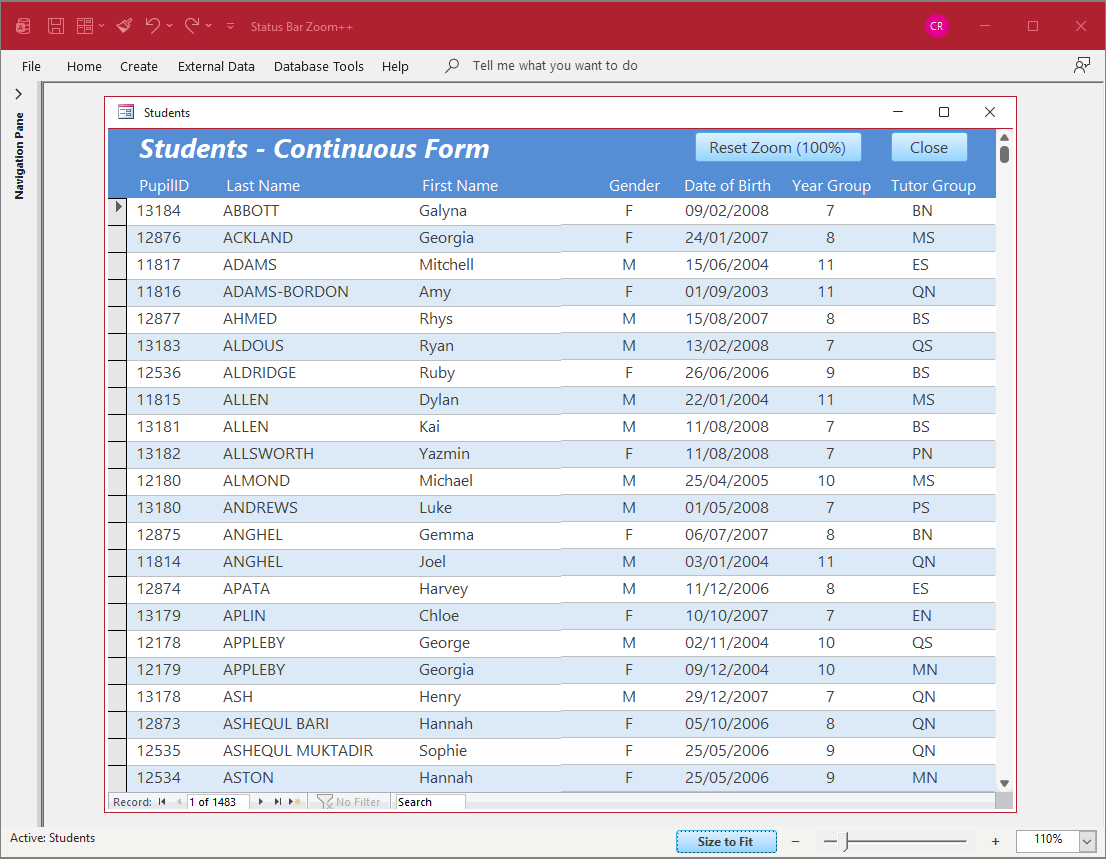
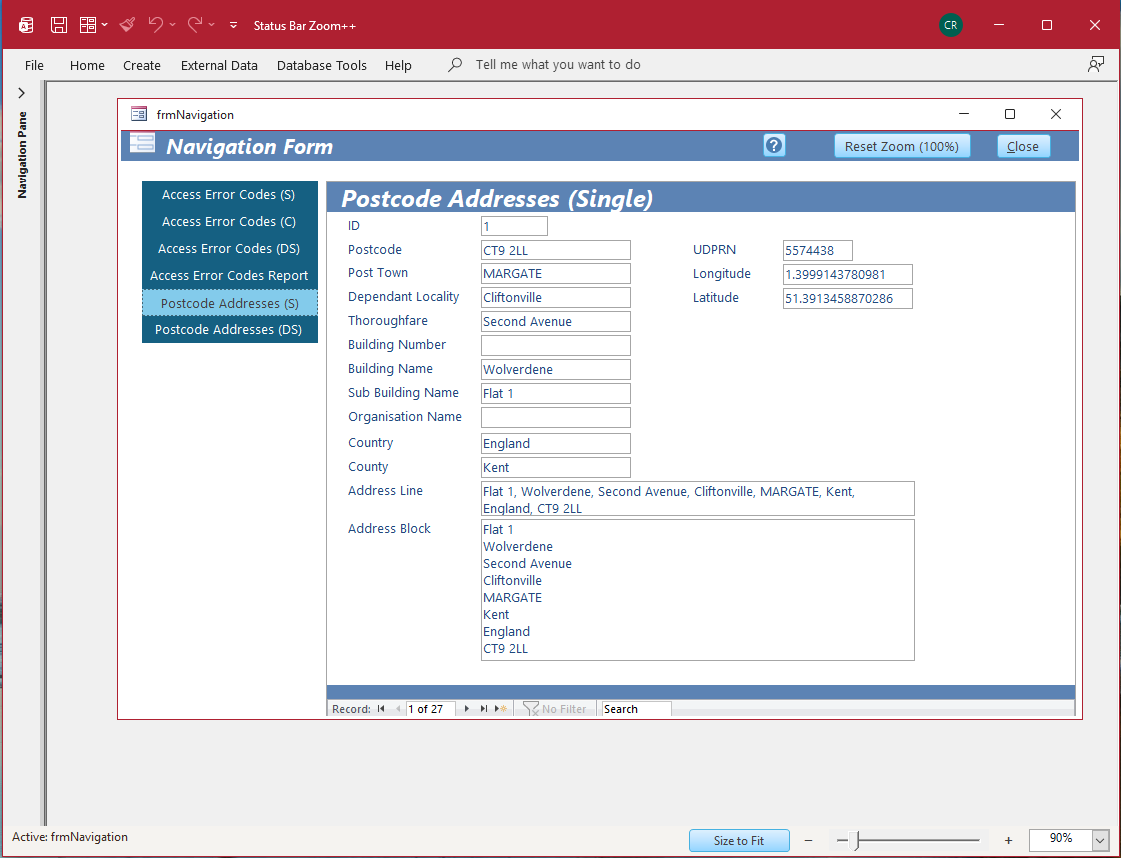
The remaining five buttons all open forms that use the Zoom++ code with the form frmStatusBar now shown. For example:
Continuous form - 110% Zoom
Navigation form - 90% Zoom
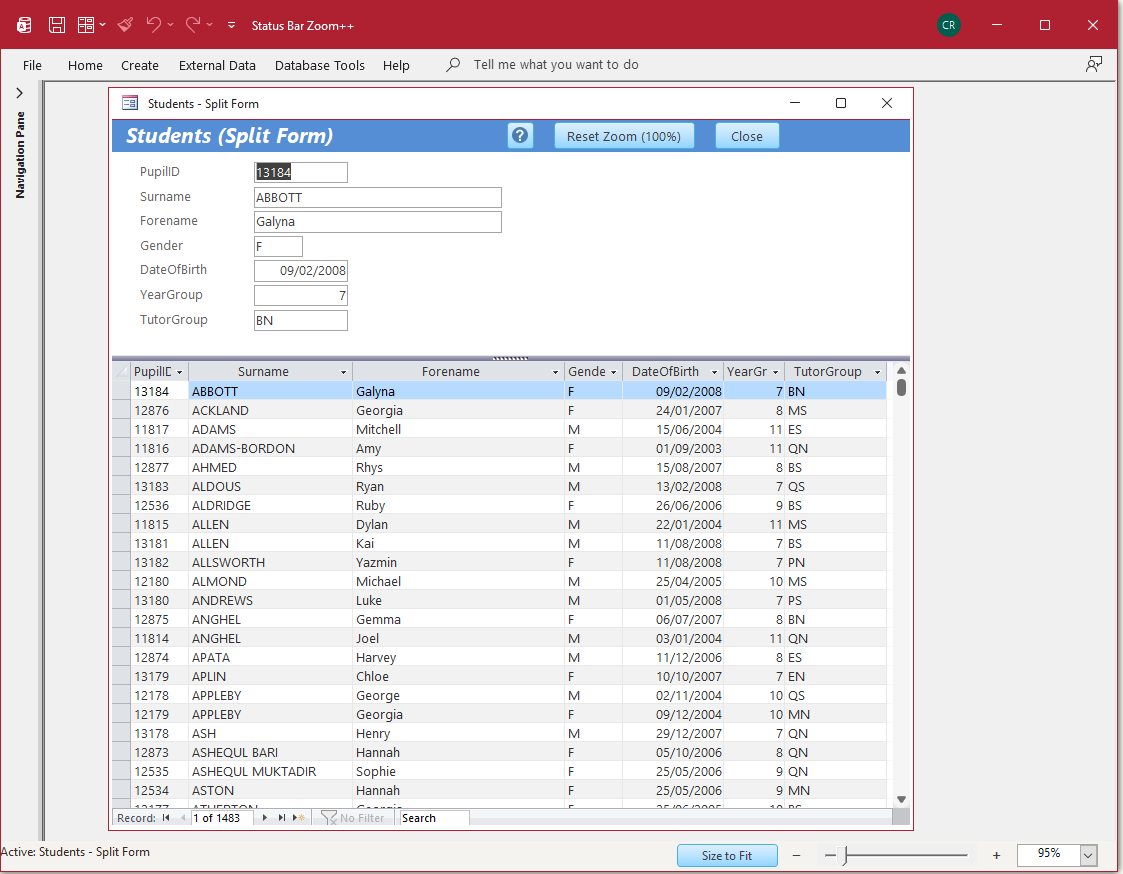
Split form - custom 95% Zoom
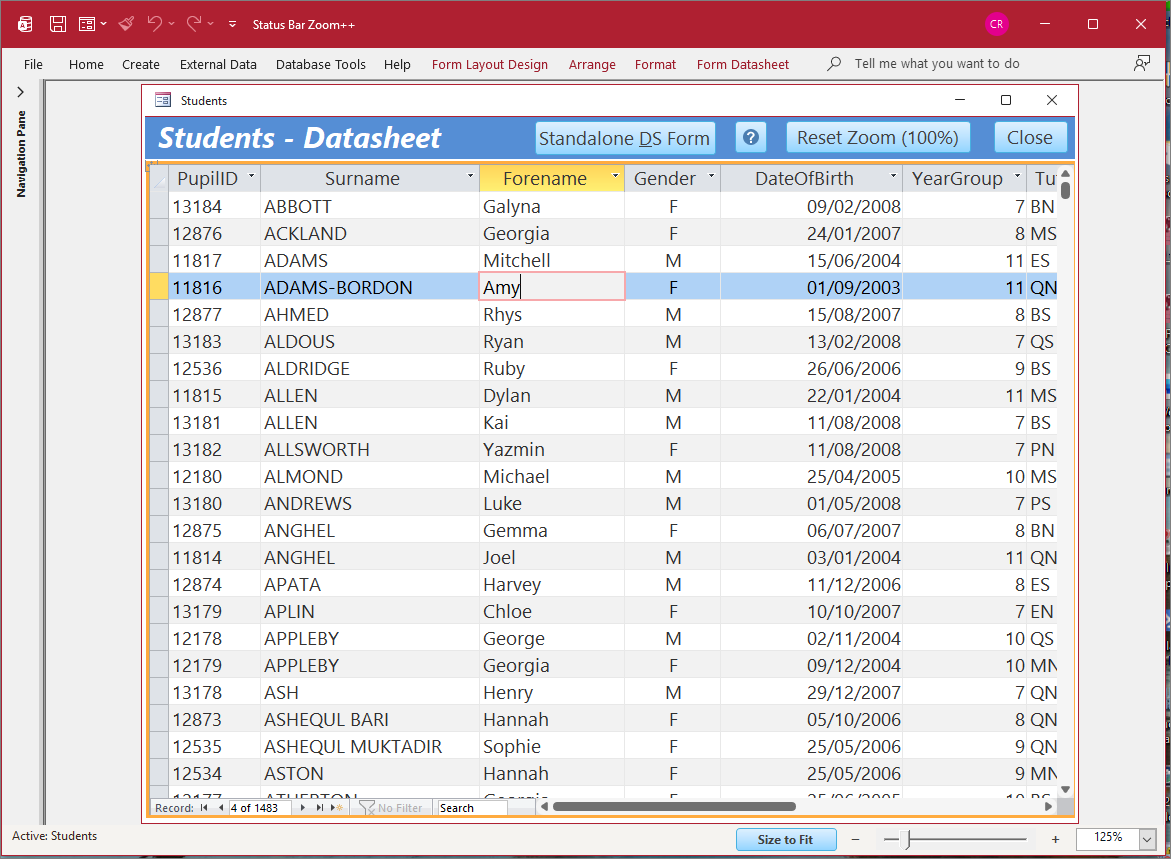
Datasheet subform - 125% Zoom in Layout View
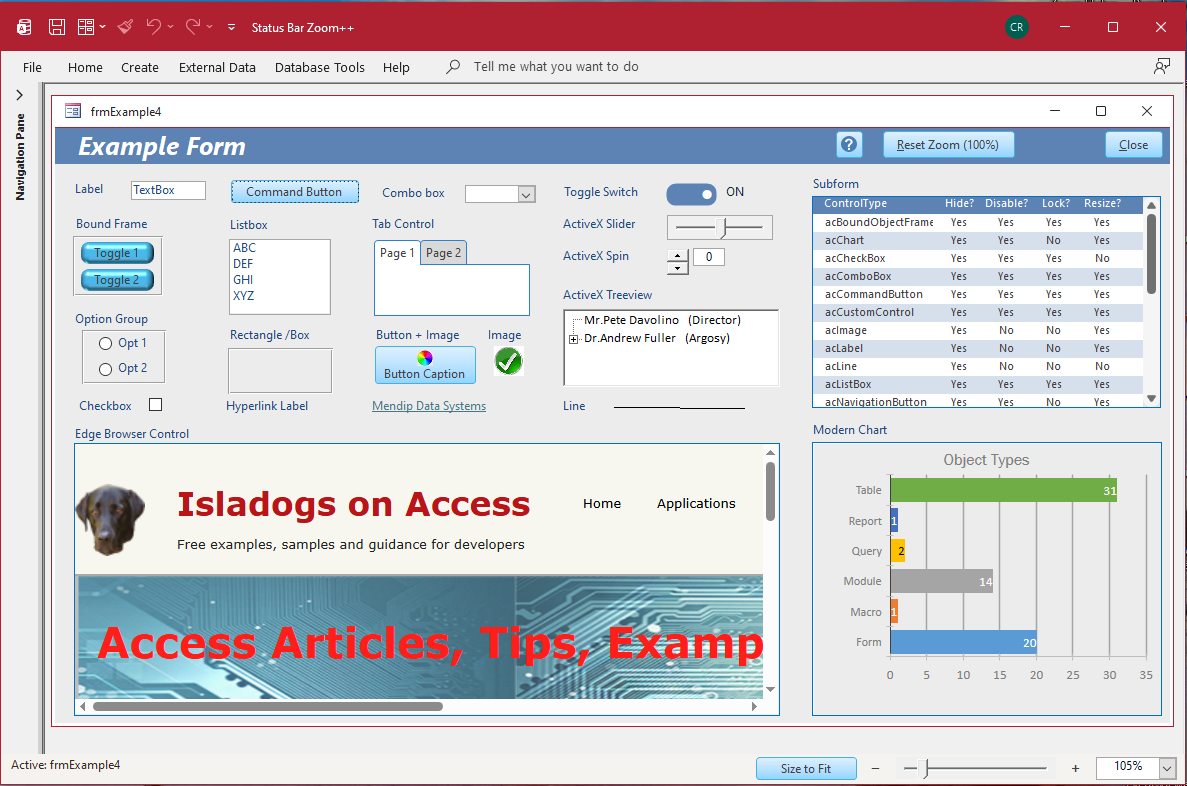
Example form/subform with multiple control types - custom 105% zoom
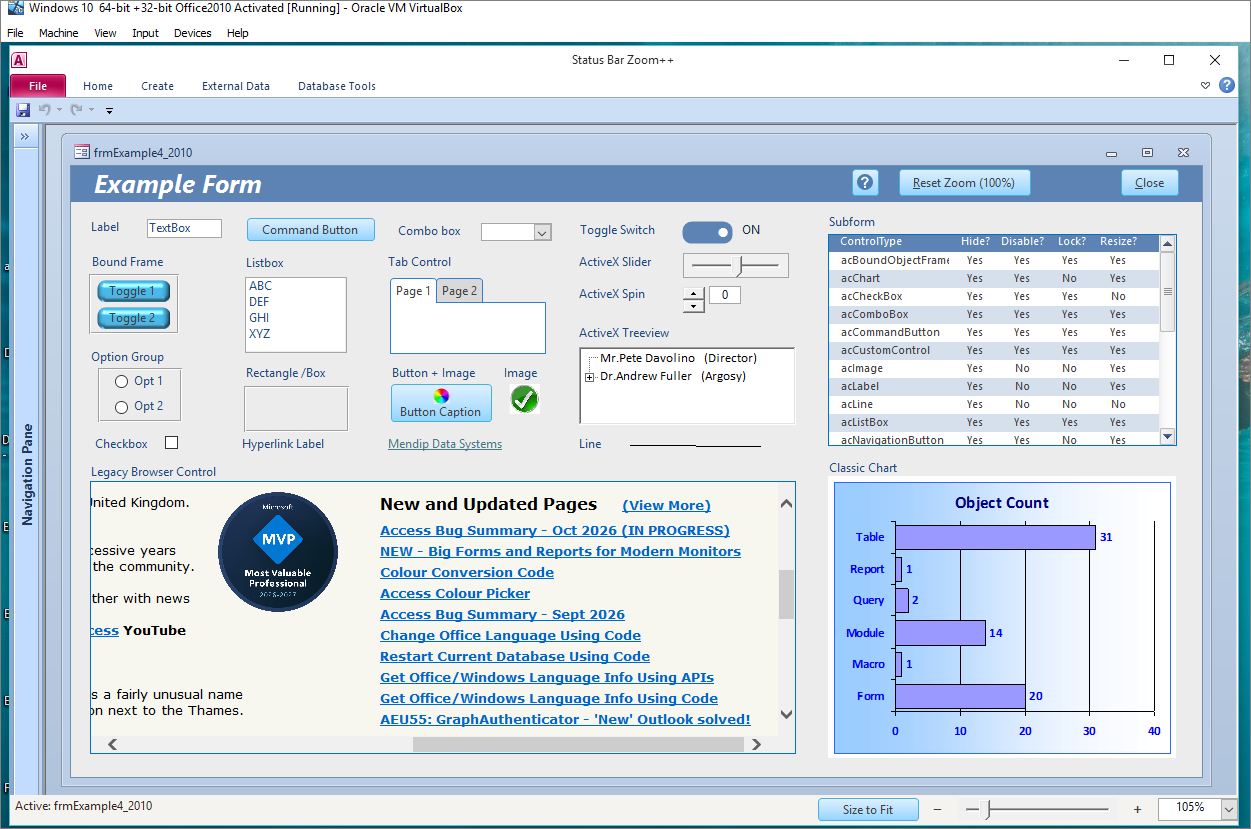
When opened in older versions of Access such as 2010, the example form/subform has a legacy browser control and a classic chart in place of the Edge browser control and modern chart.
Known Limitations
Zoom++ is a form resizing tool rather than a true zoom feature. Its behaviour is therefore similar to my Automatic Form Resizing feature.
As a result, there are some minor limitations that you should be aware of:
• Checkboxes, option group buttons and images on command buttons are not resized on zoom. Various workarounds are available for these control types:
See the Image Scaling on Command Buttons section of my article: ResizeForm Me - A Tutorial in Automatic Form Resizing - Page 4 (of 4)
• When using older versions of Access that do not support the new Big Forms feature, form widths will still be limited to 22 inches.
Although the form controls will still zoom, controls close to the right edge may overlap as the zoom level increases.
The app currently uses an ActiveX slider control. In order for this to work, ActiveX controls must be allowed in the Trust Center | ActiveX Settings.
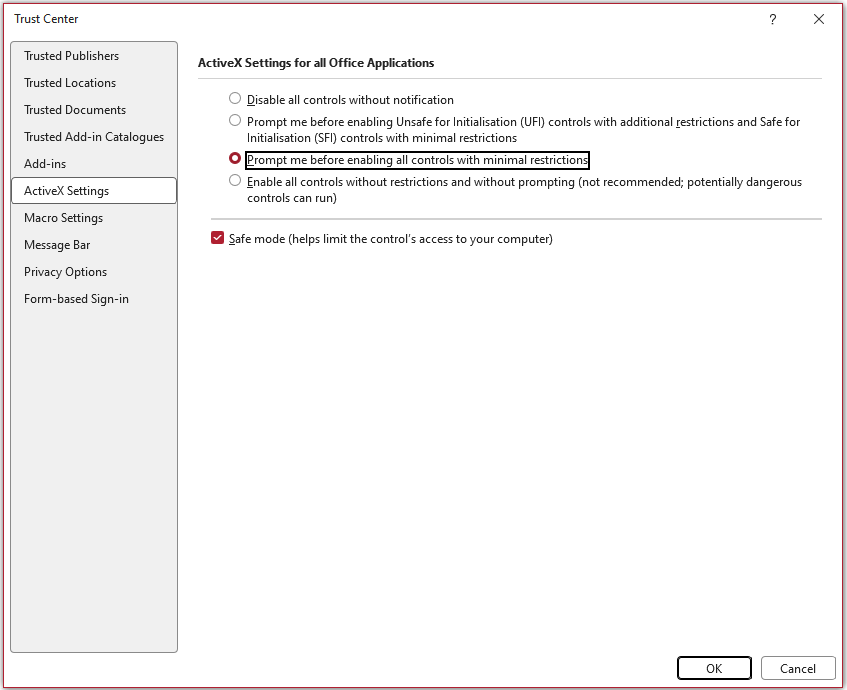
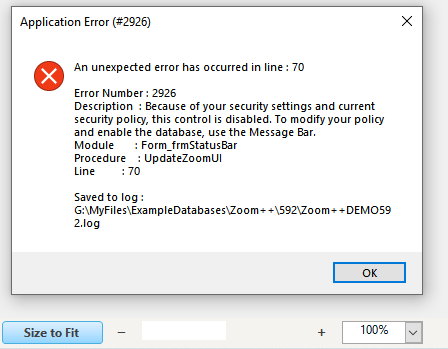
If Access is set to disable ActiveX controls, three error messages will appear and the slider control will be missing from the status bar.
The ActiveX Slider control was included in all 32-bit versions of Access from Access 2010 onwards. Unfortunately a 64-bit version was not available until Access 2019. As a result, the current version of the DEMO app will not work in 64-bit Access 2010, 2013 or 2016.
It is hoped to replace the ActiveX slider control with a slider control that will work in both 32-bit and 64-bit Access from 2010 onwards.
Future Plans
It is hoped that Zoom++ will be released either as a library database or an Access add-in in the near future.
For now it is supplied as an example ACCDE application showing all functionality but with the code inaccessible.
Download
Click to download:
a) 32-bit Access (All versions of Access from 2010 onwards)
Zoom++ DEMO v0.592 (32-bit) 32-bit ACCDE file for Access 2010 or later - approx 4 MB (zipped)
a) 64-bit Access (All versions of Access from 2021 onwards)
Zoom++ DEMO v0.592 (64-bit) 64-bit ACCDE file for Access 2021 or later - approx 4 MB (zipped)
More ACCDE versions to follow
As is the case for all files downloaded from the internet, first unblock the downloaded file, unzip then save to a trusted location.
For more details, see my article:
Unblock downloaded files by removing the Mark of the Web
Video
I have created a YouTube video (16:46) to demonstrate this using the DEMO app.
You can watch the Introducing Zoom++ video on my Isladogs YouTube channel or you can click below:
If you liked the video, please subscribe to my Isladogs on Access channel on YouTube. Thanks.
Acknowledgements
The development work in this project was led by Xevi Batlle with the assistance of Gemini/Antigravity AI.
My role in this project was mainly providing support by suggesting new features and testing functionality.
Feedback
Please use the Email button in the contact form below to let me know whether you found this article useful or if you have any questions.
Please also consider making a donation towards the costs of maintaining this website. Thank you
| Colin Riddington | Mendip Data Systems | Last Updated 27 Oct 2026 |
|---|
|
Return to Example Databases Page
|
Return to Top
|