| Version 1.58 | First Published 16 Apr 2026 |
|---|

My article: New Style Access Message Boxes With Timeout, demonstrated the MsgBoxT function, designed to create Fluent UI message boxes in Access 365 with a timeout feature.
In fact it was a multi-purpose function which can create each of the following message box types with or without a timeout:
• new style Fluent UI message box with red header in Access 365 (Current Channel or faster)
• old style message box with a bold first line
• standard message box with no formatting
The MsgBoxT function also supports:
• Unicode text in the title and message prompt
• Links to online Help articles / local help files
• Adapts to Office theme colours
• Ease of Access features such as larger text size and high contrast themes
However, using the MsgBoxT function, a countdown isn't supported whilst the timeout feature is running. This is because Access message boxes are modal and therefore static in terms of their contents. That means the message cannot easily be intercepted during the timeout to provide a running countdown.
This article describes 3 different approaches which can be used to achieve this outcome. Each method is a workaround to the problem and has its own advantages and disadvantages:
1. redraw the message box each second during the timeout
2. add a countdown as an overlay to the message box
3. use a custom message form
1. Redraw the message box each second during the timeout
A potentially useful approach would be to modify the MsgBoxT function to include countdown text which is updated each second.
However, as the form is modal, this can only be done by intercepting the timeout each second, closing then redrawing a modified message on each occasion.
The code changes required are relatively simple. However, this leads for a poor user experience with the message box being reloaded each second.
It also makes it difficult to interrupt the countdown to click the message box buttons. I would not recommend this approach for most purposes.
The only time I would ever consider using this is for a long timeout of at least 60 seconds with the countdown updated at 10 second intervals or more.
2. Add a countdown as an overlay to the message box
This approach is based on an original idea by my colleague, Xevi Batlle, who provided a substantial part of the code.
The countdown message text is separate from the message box but positioned so it overlays a suitable location on the timeout message box.
If the message box is moved during the timeout period, the overlay text moves automatically so it remains in the correct position.
The appearance and position of the countdown message can be modified to 'blend in' with the message style (Fluent UI / bold first line / standard message) and is updated as appropriate for the Office UI theme in use.
The approach is based on a modified version of the MsgBoxT function, renamed as MsgBoxTC, and with an additional optional boolean argument (Countdown) with a default value = False.
Syntax: Items in [ ] are optional
MsgBoxT (Prompt, [Buttons], [Title], [HelpFile], [Context], [Timeout], [Countdown])
Example 1: Fluent UI Message with help file, 10 second timeout and countdown:
MsgBoxTC "Click the Help (?) button to view the linked help article online.@This message will close automatically after 10 seconds@", vbYesNoCancel + vbInformation + vbDefaultButton2, "MsgBox Timeout", "https://isladogs.co.uk/new-style-msgbox-timeout/", 2, 10000, True
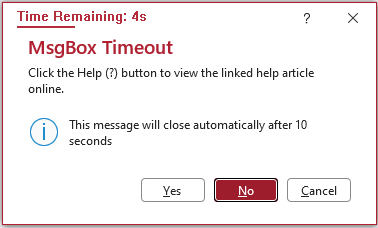
Example 2: Fluent UI Message with Unicode text, 10 second timeout and countdown with Black Office UI theme:
MsgBoxTC "Παράδειγμα μηνύματος στα ελληνικά Υποστηρίζει επίσης χαρακτήρες Unicode σψϠΦϓ 🚗🛴🚲🚦 ΔΘΞΣρΛδ", vbRetryCancel + vbExclamation + vbDefaultButton2, "Greek ΔΘΞΣρΛδ", "", 0, 10000, True
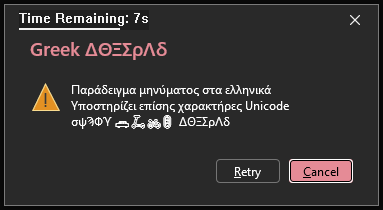
Example 3: Old Style Message with bold first line, 5 second timeout and countdown:
MsgBoxTC "Old style messages also support 3 distinct text blocks each with 1 more more lines of text. The first block has bold text@Normal 2nd line @Message closes after 5 seconds.", vbOK + vbCritical, "Info", "", -1, 5000, True
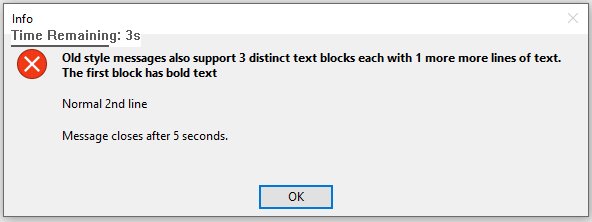
The short video below (4:08) shows various examples of this function in use:
NOTE: An updated version of this video with additional explanations will be uploaded in the next week or so.
The code for the MsgBoxTC function is contained in a single module, modTimedMsgBoxCountdown.
Option Compare DatabaseOption Explicit'---------------------------------------------------------------------------------------' Form : modTimedMsgBoxCountdown' DateTime : 14/03/2026' Author : Colin Riddington (Mendip Data Systems); Xevi Batlle' Website : https://www.isladogs.co.uk' Purpose : Functions used to create a timeout & countdown version of the new style Fluent UI Access message box function' Also works for old style message box wityh bold first line and standard message box' Copyright : The code in the utility MAY be altered and reused in your own applications' provided the copyright notice is left unchanged (including Author, Website and Copyright)' You are NOT allowed to sell, resell or repost this on other sites such as online forums' without permission from the author. However, links back to the above website ARE allowed.' If you find this code useful please place a link to my website on your own web site' so that others may benefit as well.' Updated : 2026-04-07'---------------------------------------------------------------------------------------'===========================' Win32 API Declarations'==========================='The following APIs are used to identify the handle for the message box and set the timer'Finally the timer is destroyed if the message box is closed by the user'https://learn.microsoft.com/en-us/windows/win32/api/winuser/nf-winuser-findwindoww'Retrieves a handle to the top-level window whose class name and window name match the specified strings.'Also works for unicode stringsPrivate Declare PtrSafe FunctionFindWindowWLib"user32"_(ByVallpClassNameAs LongPtr,ByVallpWindowNameAs LongPtr)As LongPtr'https://learn.microsoft.com/en-us/windows/win32/api/winuser/nf-winuser-postmessagew'Places (posts) a message in the message queue associated with the thread that created the specified window'and returns without waiting for the thread to process the message.Private Declare PtrSafe FunctionPostMessageWLib"user32"_(ByValhwndAs LongPtr,ByValwMsgAs Long, _ByValwParamAs LongPtr,ByVallParamAs LongPtr)As Long'https://learn.microsoft.com/en-us/windows/win32/api/winuser/nf-winuser-settimer'Creates a timer with the specified time-out value.Private Declare PtrSafe FunctionSetTimerLib"user32"_(ByValhwndAs LongPtr,ByValnIDEventAs LongPtr, _ByValuElapseAs Long,ByVallpTimerFuncAs LongPtr)As LongPtr'https://learn.microsoft.com/en-us/windows/win32/api/winuser/nf-winuser-killtimer'Destroys the specified timerPrivate Declare PtrSafe FunctionKillTimerLib"user32"_(ByValhwndAs LongPtr,ByValnIDEventAs LongPtr)As Long'============================================================='The following APIs are used to manage the countdown overlay message'=============================================================#IfWin64Then'https://learn.microsoft.com/en-us/windows/win32/api/winuser/nf-winuser-setwindowlongptra'SetWindowLongPtr is required for 64-bit Office to handle memory pointers safely'Changes an attribute of the specified window. The function also sets a value at the specified offset in the extra window memory.Private Declare PtrSafe FunctionSetWindowLongPtrLib"user32"Alias"SetWindowLongPtrA"_(ByValhwndAs LongPtr,ByValnIndexAs Long,ByValdwNewLongAs LongPtr)As LongPtr#Else' Standard 32-bit declarationPrivate Declare PtrSafe FunctionSetWindowLongLib"user32"Alias"SetWindowLongA"_(ByValhwndAs LongPtr,ByValnIndexAs Long,ByValdwNewLongAs LongPtr)As LongPtr#End If'============================================================='Graphics Device Interface (GDI) and User32 functions for drawing and window management'============================================================='https://learn.microsoft.com/en-us/windows/win32/api/wingdi/nf-wingdi-createsolidbrush'Creates a logical brush that has the specified solid color.Private Declare PtrSafe FunctionCreateSolidBrushLib"gdi32"(ByValcrColorAs Long)As LongPtr'https://learn.microsoft.com/en-us/windows/win32/api/winuser/nf-winuser-getwindowrect'Retrieves the dimensions of the bounding rectangle of the specified window.'The dimensions are given in screen coordinates that are relative to the upper-left corner of the screen.Private Declare PtrSafe FunctionGetWindowRectLib"user32"(ByValhwndAs LongPtr,lpRectAsRECT)As Long'https://learn.microsoft.com/en-us/windows/win32/api/winuser/nf-winuser-showwindow'Sets the specified window's show state.Private Declare PtrSafe FunctionShowWindowLib"user32"(ByValhwndAs LongPtr,ByValnCmdShowAs Long)As Long'https://learn.microsoft.com/en-us/windows/win32/api/winuser/nf-winuser-createwindowexa'Creates an overlapped, pop-up, or child window with an extended window stylePrivate Declare PtrSafe FunctionCreateWindowExLib"user32"Alias"CreateWindowExA"_(ByValdwExStyleAs Long,ByVallpClassNameAs String,ByVallpWindowNameAs String,ByValdwStyleAs Long, _ByValxAs Long,ByValyAs Long,ByValnWidthAs Long,ByValnHeightAs Long, _ByValhWndParentAs LongPtr,ByValhMenuAs LongPtr,ByValhInstanceAs LongPtr,lpParamAs Any)As LongPtr'https://learn.microsoft.com/en-us/windows/win32/api/winuser/nf-winuser-destroywindow'Destroys the specified window.Private Declare PtrSafe FunctionDestroyWindowLib"user32"(ByValhwndAs LongPtr)As Long'https://learn.microsoft.com/en-us/windows/win32/api/winuser/nf-winuser-setlayeredwindowattributes'Sets the opacity and transparency color key of a layered windowPrivate Declare PtrSafe FunctionSetLayeredWindowAttributesLib"user32"(ByValhwndAs LongPtr, _ByValcrKeyAs Long,ByValbAlphaAs Byte,ByValdwFlagsAs Long)As Long'https://learn.microsoft.com/en-us/windows/win32/api/winuser/nf-winuser-setwindowpos'Changes the size, position, and Z order of a child, pop-up, or top-level window.Private Declare PtrSafe FunctionSetWindowPosLib"user32"(ByValhwndAs LongPtr,ByValhWndInsertAfterAs LongPtr, _ByValxAs Long,ByValyAs Long,ByValcxAs Long,ByValcyAs Long,ByValuFlagsAs Long)As Long'https://learn.microsoft.com/en-us/windows/win32/api/wingdi/nf-wingdi-deleteobject'Deletes a logical pen, brush, font, bitmap, region, or palette, freeing all system resources associated with the object.Private Declare PtrSafe FunctionDeleteObjectLib"gdi32"(ByValhObjectAs LongPtr)As Long'https://learn.microsoft.com/en-us/windows/win32/api/wingdi/nf-wingdi-settextcolor'Sets the text color for the specified device context to the specified color.Private Declare PtrSafe FunctionSetTextColorLib"gdi32"(ByValhdcAs LongPtr,ByValcrColorAs Long)As Long'https://learn.microsoft.com/en-us/windows/win32/api/wingdi/nf-wingdi-setbkmode'Sets the text color for the specified device context to the specified color.Private Declare PtrSafe FunctionSetBkModeLib"gdi32"(ByValhdcAs LongPtr,ByValnBkModeAs Long)As Long'https://learn.microsoft.com/en-us/windows/win32/api/winuser/nf-winuser-invalidaterect'Adds a rectangle to the specified window's update region - the portion of the window's client area that must be redrawn.Private Declare PtrSafe FunctionInvalidateRectLib"user32"_(ByValhwndAs LongPtr,lpRectAs Any,ByValbEraseAs Long)As Long'https://learn.microsoft.com/en-us/windows/win32/api/winuser/nf-winuser-beginpaint'Prepares the specified window for painting and fills a PAINTSTRUCT structure with information about the painting.Private Declare PtrSafe FunctionBeginPaintLib"user32"(ByValhwndAs LongPtr,lpPaintAsPAINTSTRUCT)As LongPtr'https://learn.microsoft.com/en-us/windows/win32/api/winuser/nf-winuser-getclientrect'Retrieves the coordinates of a window's client area.Private Declare PtrSafe FunctionGetClientRectLib"user32"(ByValhwndAs LongPtr,lpRectAsRECT)As Long'https://learn.microsoft.com/en-us/windows/win32/api/winuser/nf-winuser-fillrect'Fills a rectangle by using the specified brush.Private Declare PtrSafe FunctionFillRectLib"user32"(ByValhdcAs LongPtr,lpRectAsRECT,ByValhBrushAs LongPtr)As Long'https://learn.microsoft.com/en-us/windows/win32/api/winuser/nf-winuser-drawtexta'Draws formatted text in the specified rectangle.Private Declare PtrSafe FunctionDrawTextLib"user32"Alias"DrawTextA"(ByValhdcAs LongPtr,ByVallpStrAs String, _ByValnCountAs Long,lpRectAsRECT,ByValwFormatAs Long)As Long'https://learn.microsoft.com/en-us/windows/win32/api/winuser/nf-winuser-callwindowproca'Passes message information to the specified window procedure.Private Declare PtrSafe FunctionCallWindowProcLib"user32"Alias"CallWindowProcA"_(ByVallpPrevWndFuncAs LongPtr,ByValhwndAs LongPtr, _ByValMsgAs Long,ByValwParamAs LongPtr,ByVallParamAs LongPtr)As LongPtr' --- Data Structures (UDTs) for API communication ---Private TypeMsghwndAs LongPtrMessageAs LongwParamAs LongPtrlParamAs LongPtrtimeAs LongptXAs LongptYAs LongEnd TypePrivate TypeRECTLeftAs LongTopAs LongRightAs LongBottomAs LongEnd TypePrivate TypePAINTSTRUCThdcAs LongPtrfEraseAs LongrcPaintAsRECTfRestoreAs LongfIncUpdateAs LongrgbReserved(32)As ByteEnd Type' --- Constants for Window Messages and Styles ---Private ConstDT_LEFTAs Long= &H0'CRPrivate ConstDT_CENTERAs Long= &H1Private ConstDT_VCENTERAs Long= &H4Private ConstDT_SINGLELINEAs Long= &H20Private ConstWM_CLOSEAs Long= &H10Private ConstWM_PAINTAs Long= &HFPrivate ConstWM_ERASEBKGNDAs Long= &H14Private ConstWM_SETFONTAs Long= &H30Private ConstWM_KEYDOWNAs Long= &H100Private ConstWM_KEYUPAs Long= &H101Private ConstWM_SYSKEYDOWNAs Long= &H104Private ConstWM_SYSKEYUPAs Long= &H105Private ConstWM_CHARAs Long= &H102Private ConstWM_CTLCOLORSTATICAs Long= &H138Private ConstSS_CENTERAs Long= &H1Private ConstSS_CENTERIMAGEAs Long= &H200Private ConstSWP_NOSIZEAs Long= &H1Private ConstSWP_NOMOVEAs Long= &H2Private ConstSWP_NOACTIVATEAs Long= &H10Private ConstSWP_SHOWWINDOWAs Long= &H40' Common Stock Object ConstantsPrivate ConstWHITE_BRUSHAs Long= 0Private ConstLTGRAY_BRUSHAs Long= 1Private ConstGRAY_BRUSHAs Long= 2Private ConstDKGRAY_BRUSHAs Long= 3Private ConstBLACK_BRUSHAs Long= 4Private ConstNULL_BRUSHAs Long= 5Private ConstDC_BRUSHAs Long= 18' Windows 2000 or laterPrivate ConstDEFAULT_GUI_FONTAs Long= 17Private ConstTRANSPARENTAs Long= 1Private ConstGWL_WNDPROCAs Long= -4Private ConstLWA_ALPHAAs Long= &H2Private ConstHWND_TOPMOSTAs LongPtr= -1Private ConstSW_HIDEAs Long= 0Private ConstSW_SHOWNOACTIVATEAs Long= 4Private ConstSW_SHOWAs Long= 5Private ConstWS_POPUPAs Long= &H80000000Private ConstWS_VISIBLEAs Long= &H10000000Private ConstWS_EX_LAYEREDAs Long= &H80000Public EnumCountdownPositionPosTopLeft= 0PosTopRight= 1PosBottomLeft= 2PosBottomRight= 3PosCenter= 4PosTopCenter= 5PosbottomCenter= 6End Enum' Variables for the countdown windowPrivatehMainWndAs LongPtr'Private hFont As LongPtr 'CR - removed v1.57PrivateRemainingSecondsAs LongPrivateOldWndProcAs LongPtr'===========================' Module-level state variables'===========================PrivatemTimedMsgTitleAs StringPrivatemTimedResultAsVbMsgBoxResultPrivatemTimerFiredAs BooleanPrivatemTextColorAs LongPrivatemBackGroundColorAs LongPrivatemOffsetLeftAs LongPrivatemOffsetTopAs LongPrivatemInitialSecondsAs LongPrivatemTransparencyAs LongPrivatemProgressBarAs BooleanPrivatemPosModeAsCountdownPosition'===========================' Timed MsgBox function with Countdown Window' Main entry point to call a message box that auto-closes'===========================Public FunctionMsgBoxTC( _ByValPromptAs String, _Optional ByValButtonsAsVbMsgBoxStyle=vbOKOnly, _Optional ByValTitleAs String= "", _Optional ByValHelpFileAs String= "", _Optional ByValContextAs Long= 0, _Optional ByValTimeoutAs Long= 0, _Optional ByValCountdownAs Boolean= 0)AsVbMsgBoxResultTempVars!Context=ContextTempVars!Timeout=TimeoutTempVars!Countdown=Countdown'******* Some countdown Windows settings that can be configured'Store the color for use in the window creationSetCountDownWindowColors'Set countdown window positionmPosMode=PosTopLeft'PosTopLeft, PosTopRight, PosBottomLeft, PosBottomRight, PosCenter, PosTopCenter, PosBottomCentermTransparency= 240' From 0 to 255: Countdown window transparencymProgressBar=TrueIfContext>= 0Then' Offsets from the MsgBox Window where the countdown window will be displayedmOffsetLeft= 15' 20mOffsetTop= 6'2Else'put below titlemOffsetLeft= 15' 20mOffsetTop= 35'2End If' ***********************************************************' Reset state variables for each messagemTimerFired=FalsemTimedResult=GetDefaultButtonResult(Buttons)' Determine which button "clicks" if timeout occursmTimedMsgTitle=vbNullStringDimEvalStringAs StringDimEscPromptAs StringDimEscTitleAs StringDimEscHelpAs StringDimrAsVbMsgBoxResultDimtIDAs LongPtr' Set default title if none providedIfTitle= ""ThenTitle=GetAppTitle' Escape double quotes for the Eval() function to prevent syntax errorsEscPrompt=Replace(Prompt, """", """""")EscTitle=Replace(Title, """", """""")EscHelp=Replace(HelpFile, """", """""")mTimedMsgTitle=Title' === Start countdown if needed ===IfTimeout> 0ThenStartCountdownWindow Timeout/ 1000' Converts milliseconds to secondsEnd If' Build and show the MsgBox using Eval.' This allows the code to continue execution to the next line while MsgBox is open.IfContext< 0ThenEvalString= "MsgBox("""&EscPrompt& """, "&CLng(Buttons) & ", """&EscTitle& """)"ElseEvalString= "MsgBox("""&EscPrompt& """, "&CLng(Buttons) & ", """&EscTitle& """, """&EscHelp& ""","&CLng(Context) & ")"End Ifr=Eval(EvalString)' Cleanup UI components after MsgBox is closed by user or timerIfTimeout> 0AndCountdown=True ThenCleanupCountdownEnd If' Kill any leftover timer (original safety)IftID<> 0ThenKillTimer0,tID' Return the result: If timer closed it, use the default. If user clicked it, use their result.IfmTimerFiredThenTempVars!Timeout= "Yes"MsgBoxTC=mTimedResultElseTempVars!Timeout= "No"MsgBoxTC=rEnd IfEnd Function'===========================' Initialize and create the small floating countdown window'===========================Private SubStartCountdownWindow(ByValSecondsAs Long)IfTempVars!Countdown=True Then'show countdown textRemainingSeconds=SecondsmInitialSeconds=Seconds- 1' Store the total time for the progress bar calculationDimdwExStyleAs Long,dwStyleAs Long' WS_EX_LAYERED allows for the transparency effectdwExStyle=WS_EX_LAYEREDdwStyle=WS_POPUPOrWS_VISIBLEOrSS_CENTEROrSS_CENTERIMAGE'CR - modified width, height values (previously 130, 20)hMainWnd=CreateWindowEx(dwExStyle, "Static",vbNullString,dwStyle, 0, 0, 160, 22, 0, 0, 0,ByVal0&)IfhMainWnd= 0ThenDebug."Failed to create countdown window"Exit SubEnd If' Apply the transparency level defined in mTransparencySetLayeredWindowAttributes hMainWnd, 0,mTransparency,LWA_ALPHA' CR - then hide the window at first - needed to overlay title for old style / standard messagesShowWindow hMainWnd,SW_HIDE' Subclassing: Divert the window's messages to our custom "WindowProc" function#IfWin64ThenOldWndProc=SetWindowLongPtr(hMainWnd,GWL_WNDPROC,AddressOfWindowProc)#ElseOldWndProc=SetWindowLong(hMainWnd,GWL_WNDPROC,AddressOfWindowProc)#End If' Set a 1-second system timer to trigger the CountdownTimerProcSetTimer hMainWnd, 1, 1000,AddressOfCountdownTimerProcElse'CR - just run timeout with no countdownSetTimer hMainWnd, 1,TempVars!Timeout,AddressOfCountdownTimerProcEnd IfEnd Sub'===========================' Custom Window Procedure:' Handles drawing the text and background of the countdown window'===========================Private FunctionWindowProc(ByValhwndAs LongPtr,ByValuMsgAs Long, _ByValwParamAs LongPtr,ByVallParamAs LongPtr)As LongPtrIfhwnd=hMainWndThenSelect CaseuMsgCaseWM_ERASEBKGND' Allow default erase or force a clearWindowProc= 1' Tell Windows we handled it (prevents flicker in some cases)Exit FunctionCaseWM_PAINTDimpsAsPAINTSTRUCT:DimhdcAs LongPtr:DimrAsRECTDimrBarAsRECT:DimsTextAs String:DimhBrushAs LongPtrDimbarWidthAs Longhdc=BeginPaint(hwnd,ps)GetClientRect hwnd,r' === CRITICAL: Clear the entire area with a solid brush first ===' This removes ALL previous text pixels to prevent "ghosting" as numbers change' 1. Clear BackgroundhBrush=CreateSolidBrush(mBackGroundColor)FillRect hdc,r,hBrushDeleteObject hBrush' 2. Draw Progress Bar at the bottom' Calculate width based on time remainingIfmInitialSeconds> 0ThenbarWidth= (r.Right-r.Left) * (RemainingSeconds/mInitialSeconds)End If' Define the bar rectangle (bottom 2 pixels)rBar.Left=r.LeftrBar.Top=r.Bottom- 2rBar.Right=r.Left+barWidthrBar.Bottom=r.Bottom' Draw the bar (using your text color for consistency)IfmProgressBarThenhBrush=CreateSolidBrush(mTextColor)FillRect hdc,rBar,hBrushDeleteObject hBrushEnd If' 3. Draw Text (Adjusted slightly up to not overlap the bar)SetBkMode hdc,TRANSPARENTSetTextColor hdc,mTextColorsText= "Time Remaining: "&RemainingSeconds& "s"IfmProgressBarThen' Move the text rectangle up by 2 pixels so it looks centered above the barr.Bottom=r.Bottom- 2End If' DrawText hdc, sText, -1, r, DT_CENTER Or DT_VCENTER Or DT_SINGLELINE'CR - changed to left alignedDrawText hdc,sText, -1,r,DT_LEFT'CRExit FunctionEnd SelectEnd If' CR - I think this is for when countdown window no longer exists (or is never used)' Pass all other messages to the original window procedureWindowProc=CallWindowProc(OldWndProc,hwnd,uMsg,wParam,lParam)End Function'===========================' Force countdown window to stay on top AFTER MsgBox appears' Repositions the countdown window relative to the Message Box'===========================Private SubBringCountdownToTop()DimhMsgAs LongPtrDimtRectAsRECT,cRectAsRECTDimnewXAs Long,newYAs LongDimmsgWidthAs Long,msgHeightAs LongDimwinWidthAs Long,winHeightAs LongIfhMainWnd= 0Then Exit SubhMsg=FindWindowW(StrPtr(vbNullString),StrPtr(mTimedMsgTitle))IfhMsg<> 0ThenGetWindowRect hMsg,tRectGetWindowRect hMainWnd,cRect' Get countdown window sizemsgWidth=tRect.Right-tRect.LeftmsgHeight=tRect.Bottom-tRect.TopwinWidth=cRect.Right-cRect.LeftwinHeight=cRect.Bottom-cRect.TopSelect CasemPosModeCasePosTopLeftnewX=tRect.Left+mOffsetLeftnewY=tRect.Top+mOffsetTopCasePosTopRightnewX=tRect.Right-winWidth-mOffsetLeft- 20newY=tRect.Top+mOffsetTopCasePosBottomLeftnewX=tRect.Left+mOffsetLeftnewY=tRect.Bottom-winHeight-mOffsetTop- 10' Small buffer for shadowCasePosBottomRightnewX=tRect.Right-winWidth-mOffsetLeftnewY=tRect.Bottom-winHeight-mOffsetTop- 10CasePosCenternewX=tRect.Left+ (msgWidth/ 2) - (winWidth/ 2)newY=tRect.Top+ (msgHeight/ 2) - (winHeight/ 2)CasePosTopCenternewX=tRect.Left+ (msgWidth/ 2) - (winWidth/ 2)newY=tRect.Top+mOffsetTopCasePosbottomCenternewX=tRect.Left+ (msgWidth/ 2) - (winWidth/ 2)newY=tRect.Bottom-winHeight-mOffsetTop- 10End SelectSetWindowPos hMainWnd,HWND_TOPMOST,newX,newY, 0, 0, _SWP_NOSIZEOrSWP_NOACTIVATEOrSWP_SHOWWINDOWEnd IfEnd Sub'===========================' Timer callback for countdown' Triggered every 1000ms by the system timer'===========================Public SubCountdownTimerProc(ByValhwndAs LongPtr,ByValuMsgAs Long, _ByValidEventAs LongPtr,ByValdwTimeAs Long)RemainingSeconds=RemainingSeconds- 1' Ensure the countdown window stays positioned correctly over the MsgBoxCallBringCountdownToTopIfRemainingSeconds<= 0Then' Timeout reached -> close both windowsmTimerFired=TrueCloseMsgBoxAndCountdownCleanupCountdownElse' Refresh the display textUpdateCountdownLabelEnd IfEnd Sub'===========================' Triggers a repaint of the countdown window'===========================Private SubUpdateCountdownLabel()IfhMainWnd<> 0Then' bErase = True is very important hereInvalidateRect hMainWnd,ByVal0&, 1End IfEnd Sub'===========================' Close both the MsgBox and the countdown window' Sends a close command to the standard message box'===========================Private SubCloseMsgBoxAndCountdown()DimhMsgAs LongPtrhMsg=FindWindowW(StrPtr(vbNullString),StrPtr(mTimedMsgTitle))IfhMsg<> 0Then' Sends WM_CLOSE to the MsgBox window handlePostMessageW hMsg,WM_CLOSE, 0, 0End IfEnd Sub'===========================' Cleanup the countdown window and font' Reverses subclassing and releases memory/GDI objects'===========================Private SubCleanupCountdown()' Remove subclassing first to prevent Access from crashing on closeIfhMainWnd<> 0AndOldWndProc<> 0Then#IfWin64ThenSetWindowLongPtr hMainWnd,GWL_WNDPROC,OldWndProc#ElseSetWindowLong hMainWnd,GWL_WNDPROC,OldWndProc#End IfOldWndProc= 0End If' Kill the timer and destroy the window handleIfhMainWnd<> 0ThenKillTimer hMainWnd, 1DestroyWindow hMainWndhMainWnd= 0End IfEnd Sub'===========================' Determine default button result' This logic maps the VbMsgBoxStyle bits to the correct result if a timeout occurs'===========================FunctionGetDefaultButtonResult(ButtonsAsVbMsgBoxStyle)AsVbMsgBoxResultDimdefBtnAs LongdefBtn=ButtonsAnd&H300' mask default button bits (vbDefaultButton1, 2, or 3)Select CaseButtonsAnd&HF' Extract the button group (OK, YesNo, etc.)CasevbOKOnlyGetDefaultButtonResult=vbOKCasevbOKCancelIfdefBtn=vbDefaultButton2ThenGetDefaultButtonResult=vbCancelElseGetDefaultButtonResult=vbOKEnd IfCasevbYesNoIfdefBtn=vbDefaultButton2ThenGetDefaultButtonResult=vbNoElseGetDefaultButtonResult=vbYesEnd IfCasevbYesNoCancelSelect CasedefBtnCasevbDefaultButton2:GetDefaultButtonResult=vbNoCasevbDefaultButton3:GetDefaultButtonResult=vbCancelCase Else:GetDefaultButtonResult=vbYesEnd SelectCasevbRetryCancelIfdefBtn=vbDefaultButton2ThenGetDefaultButtonResult=vbCancelElseGetDefaultButtonResult=vbRetryEnd IfCasevbAbortRetryIgnoreSelect CasedefBtnCasevbDefaultButton2:GetDefaultButtonResult=vbRetryCasevbDefaultButton3:GetDefaultButtonResult=vbIgnoreCase Else:GetDefaultButtonResult=vbAbortEnd SelectCase ElseGetDefaultButtonResult=vbOKEnd SelectEnd Function'===========================' Helper Function to set default title if blank' Attempts to pull the "AppTitle" from Access database properties'===========================Public FunctionGetAppTitle()As StringDimDbAsDAO.Database,prpAs PropertyOn Error GoToErr_HandlerSetDb=CurrentDbGetAppTitle=Db.Properties("AppTitle")Exit_Handler:Exit FunctionErr_Handler:Select CaseErr.NumberCase3270'Property Not Found' If no AppTitle property is set, fallback to defaultGetAppTitle= "Microsoft Access"Case ElseVBA.MsgBox"Error "&Err.Number& " "&Err.Description& " in procedure GetAppTitle",vbCritical, "GetAppTitle error"End SelectResumeExit_HandlerEnd Function'===========================' Set colour for text & background of countdown overlay window based on Office theme'===========================' Office theme registry values:' 3 = Dark Grey' 4 = Black' 5 = White' 6 = Use System Settings' 7 = Colorful' Windows AppsUseLightTheme values:' 0 = Dark Mode' 1 = Light Mode' ============================================================Public FunctionGetCurrentOfficeTheme()As LongDimregThemeAs VariantregTheme=ReadReg("HKEY_CURRENT_USER\Software\Microsoft\Office\16.0\Common\UI Theme")Select CaseregThemeCase0GetCurrentOfficeTheme= 7'default is ColorfulCase6'use system settingsGetCurrentOfficeTheme=ResolveSystemTheme()Case Else'3,4,5,7GetCurrentOfficeTheme=CLng(regTheme)End SelectEnd FunctionPrivate FunctionResolveSystemTheme()As StringDimwinModeAs VariantwinMode=ReadReg("HKEY_CURRENT_USER\Software\Microsoft\Windows\CurrentVersion\Themes\Personalize\AppsUseLightTheme")IfIsNull(winMode)ThenResolveSystemTheme= 7'Colourful ' Office default fallbackExit FunctionEnd IfIf CLng(winMode) = 0ThenResolveSystemTheme= 4'Black ' Windows Dark Mode => Office BlackElseResolveSystemTheme= 7'Colourful ' Windows Light Mode => Office ColorfulEnd IfEnd FunctionPrivate FunctionReadReg(pathAs String)As VariantOn Error Resume NextDimwshAs ObjectSetwsh=CreateObject("WScript.Shell")ReadReg=wsh.RegRead(path)End FunctionPublic FunctionSetCountDownWindowColors()As Long' For Colorful / White Theme & Fluent UI: The title text is a Dark Redon a white background' For Dark Gray / Black Theme & Fluent UI: The title text is white on a dark background' For old style or standatd messages, themes aren't used: The title text is dark grey on an off-white backgroundIfTempVars!Context< 0Then'Old style & standard messages are theme independentmTextColor=RGB(81, 81, 81)'dark grey 'mBackGroundColor=RGB(240, 240, 240)'light grey 'RGB(255, 255, 255) 'whiteElse'Fluent UI messagesSelect CaseGetCurrentOfficeTheme()Case3'dark greymTextColor=RGB(240, 240, 240)'light greymBackGroundColor=RGB(81, 81, 81)'dark grayCase4'blackmTextColor=RGB(255, 255, 255)'whitemBackGroundColor=RGB(30, 30, 30)'Very dark greyCase5'WhitemTextColor=RGB(175, 32, 49)'dark red 'RGB(0, 0, 0) 'blackmBackGroundColor=RGB(255, 255, 255)'whiteCase7'colorfulmTextColor=RGB(175, 32, 49)'dark redmBackGroundColor=RGB(255, 255, 255)'whiteCase ElsemTextColor=RGB(81, 81, 81)'dark greymBackGroundColor=RGB(255, 255, 255)End SelectEnd IfEnd Function
The module can be imported into any Access app without additional coding and can be used in place of the standard VBA MsgBox without breaking any existing code.
Some disadvantages are that it requires a large number of APIs and the overlay text position may need to be slightly modified for different monitors / resolutions.
3. Use a custom message form
This is sometimes the easiest approach and allows for a wide range of message box styles. The short videos below show some possible solutions
NOTE: None of these videos have audio
a) Custom form with a hyperlink from my
Database Analyzer Pro app with the countdown displayed as part of the default button caption:
b) Task Dialog message by Kevin Bell with a progress bar and a countdown message. This is included as part of my
Attention Seeking Database example app.
c) Maintenance warning form with a countdown message. This is also included as part of my
Attention Seeking Database example app.
d) Custom HTML Dialog message by Marcus Dieterle with additional functionality and the countdown displayed in the form header.
Marcus demonstrated this as part of his presentation to the Access Europe User Group in Oct 2025:
Custom Dialogs and Mini Notifications
These forms all are very different in style and the coding required for these varies significantly in complexity.
Creating a custom form which closely resembles a new style Fluent UI message box but with a timeout and countdown could be very complex. As a starting point, I would recommend reviewing the custom forms created by Neil Sargent that were demonstrated to the Access Europe User Group in Jan 2026:
Spot the Difference - A new style MsgBox for Access
Downloads
Click to download an example app with all code and sample messages: MsgBox Timeout Countdown v1.58 (ACCDB - Approx 0.9 MB zipped)
Alternatively, you can download just the module code and import it into your own apps: modTimedMsgBoxCountdown .bas (zipped)
As is the case for all files downloaded from the internet, first unblock the downloaded file, unzip then save to a trusted location.
For more details, see my article:
Unblock downloaded files by removing the Mark of the Web
Further Reading
Please see these related message box articles elsewhere on this website:
New Style Access Message Boxes With Timeout
New Style Message Box: Part 1 - Using Wizhook
New Style Message Box: Part 2 - Using Eval
Formatted Message Box
PUZZLE: Access Message Boxes with no VBA code
Customize the Appearance of the Access MsgBox
Add a Timeout to Message Boxes
Create Messages using the Access Expression Service
Message Box Constants & Values
Feedback
Please use the E-Mail button in the contact form below to let me know whether you found this article useful or if you have any questions.
Please also consider making a donation towards the costs of maintaining this website. Thank you
| Colin Riddington | Mendip Data Systems | Last Updated 16 Apr 2026 |
|---|
|
Return to Code Samples Page
|
Return to Top
|